3. Operation
Add a New Document:
The 「Add a New Document」 function allows you to scan your document and save
the copy job (the scanned image) temporarily in the product’s memory. Print the file
at a later date when necessary.
The Operation Steps:
1. Place your document(s) with text FACE UP in the ADF or FACE DOWN on the
glass.
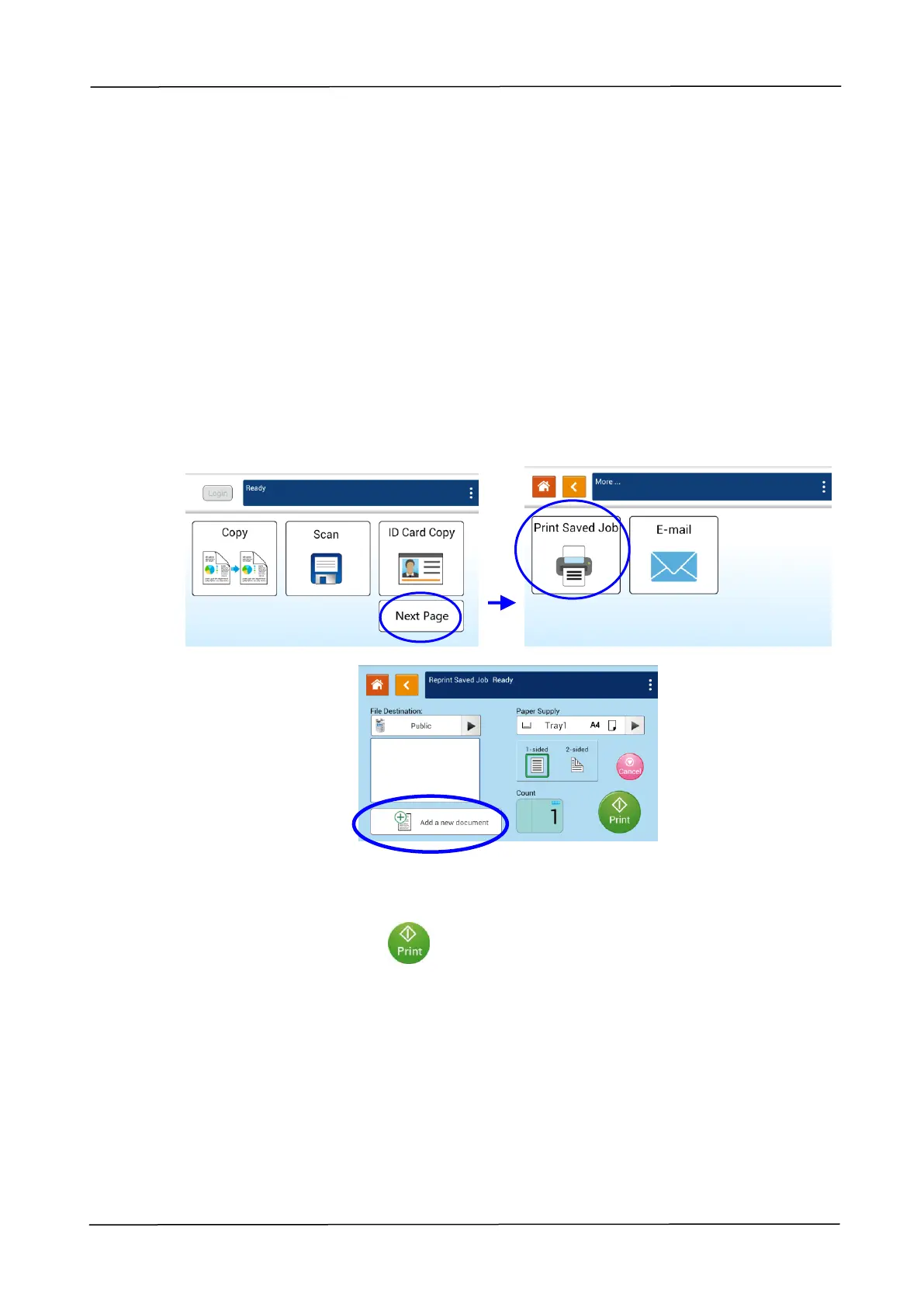
2. 「More…」and then 「Print Saved Job」button on the touch screen to prompt the
「Print Saved Job」 main screen and then select [Add a new document]. The
「Add a new document」 screen will be displayed.
3. Set up your desired options respectively. For detailed information about these tab
options, please refer to the next page.
4. Tap the「Print」button on the touch screen to start copying your document
to the product’s memory.


 To Next Page