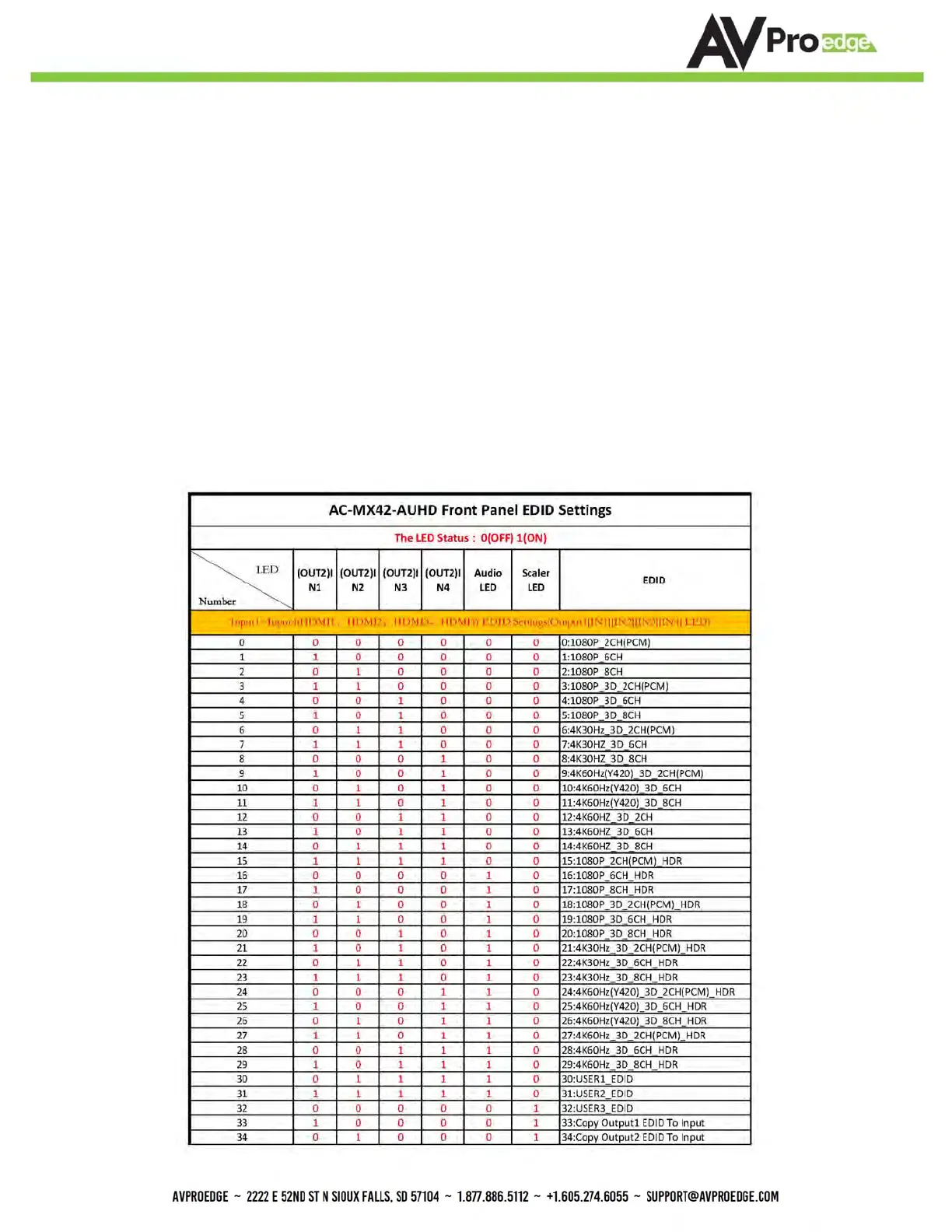
Use the chart below to pick your EDID:
1.
Press and hold both "Out 1" and "Out 2" buttons for 5 seconds.
a.
All LED flash one time. You are now in EDID management state.
2.
In the EDID management state, press the "Out 1" button to toggle to the input you want
to set the EDID for. (1=IN1, 2=IN2, 3=IN3, 4=IN4)
3.
Press the "Out 2" button to toggle through the EDID index.
4.
Once you land on the EDID you want to use, press and hold the "Out 2" button for 3
seconds. All LEDs will flash one time indicating success
5.
NOTE: When in the EDID management state, if you are inactive for 10 seconds it will
return to the normal state automatically. All LEDs flash one time.
6.
NOTE 2: We have a video available online or upon request if desired. Contact us or
request at support.avproedge.com
EDID Management:
The BEST/EASIEST WAY to setup EDID's is to use the web interface. However, we know that may not always be an
option. Since there is no screen on the device, you will have to rely on the LED's to complete EDID setup. Please
follow the steps below (This might take one or two tries to get used too.)


 To Next Page