RTP120 All-in-One 12.1” TFT LCD Panel PC User’s Manual
Hardware Installation
22
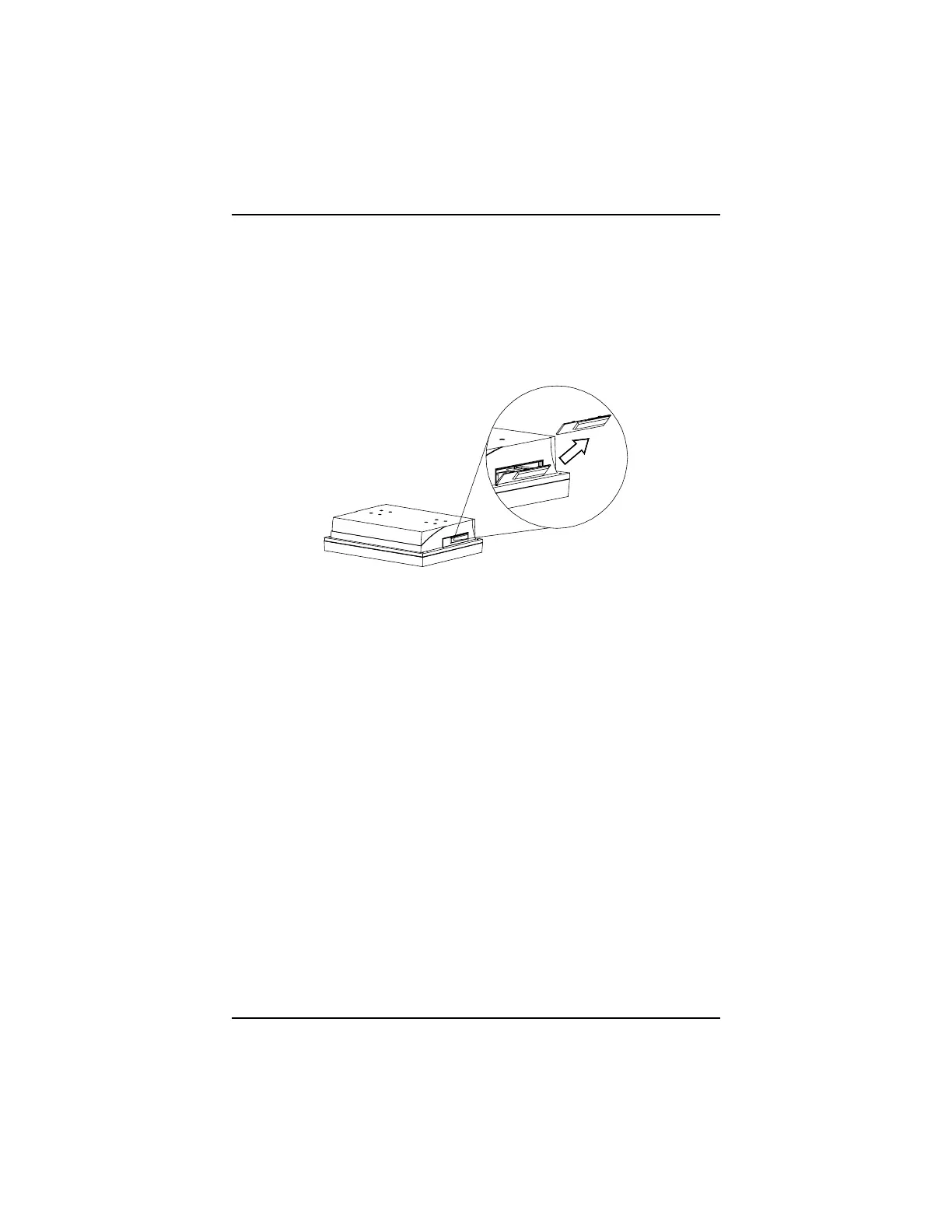
3.11 USB and Dallas Key Installation
To install an USB device or to access a Dallas key to the system from
side panel, you must get access to the connectors located on the side
panel. Take off the dust/spill cap located at the side panel by pushing
it downward to loosen its grip on top. Once loosened, pull the cap
upward to disengage completely.
3.12 System O/S and Software Installation
The RTP120 series is not equipped with any operating system. It
reserves a 3.5” HDD drive bay for its storage device space. As both
devices are built in the system chassis, to load any O/S or application
software into the computer, an external device is needed to act as a
bridge. There are three major ways to load software into the system.
Use an external USB flash memory:
Attach a USB flash memory to the USB port. Then,
configure the system BIOS setup and containing
necessary software and start the installation.
Use Ethernet:
If the Ethernet bootrom is already included in the system,
the user can boot up the system via bootrom and
download the system O/S or application software from
the net.
Use external USB CD-ROM/ HDD:
Attach a USB CD-ROM or USB HDD to the USB port. Then,
configure the system BIOS setup and containing
necessary software and start the installation.



 To Next Page