28
AXIS 221 - Event Configuration
Configuring Event
Types
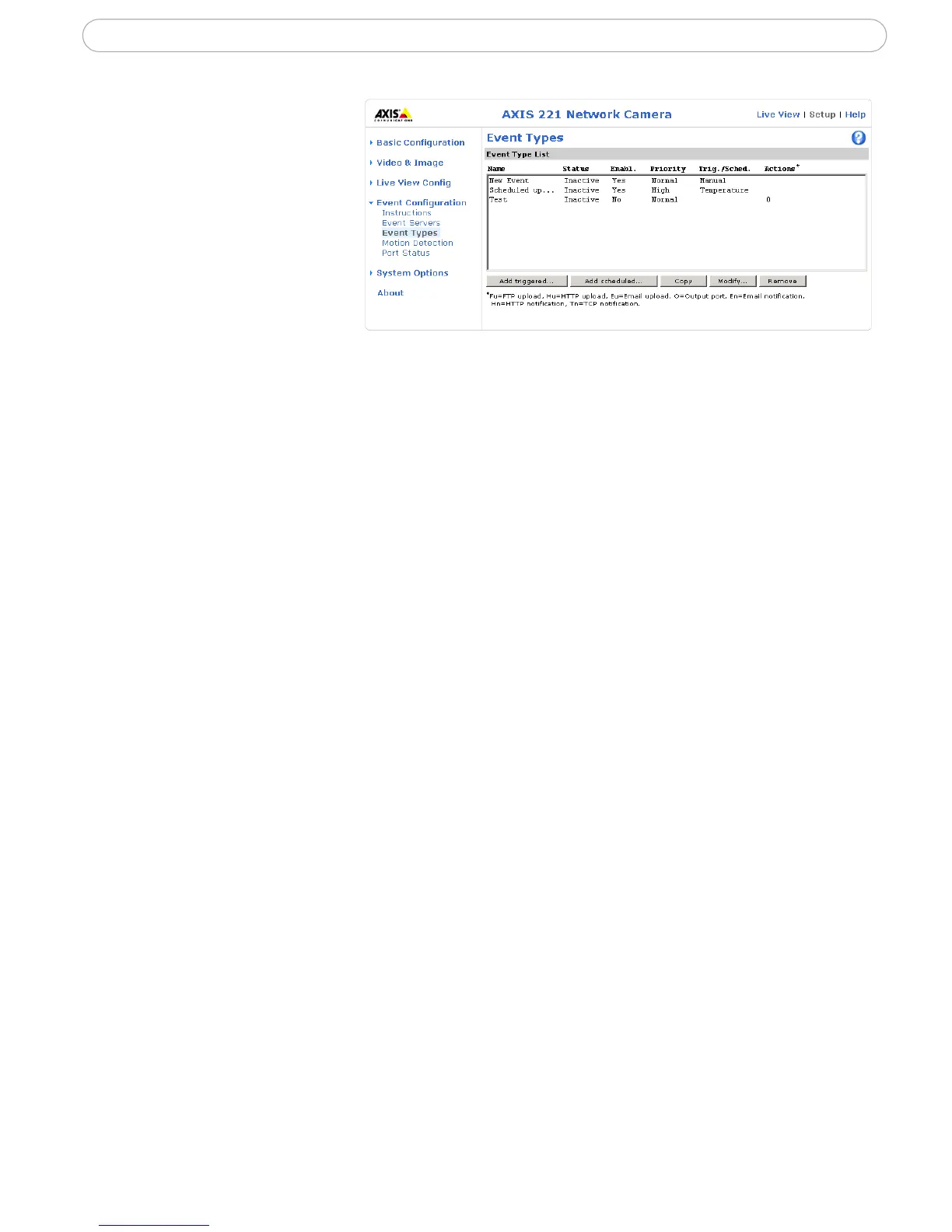
An Event Type describes
how and when the camera
will perform certain actions.
Example: If somebody passes in
front of the camera, and an event that
uses motion detection has been con
-
figured to act on this, the camera can
e.g. record and save images to an FTP server, and/or send a notification e-mail to a pre-configured e-mail address
with a pre-configured message. Images can be sent as e-mail attachments. See File Naming & Date/Time Formats
under Event Configuration in the online help.
Triggered Event
A Triggered event can be activated by:
• a switch (e.g. a push button) connected to the camera’s input port
• detected movement in a configured motion detection window
• a manually activated action, e.g. from an action button in the web interface
• on restart (reboot) after e.g. power loss
• a temperature warning
• a camera tampering alarm
How to set up a triggered event
This example describes how to set the camera to upload images when e.g the main door is
opened:
1. Click Add triggered... on the Event Types page.
2. Enter a descriptive name for the event, e.g. Main door open.
3. Set the priority - High, Normal or Low (see the online help).
4. Set min time interval between triggers - The shortest possible interval is 1
second and the longest is 23 hours, 59 minutes and 59 seconds. (see the online
help).
5. Set the Respond to Trigger... parameters for when the event will be active,
e.g. only after office hours.
6. Select the trigger alternative from the Triggered by... drop-down list, e.g. select
Input ports, for the sensor connected to the door.
7. Set the When Triggered... parameters, i.e. define what the camera will do if the
main door is opened e.g., upload images to an FTP server or send an e-mail.
8. Click OK to save the Event in the Event Types list.


 To Next Page