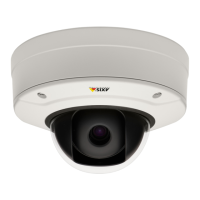
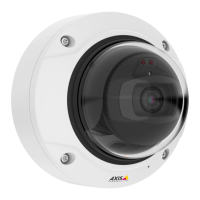
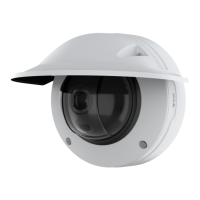
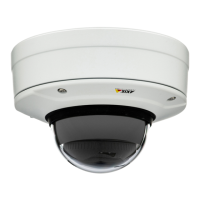
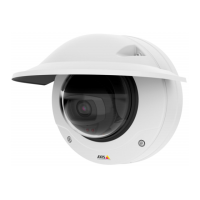
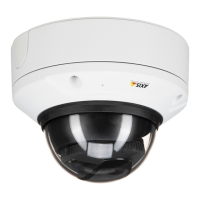
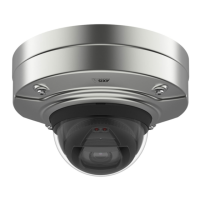
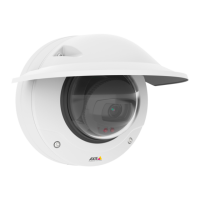
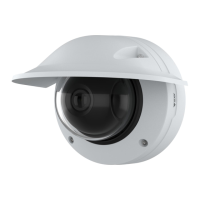
AXISQ3505–VEFixedDomeNetworkCamera
VideoandAudio
PrivacyMask
Aprivacymaskisauser-denedareathatpreventusersfromviewingpartsofthemonitoredarea.Privacymasksappearas
blocksofsolidcolororblurredimageelementsandareappliedonthevideostream.Privacymaskscannotbebypassedusingthe
VAPIX®applicationprogramminginterface(API).
ThePrivacyMaskList(Video&Audio>PrivacyMask)showsallthemasksthatarecurrentlyconguredintheAxisproductand
indicatesiftheyareenabled.
Youcanaddanewmask,re-sizethemaskwiththemouse,chooseacolorforthemask,andgivethemaskaname.
Formoreinformation,seetheonlinehelp
Important
Addingmanyprivacymasksmayaffecttheproduct’sperformance.
Focus&Zoom
Forinstallationinstructions,refertotheproduct’sInstallationGuide.
IfyouhaveselectedOpticalzoomforinstallation,followtheinstructionsbelowtosetfocusandzoom.SeePTZModeonpage10
formoreinformation.
Tosetfocusandzoom:
1.InstallthecameraasdescribedintheInstallationGuide.
2.GotoVideo&Audio>Focus&Zoom.
3.OntheBasictab,setthezoomlevelusingtheslider.Thebuttons<and>movethezoompositiononestepineither
direction.Thebuttons<<and>>movethezoompositioninmultiplestepsineitherdirection.
4.ClickPerformautofocustofocusthecameraautomatically.
5.Ifmoreadjustmentsareneeded,gototheAdvancedtab.
Note
•Movementsinfrontofthecamerashouldbeavoidedduringautomaticfocusing.
OntheAdvancedtab,focuscanbeadjustedmanually:
1.ClickOpeniristoopentheiristoitsmaximumposition.Thisgivesthesmallestdepthofeldandprovidesthebest
conditionsforfocusing.
2.FocusissetintheFocuswindow.Usethemousetomoveandresizethefocuswindow.
3.ClickintheFocuspositionbartofocusonadesiredlocation.Thebuttons<and>movethefocuspositiononestepin
eitherdirection.Thebuttons<<and>>movethefocuspositioninmultiplestepsineitherdirection.
4.Whensatised,clickEnableiristoenabletheiris.
SetZoomandFocus-OpticalZoomforMonitoring
TosetFocus&ZoomwhenyouhaveselectedOpticalzoomformonitoring:
GotoPTZ>PresetPositionsandfollowtheonlineinstructionstosetthefocus.Inordertobeabletoretainthisfocusposition
afterrestartingthecamera,enteranameforthispresetintheCurrentpositioneldandselecttheUsecurrentpositionasHome
option.IfyoucalibratetheopticswhileinthisOpticalzoomformonitoringmode,selectthispresetfromtheAvailablepositions
drop-downlistinthePresetPositionswebpage.ClickGotoandSave.
Formoreinformationonpresetpositions,seePresetPositionsonpage31.
26


 To Next Page