AXIS Q6032-E/AXIS Q6034-E Installation Guide Page 13
ENGLISH
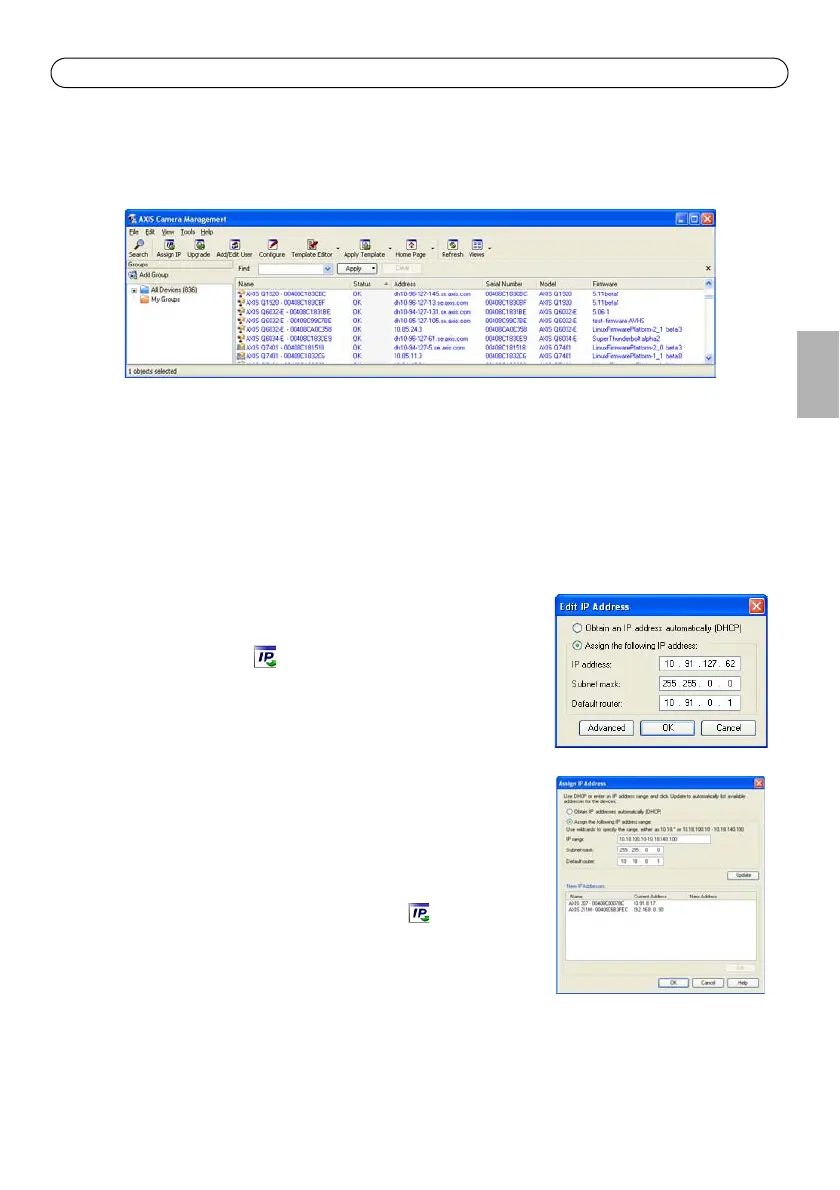
AXIS Camera Management - multiple cameras/large installations
AXIS Camera Management can automatically discover multiple Axis devices, show connection
status, manage firmware upgrades and set IP addresses.
Automatic discovery
1. Check that the camera is connected to the network and that power has been applied.
2. Start AXIS Camera Management. When the network camera appears in the window, right-click
the link and select Live View Home Page.
3. See page 14 for instructions on how to set the password.
Assign an IP address in a single device
1. Select network camera in AXIS Camera Management and click
the Assign IP button .
2. Select Assign the following IP address and enter the IP
address, subnet mask and default router the device will use.
3. Click OK.
Assign IP addresses in multiple devices
AXIS Camera Management speeds up the process of assigning IP
addresses to multiple devices, by suggesting IP addresses from a
specified range.
1. Select the devices you wish to configure (different models can
be selected) and click the Assign IP button .
2. Select Assign the following IP address range and enter the
range of IP addresses, the subnet mask and default router the
devices will use.
3. Click Update. Suggested IP addresses are listed under New IP Addresses and can be edited by
selecting a device and clicking Edit.
4. Click OK.



 To Next Page