15
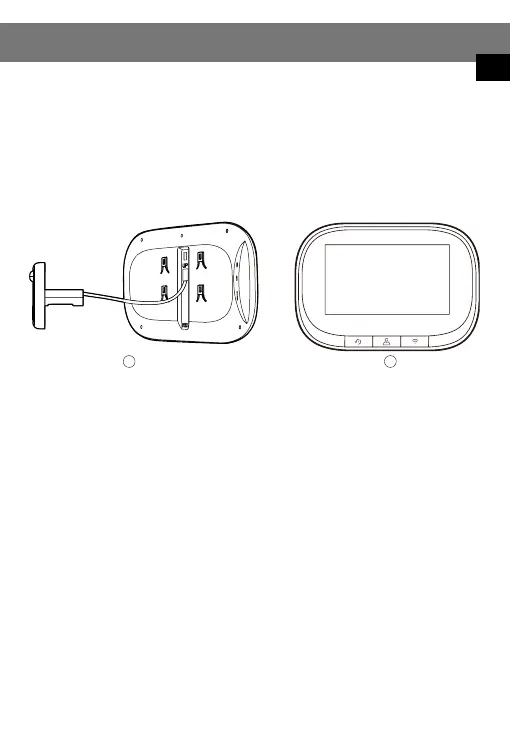
Step 2: Remove the outdoor unit and indoor unit from the device (host), and connect
the cable from the outdoor unit to the back of the host, as shown in (gure 3). Press and
hold down the (centre key) on the device for 3 seconds to start up. Then long press the
(right key) for 5 seconds to enter the network conguration mode, at this time, the host
will have a voice prompt "please use app to setup the network", and you will see the
blue indicator blinking (blinking once in 1 second) on the host.
Step 3: When you hear the voice message from "please use app to setup the
network" and see the blue indicator ashes (ashes once in 1 second), please select
the reminder "make sure the indicator ashes quickly or a warning tone is heard"
in the mobile APP (gure 2), and then click "next", a new interface will appear (gure 5).
Step 4: Enter the Wi-Fi username and password (gure 5). Then click "Next" to bring
up the QR code interface (Figure 6). At this time, point the camera lens at the QR code.
When the host sends a voice message "Connecting network", click "next" to display
the QR code interface (gure 6), click the "Hear the warning tone" option in the
interface (gure 6), and the "adding device" interface (gure 7) appears. After about
30 seconds, when the host sends the voice message "network setup successfully", the
network setup is nished, and the interface of (gure 8) appears. Click "Finished" and
then click "Security camera" to enter the video interface.
connector
indoor unit
43
EN


 To Next Page