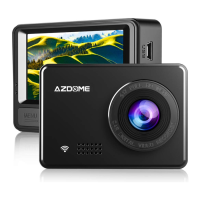
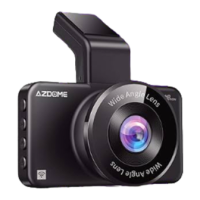
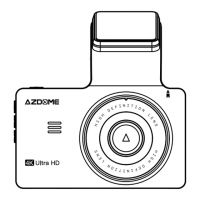
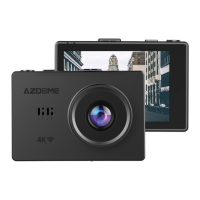
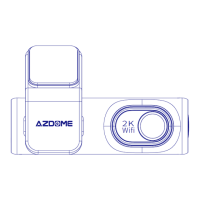
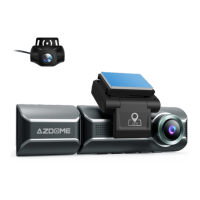
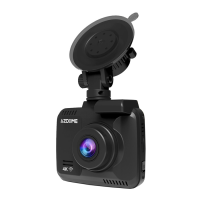
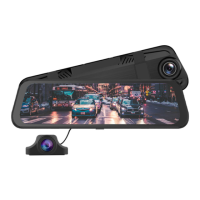
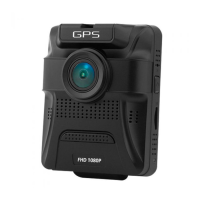
This document describes the AZDOME M05 Car Dashcam, an in-car recording device designed to capture video and audio while driving. It serves as a reference for incidents and driving events.
Function Description
The AZDOME M05 is primarily a Full HD (FHD) recording dashcam. It features an OLED touch screen for intuitive control and a wide HD viewing angle (FOV) to capture a broad perspective of the road. The device supports multi-language interfaces, allowing users to select their preferred language. In addition to continuous video recording, it can also take photos.
Key features include:
- G-Sensor: This sensor detects sudden movements or impacts, automatically locking the current recording file to prevent it from being overwritten. Users can adjust the G-sensor sensitivity; a higher setting will trigger file locking with smaller bumps.
- Date Stamp: All recordings are stamped with the date and time, which is synchronized with GPS signals for accuracy.
- Loop Recording: This function ensures continuous recording by overwriting the oldest files when the memory card is full. Users can set loop recording intervals (1, 3, or 5 minutes).
- Audio Recording: The device supports audio recording, which can be toggled on or off.
- File Management: Users can play back recorded videos and photos directly on the device.
- Settings: Access various device configurations through the settings menu.
Important Technical Specifications
The AZDOME M05 is equipped with the following technical specifications:
- Sensor: CMOS
- Lens: FHD Lens
- Screen: 3-inch OLED Touch Screen
- Mic/Speaker: Built-in
- Storage: Supports Micro SD cards up to 128GB (Class 10, U3 or above recommended).
- Flash: Electronic Shutter
- Car Charger: 5V/2A
- Working Temperature: -10°C to 60°C (14°F to 140°F)
- Battery: 400mAh
Usage Features
Installation Guide:
- Turn off the car engine.
- Insert a TF card (Class 10 or above, formatted after power-on) into the dashcam's card slot.
- Fix the dashcam on the front windshield.
- Connect the dashcam's USB interface to the car charger using the charging cable. Hide the cable along the windshield edge.
- Insert the car charger into the car cigarette lighter.
- Adjust the lens position to ensure it is level with the ground.
- Start the engine and verify correct installation.
Power On/Off:
- To turn on: In the power-off state, press and hold the power button.
- To turn off: In the power-on state, press and hold the power button to automatically save recording files and power off.
Button Functions:
- Video Record: Short touch to start recording, short touch again to stop.
- Audio Recording: Toggle audio recording on/off.
- Photo: Short touch to snap a picture.
- Lock File: During recording, short touch to lock the current file.
- Display Shift: Shift the main display between the front camera and rear camera (if a rear cam is installed).
- Files: Access and play back recorded videos and photos.
- Settings: Access device settings.
GPS & Car DV Player:
To view GPS trace data, users need to install the Car DV Player software on their computer. The software can be downloaded from www.azdome.hk/downloads.html. After installation, open video files through the player to view GPS data. If Google Maps fails to load, users should run the GPS Player as an administrator, upgrade Internet Explorer to IE 10 or above, or contact customer support.
Maintenance Features
Troubleshooting (FAQ):
- Camera not turning ON: Ensure the camera is charged for 2 hours before first use, the memory card is properly inserted, and the power cable is connected.
- Date and Time not saving: Go to system settings > Time Zone Setting, set the correct GMT value, and confirm. GPS signal will ensure correct date and time.
- Frequent ON/OFF cycles: Reset the camera. Ensure "Motion Detection," "Auto Power Off," and "Parking Mode" are set to OFF.
- Lagging video playback on PC: This may occur with high-bitrate video files on older computers. Try recording at a lower resolution or contact support.
- Camera getting hot: Normal for dashcams to run slightly hot, especially with higher video resolutions (up to 60°C/140°F).
- Fuzzy video: Ensure the lens is clean and there's no dirt on the windshield.
- Camera freezing/lagging/crashing: Use only Class 10 or above Micro SD cards. Insert a paper clip into the reset hole to restart, or try a different Micro SD card.
- Automatic video locking: Increase G-sensor sensitivity. Higher sensitivity can trigger locking with smaller bumps, depending on vehicle type and road conditions.
- "Card Full" error: Format the card via System Settings > Format. Then, set Loop Recording to 1, 3, or 5 minutes.
- "Memory Error" or "Please Insert Micro SD Card" error: Ensure the Micro SD card is at least Class 10, U3, and purchased from a trusted vendor. Format the card in camera settings, then power off, unplug, and re-plug the power cable to restart recording.
Reset Hole:
Located on the right side of the device, marked with "R." If the device crashes, press the reset hole and reconnect power to restore the machine.
Disclaimer:
Videos and pictures taken by the dashcam are for reference only. AZDOME is not responsible for data loss in abnormal circumstances. Files may be damaged or lost if:
- The TF card is pulled out during recording.
- There is an illegal blackout during recording.
- A destructive collision occurs during recording.
- A destructive collision causes the memory card to become loose.
Warranty & Customer Support:
AZDOME provides a 1-year limited warranty from the date of purchase against material and craftsmanship defects. For questions, support, or warranty claims, contact service@azdome.hk. Proof of original purchase (online order receipt accepted) is required for warranty service. AZDOME only provides after-sales service for products purchased directly from AZDOME. For purchases from other sellers, contact them directly for service.

 Need help?
 General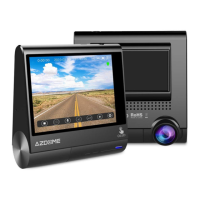

 To Next Page