SETUP
3.4 Using the SD Card
3.4.1 Loading les from your Computer
1. Insert your SD Card into a card reader or memory card slot and connect to your computer
(refer to your computer manual for further instructions if required)
2. The SD Card will appear as a folder (refer to your computer manual for further instructions if
required)
3. Copy your converted GCODE les to the SD card, then safely remove
3.4.2 Printing from the SD Card
1. Insert the included SD card into the slot on the right side of the 3D Printer, ensuring that the
metal contacts are facing upwards
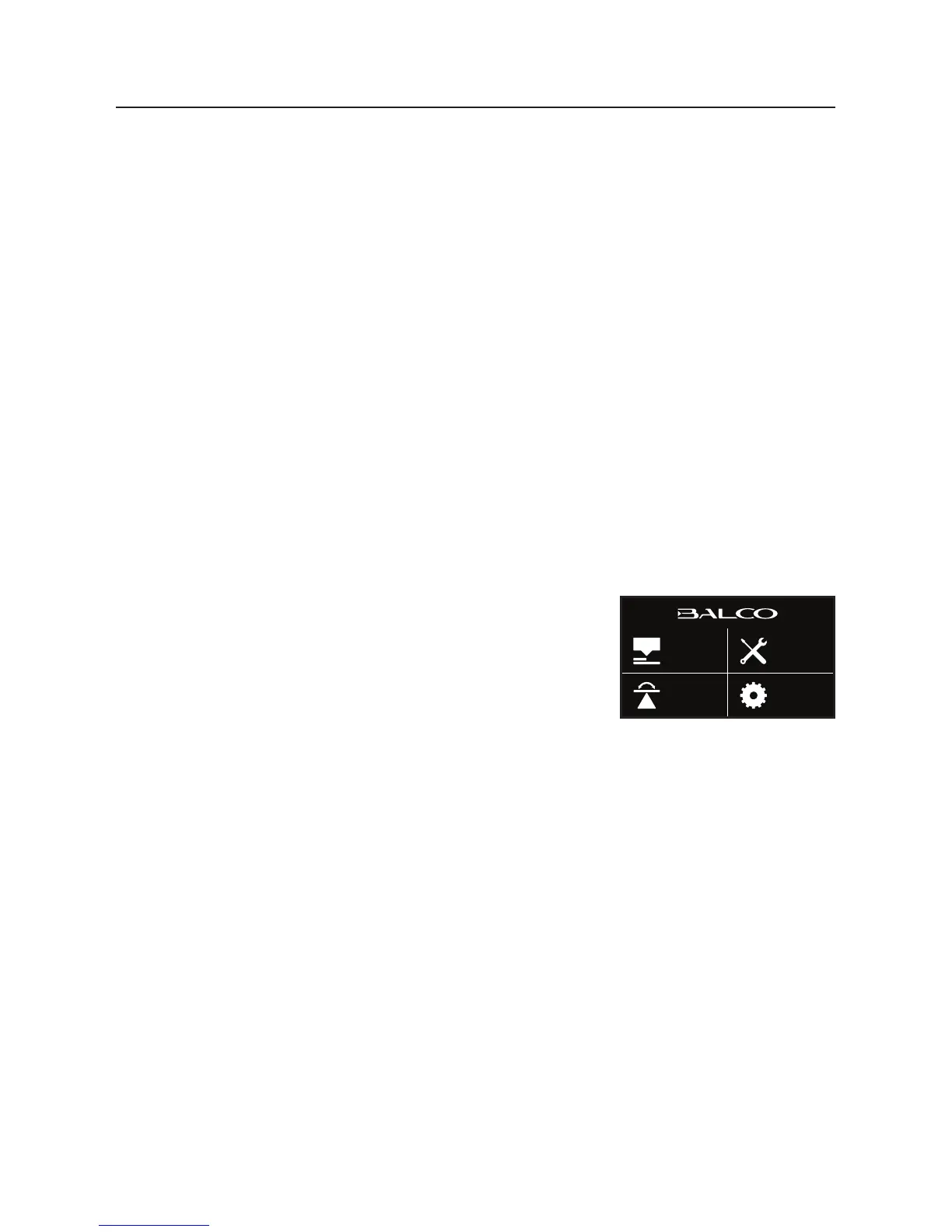
2. Select Print from the Main Menu and select your desired le to print
3. Once selected, your le will begin to load and your le status can be viewed on the touch
screen. Your printer will automatically commence heating the Extruder and Print Bed to the
correct printing range before commencing the print
NOTE: If your le is not printing correctly, press the Stop Button to discontinue the print. Ensure the
extruder is raised prior to removing the print o the Bed
NOTE: Immediately turn o the machine if any of the motors are
jamming or forcing against the chassis
NOTE: If you cannot access the Print menu, it is likely the SD Card is not
mounted properly. Try removing and reinserting the SD Card.
PRINT
QUICK
MENU
LEVEL
WIZARD
ADVANCED


 To Next Page