R5900095 /05 CX-5036
Image 3–4
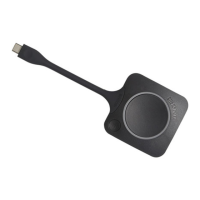
5. To remove your content from the display, click the Button again.
The LEDs of the Button become static white.
6. When leaving the meeting room, unplug the Button from your laptop.
No trace of the ClickShare application is left on your laptop.
As second user can replace the current presenter with a long press on his Button.
Use in a fully equipped conference room
When connecting with the Button, it allows you to connect the room speakerphone, microphone and camera
wireless to your laptop and use the better equipment of the room in your video conferencing call.
Icons on the wallpaper indicate the availability and status of the peripherals in the room. When one of them is
not attached to the Base Unit allowing to create an audio only meeting room or a video only meeting room, the
corresponding icon will not be shown on the wallpaper.
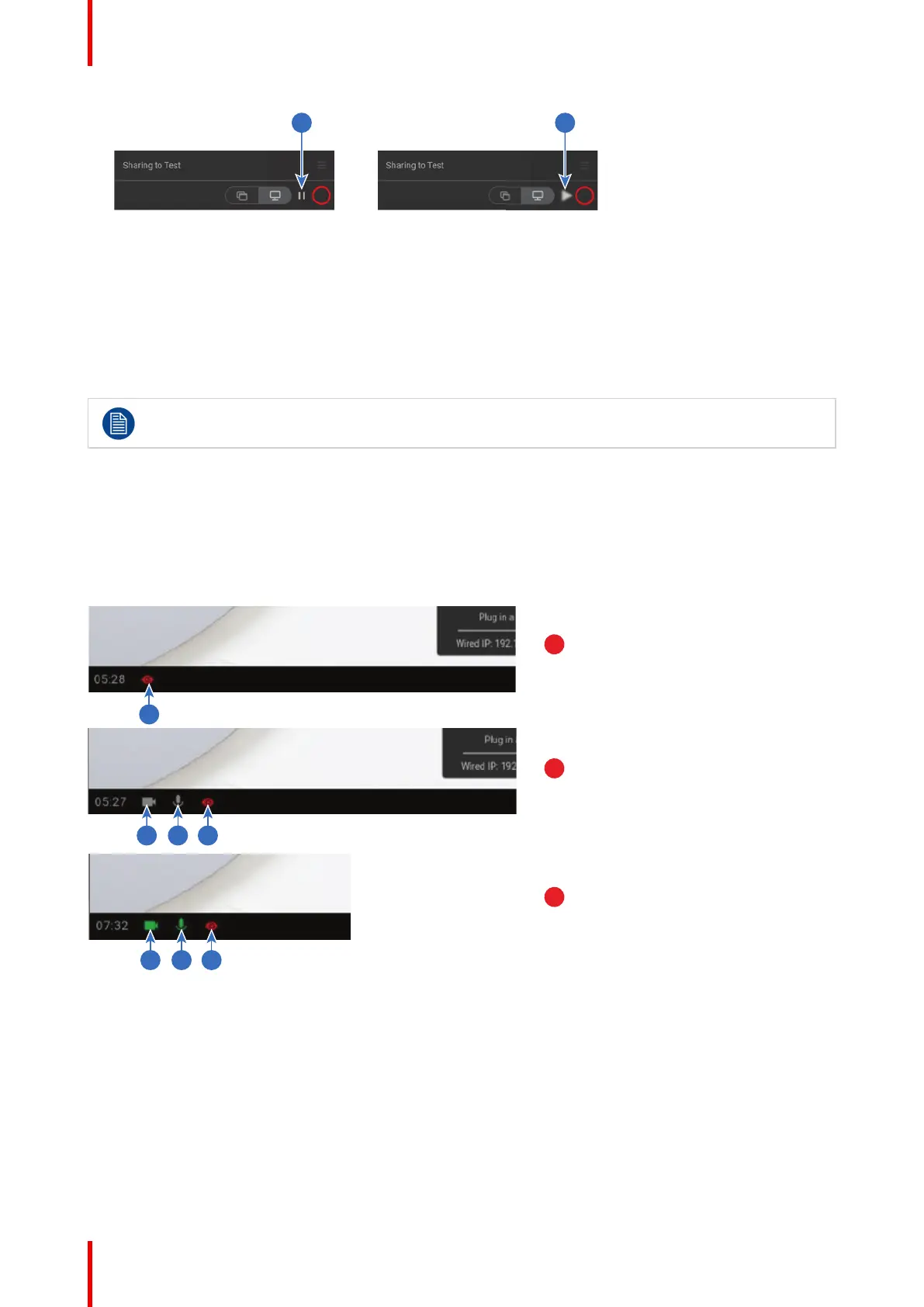
Image 3–5
A No peripherals attached, local view active
B Camera and speakerphone attached, only local view
C Camera and speakerphone attached and active, local view
active
1 Local view active
2 Camera connected, not active
3 Speakerphone connected, not active
4 Local view active
5 Camera connected and active
6 Speakerphone connected and active, not muted.
7 Local view active
Quick access button
This quick access button opens a selection window to make the choice what will be displayed on the screen.
Getting started



 To Next Page