

EasyManua.ls Logo

Barracuda F400 - User Manual

Barracuda F400
6 pages
Print Icon
To Next Page IconTo Next Page
Loading...
Barracuda CloudGen Firewall
Barracuda NG Firewall F400 Revision B 1 / 6
Barracuda NG Firewall F400 Revision B
https://campus.barracuda.com/doc/43847032/
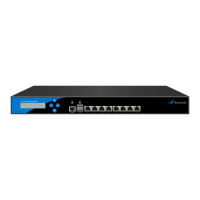
F400 Standard Model
F400 Sub-Model .F20
The standard model of Barracuda's NG Firewall F400 (Rev. B) comes with eight 10/100/1000 MBit RJ45
Ethernet ports and a single power supply. Other F400 model types (.F20) provide different port
combinations and a dual power supply.
Standard Model Port Configuration
Label OS Notation Speed/Type Management Port
1 port1 10/100/1000 MBit RJ45 X
2 port2 10/100/1000 MBit RJ45
3 port3 10/100/1000 MBit RJ45
4 port4 10/100/1000 MBit RJ45
5 port5 10/100/1000 MBit RJ45
6 port6 10/100/1000 MBit RJ45
7 port7 10/100/1000 MBit RJ45
8 port8 10/100/1000 MBit RJ45
F400 Sub-Model .F20 Port Configuration
Label OS Notation Speed/Type Management Port
Question and Answer IconNeed help?

Do you have a question about the Barracuda F400 and is the answer not in the manual?

Summary

Standard Model Port Configuration

Hardware Specifications

Status LEDs and Acoustic Signals

Serial Console Port

LC Display

Navigating the LC Display

Describes how to navigate the appliance's LCD menu using the keypad.

LCD Display Menu

Overview

The Barracuda NG Firewall F400 Revision B is a CloudGen Firewall appliance designed for network security. It comes in a standard model and a sub-model (.F20), offering different port configurations and power supply options.

Function Description:

The Barracuda NG Firewall F400 acts as a security appliance, providing firewall capabilities. It is designed to secure network traffic and manage network access. The device can operate in various states, indicated by a Status LED, and offers features for installation, normal operation, and recovery. It can be managed through a serial console port or an LCD display menu on the front panel.

Important Technical Specifications:

Standard Model (F400):

  • Ethernet Ports: 8 x 10/100/1000 MBit RJ45 Ethernet ports.
  • Power Supply: Single power supply.
  • Management Port: Port 1 (port1) is designated as the management port.

Sub-Model (.F20):

  • Ethernet Ports: 8 x 10/100/1000 MBit RJ45 Ethernet ports.
  • Fibre SFP Ports: 4 x 1 GbE Fibre SFP ports (port19, port10, port11, port12).
  • Power Supply: Dual, internal hot-swap power supply.
  • Management Port: Port 1 (port1) is designated as the management port.

General Hardware Specifications:

  • CPU: Intel Dual Core
  • Memory: 4 GB
  • Mass Storage: 80 GB SSD
  • Flash Disk: Not specified (indicated by '-')
  • LCD Module: 2 x 20 characters
  • USB: 2x USB 2.0
  • Form Factor: 1U rack mount
  • Dimensions (W/D/H): 426 x 365 x 44 mm (16.8 x 14.4 x 1.8 in)
  • Weight (appliance): 6.5 kg / 14.3 lbs
  • Power Supply Input Voltage: 100 - 240 V, AC
  • Power Supply Voltage: 47 Hz - 63 Hz
  • Power Supply Watts: 220 W
  • Operation Temperature: 0 °C - 40 °C
  • Storage Temperature: -20 °C - +70 °C
  • Relative Humidity: 5% - 95%, non-condensing
  • Certifications: CE, FCC, ROHS

Usage Features:

Status LEDs and Acoustic Signals:

The appliance features a Status LED (labeled with a heart symbol or "Status") that indicates its operational state through color changes (green, orange, red) and blinking/steady glowing.

  • Off (LED Off): Appliance is powered off or installation has not initialized.
  • Green Blinking: Normal installation; appliance is booting, shutting down, or performing a system update.
  • Green Steady: Installation completed successfully; appliance is halted for reboot, or installation not initialized; appliance is up and running.
  • Red Blinking: Error during installation; an error prevents the firewall from entering the up state. If no orange light is available, the appliance is in ART mode.
  • Red Steady: Appliance is halted and may be disconnected.
  • Orange Blinking/Steady: Appliance is in ART mode.

Acoustic signals (beeps) also indicate installation status:

  • 1 Beep: Unit starts booting.
  • 3 Beeps: Installation completed successfully, and appliance is halted for reboot. After reboot, one beep indicates booting.

Serial Console Port:

To establish a console connection using an RJ45 serial cable, the terminal's serial port must be configured with the following parameters:

  • Baud: 19200
  • Bits: 8
  • Stop bit: 1
  • Parity: None
  • Handshake: None

LCD Display Menu:

The front panel includes an LCD display and a keypad with four keys (Left/Escape, Up, Down, Right/Enter) for direct interaction with the appliance.

  • Left or Escape: Navigates back or acts as an Escape key in the LCD menu.
  • Up: Navigates up or increases a value.
  • Down: Navigates down or decreases a value.
  • Right or Enter: Navigates forth or acts as an Enter key for confirming a configuration step.

The LCD menu provides access to various information and commands:

  • Appliance type, OS version and release number: Default display.
  • IP address and subnet mask: Shows configured network details.
  • Time and date: Displays current time and date.
  • Uptime of Barracuda OS: Shows uptime in days, hours, and minutes.
  • Serial number of the appliance: Unique identifier.
  • Shutdown menu: Enables shutting down the appliance.
  • Reboot menu: Enables rebooting the appliance.
  • Menu to change the management IP address: Configures the IP address for the management port.
  • Menu to boot into ART during the next reboot: Sets a flag to boot into Active Recovery Technology (ART) mode on the next reboot. Once set, this flag cannot be deleted via the menu. In ART mode, the appliance will not start Barracuda OS but ART instead. Connection can be made via serial console or SSH. A Control Center managed box in ART mode cannot be managed via the CC but will signal its presence.

Maintenance Features:

The document highlights that opening the appliance or removing its warranty label without instruction from Barracuda Networks support will void the warranty and hardware support. This implies that maintenance should primarily be performed by authorized personnel or under specific guidance from Barracuda Networks support. The ART mode feature provides a recovery mechanism for troubleshooting and system restoration.
Barracuda F400 Specifications

General IconGeneral
BrandBarracuda
ModelF400
CategoryServer
LanguageEnglish