The instructions of gimbal operating modes
Default mode
after power on
Green Full follow mode
The roll axis is locked, the pan axis
and tilt axis follow the handle to
Single press
mode button
Red Lock mode
All three axes are locked, and phone
screen is locked in the direction of
current shooting. (Set as lock mode
Single press
mode button
Blue
Semi-follow
mode
The tilt axis and roll axis are locked,
the pan axis follows the handle to
Notes: Single press the power button to cycle through the above three modes in order.
Identify the current mode according to the indicator light colour and gimbal status.
Gimbal mode
personalized in
the APP
Green PhoneGo mode
Set the trigger button in the APP as
PhoneGo mode, press and hold the
trigger button for instant scene
Red FPV mode
The setting mode is switched to FPV
mode in the APP. The roll axis
follows the handle to rotate. You can
take a rotating video. (Single press
the mode button to turn the
Gimbal calibration
If there is an angle deviation after power on, please place the phone on the gimbal in the
correct way, open the Wireless and connect the APP, then press "icon"-other functions-
initialize the sensor when the gimbal remains stationary. Click calibration and wait for 15
seconds. The gimbal will automatically calibrate and enter sleep mode during this
period. Restart it after 15 seconds.
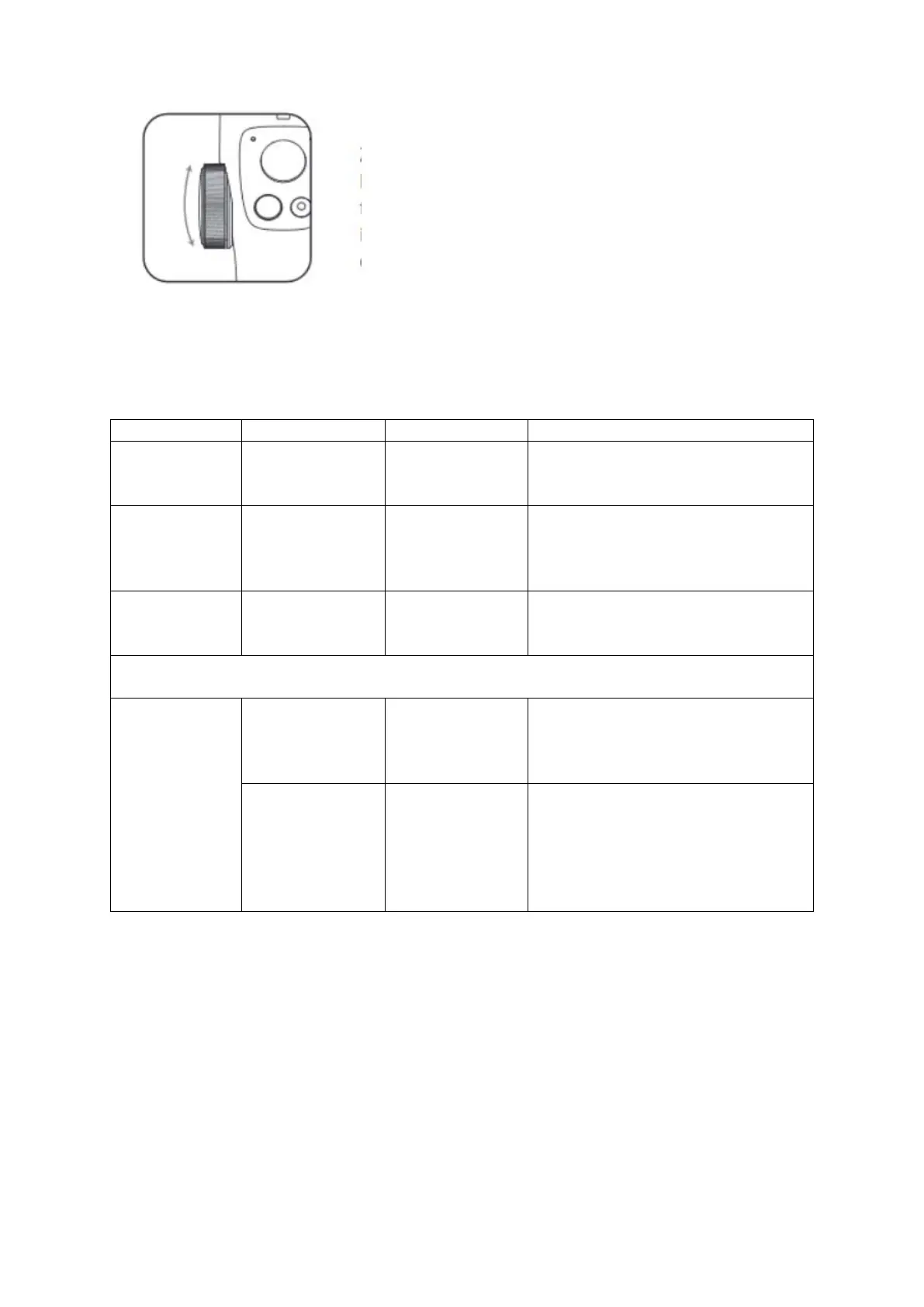
Rotate to zoom in/out the footage; press once and rotate
to tilt the lens; you can also personalize specific functions
in the APP, such as controlli
ng the left and right rotation
of the lens through the focusing knob;


 To Next Page