EasyManua.ls Logo

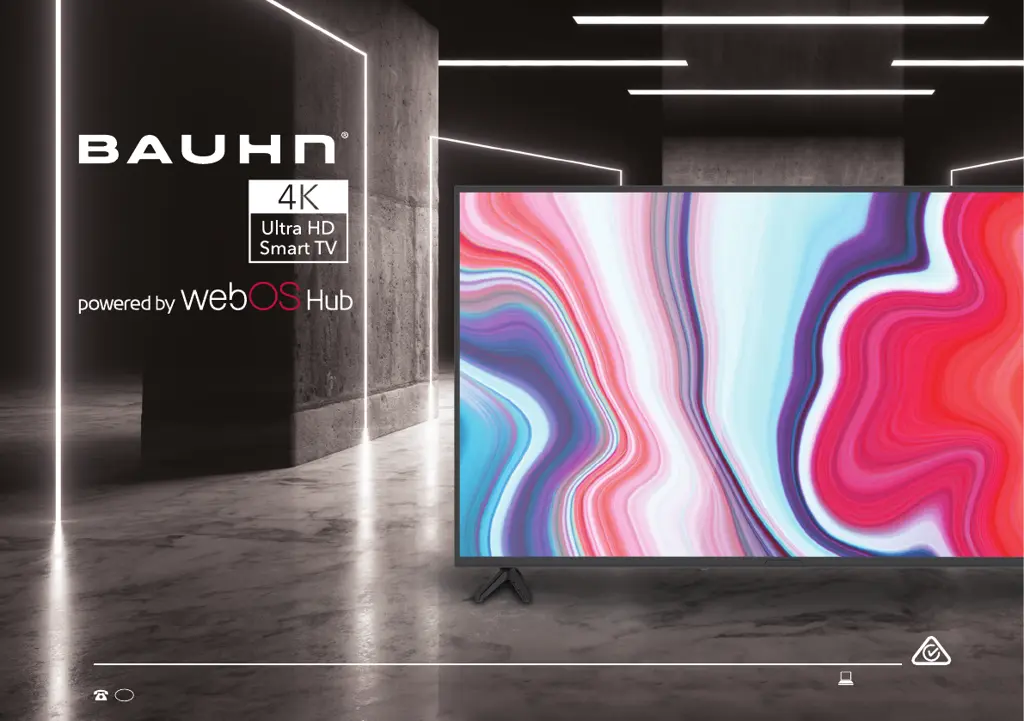
Bauhn 716019 - User Manual

Bauhn 716019
56 pages
Print Icon
To Next Page IconTo Next Page
Loading...
User Manual
AFTER SALES SUPPORT
1300 002 534
tempo.org/support
MODEL: ATV70UHDW-0624 PRODUCT CODE: 716019 06/2024
AUS
MODEL: ATV70UHDW-0624
70

Questions and Answers

  • C
    Cynthia LeeAug 7, 2025
    How to fix a Bauhn 716019 that won't turn on?
    • J
      Joseph SmithAug 7, 2025
      If your Bauhn Smart TV won't turn on, ensure the AC power cord is securely plugged into the wall outlet and that the outlet is switched on. Check if the power indicator at the bottom of the TV is lit. If you're using a multi-outlet, verify it's functioning correctly by plugging the TV directly into a wall outlet. Also, try using the power button located on the TV itself.
  • P
    Peter MartinezAug 15, 2025
    How to troubleshoot a Bauhn 716019 remote control?
    • J
      John BairdAug 16, 2025
      If the remote control for your Bauhn Smart TV isn't working, ensure the batteries are installed correctly, matching the + and – poles. Remove any obstructions between the remote and the TV's remote control sensor. Check if the power indicator at the bottom of the TV blinks when you press the remote's power button; if not, replace the batteries. Try pointing the remote directly at the sensor from about 1.5-1.8 meters away.
  • R
    Robert NguyenAug 20, 2025
    What to do if there is no picture or sound from external device on Bauhn 716019?
    • B
      bryantamberAug 20, 2025
      If you're experiencing no picture or sound, or distorted picture or sound from an external device connected to your Bauhn Smart TV, ensure the connection to the device is correct and all cables are fully inserted. Remove and reconnect all cables connected to both the TV and the external devices. If possible, try using new cables. Restart the connected devices by unplugging their power cords and plugging them back in. If 'No Signal' is displayed, ensure the correct input source has been selected on the TV. When using a 4K playback device, make sure you are using a High-Speed HDMI cable.
  • Z
    zsimpsonAug 25, 2025
    Why is there no picture or sound in DTV mode on my Bauhn 716019?
    • W
      William PerryAug 26, 2025
      If you experience no picture or sound, or distorted picture or sound in DTV mode on your Bauhn Smart TV, and 'No Signal' is displayed, run Auto Tuning by going to Menu > Programmes > Programme Tuning > Auto Tuning. If some channels are missing, try Manual Tuning via Menu > Programmes > Programme Tuning > Manual Tuning. If possible, test with a different antenna cable or another TV. Move the TV away from electronic equipment that could cause interference and adjust the antenna position.
  • P
    pjonesAug 29, 2025
    How to fix no sound on Bauhn 716019?
    • U
      uthomasAug 29, 2025
      If there is no or distorted sound on your Bauhn Smart TV, first, make sure the volume isn't muted. If it is, press the VOL+ button. If earphones are connected, unplug them. Ensure the connection to any external audio device is correct and that all cables are fully inserted. Verify the correct input source and audio settings are selected on the external audio device. Move the TV away from electronic equipment that could cause interference. When using an external audio device via HDMI, ensure the device supports HDMI-ARC and that the ARC setting is turned on, if applicable. When using an external audio device via an optical cable, check that Menu > Sound > Sound Out > Select Optical and then Menu > Sound > Additional Settings > Digital Sound Out is set to PCM.
  • Q
    qbaileySep 1, 2025
    Why isn't my Bauhn 716019 recognizing my USB drive?
    • M
      Michelle BauerSep 1, 2025
      If your Bauhn Smart TV isn't recognizing a USB storage device, or media files aren't playing correctly, note that while this TV has been tested with many Flash memory-based devices and hard disks, it may not be compatible with all devices. If the external hard drive has its own power adapter, use it. Ensure the USB storage device is formatted in the FAT32 file system provided with Windows. A device formatted by a different utility program may not be recognized. The TV may not recognize the USB device or read the files if it is connected with a USB extension cable. Files using an unsupported codec or container will not play, and some files may not play correctly if there is an error in the content or container, or depending on how they are encoded.
  • J
    Jessica MillerNov 10, 2025
    Why is my Bauhn Smart TV losing internet connection?
    • C
      Carla CarrollNov 10, 2025
      If your Bauhn Smart TV has no or intermittent internet connection: * When using Wi-Fi, double-check that you've entered the Wi-Fi password correctly. * Try turning your access point off, waiting two minutes, and then turning it back on. * Make sure there are no obstructions between the TV and the access point, as appliances, cordless phones, and stone walls can weaken the Wi-Fi signal. * Reduce interference by turning off other wireless devices. If Wi-Fi continues to fail, connect the TV to the access point using a LAN cable. If a wired connection works, the issue likely lies with the Wi-Fi access point. When using a LAN cable, ensure it's CAT 5 or higher and securely plugged in at both ends. If you're using a static IP, verify that the network addresses are entered correctly. If...

Bauhn 716019 Specifications

General IconGeneral
BrandBauhn
Model716019
CategorySmart TV
LanguageEnglish

Related product manuals