EasyManua.ls Logo

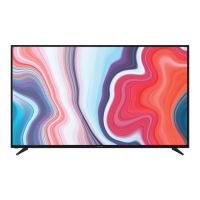
Bauhn ATV70UHDW-0624 - User Manual

Bauhn ATV70UHDW-0624
56 pages
Print Icon
To Next Page IconTo Next Page
Loading...
User Manual
AFTER SALES SUPPORT
1300 002 534
tempo.org/support
MODEL: ATV70UHDW-0624 PRODUCT CODE: 716019 06/2024
AUS
MODEL: ATV70UHDW-0624
70

Other manuals for Bauhn ATV70UHDW-0624

Questions and Answers

  • B
    Brenda FreemanAug 4, 2025
    How to fix a Bauhn ATV70UHDW-0624 that won't turn on?
    • D
      Douglas WilcoxAug 4, 2025
      If your Bauhn Smart TV won't turn on, ensure the AC power cord is securely plugged into the wall outlet and that the outlet is switched on. Check if the power indicator at the bottom of the TV is lit. If you're using a multi-outlet, verify it's functioning correctly by plugging the TV directly into a wall outlet. Also, try using the power button located on the TV itself.
  • W
    William BaileyAug 11, 2025
    How to troubleshoot a Bauhn ATV70UHDW-0624 Smart TV remote control?
    • R
      Rodney SmithAug 11, 2025
      If the remote control for your Bauhn Smart TV isn't working, ensure the batteries are installed correctly, matching the + and – poles. Remove any obstructions between the remote and the TV's remote control sensor. Check if the power indicator at the bottom of the TV blinks when you press the remote's power button; if not, replace the batteries. Try pointing the remote directly at the sensor from about 1.5-1.8 meters away.
  • K
    Kevin Lewis DVMAug 16, 2025
    What to do if there is no picture or sound from external device on Bauhn ATV70UHDW-0624 Smart TV?
    • S
      sophia70Aug 16, 2025
      If you're experiencing no picture or sound, or distorted picture or sound from an external device connected to your Bauhn Smart TV, ensure the connection to the device is correct and all cables are fully inserted. Remove and reconnect all cables connected to both the TV and the external devices. If possible, try using new cables. Restart the connected devices by unplugging their power cords and plugging them back in. If 'No Signal' is displayed, ensure the correct input source has been selected on the TV. When using a 4K playback device, make sure you are using a High-Speed HDMI cable.
  • K
    Kevin FordAug 20, 2025
    Why is there no picture or sound in DTV mode on my Bauhn ATV70UHDW-0624 Smart TV?
    • D
      David DeanAug 20, 2025
      If you experience no picture or sound, or distorted picture or sound in DTV mode on your Bauhn Smart TV, and 'No Signal' is displayed, run Auto Tuning by going to Menu > Programmes > Programme Tuning > Auto Tuning. If some channels are missing, try Manual Tuning via Menu > Programmes > Programme Tuning > Manual Tuning. If possible, test with a different antenna cable or another TV. Move the TV away from electronic equipment that could cause interference and adjust the antenna position.
  • P
    Paul SmallAug 25, 2025
    How to fix no sound on Bauhn ATV70UHDW-0624?
    • S
      Sarah AlexanderAug 26, 2025
      If there is no or distorted sound on your Bauhn Smart TV, first, make sure the volume isn't muted. If it is, press the VOL+ button. If earphones are connected, unplug them. Ensure the connection to any external audio device is correct and that all cables are fully inserted. Verify the correct input source and audio settings are selected on the external audio device. Move the TV away from electronic equipment that could cause interference. When using an external audio device via HDMI, ensure the device supports HDMI-ARC and that the ARC setting is turned on, if applicable. When using an external audio device via an optical cable, check that Menu > Sound > Sound Out > Select Optical and then Menu > Sound > Additional Settings > Digital Sound Out is set to PCM.
  • H
    hunter22Aug 29, 2025
    Why isn't my Bauhn Smart TV recognizing my USB drive?
    • H
      Heather SanchezAug 29, 2025
      If your Bauhn Smart TV isn't recognizing a USB storage device, or media files aren't playing correctly, note that while this TV has been tested with many Flash memory-based devices and hard disks, it may not be compatible with all devices. If the external hard drive has its own power adapter, use it. Ensure the USB storage device is formatted in the FAT32 file system provided with Windows. A device formatted by a different utility program may not be recognized. The TV may not recognize the USB device or read the files if it is connected with a USB extension cable. Files using an unsupported codec or container will not play, and some files may not play correctly if there is an error in the content or container, or depending on how they are encoded.
  • C
    Crystal RayNov 6, 2025
    Why is my Bauhn Smart TV losing internet connection?
    • B
      Brenda PerezNov 7, 2025
      If your Bauhn Smart TV has no or intermittent internet connection: * When using Wi-Fi, double-check that you've entered the Wi-Fi password correctly. * Try turning your access point off, waiting two minutes, and then turning it back on. * Make sure there are no obstructions between the TV and the access point, as appliances, cordless phones, and stone walls can weaken the Wi-Fi signal. * Reduce interference by turning off other wireless devices. If Wi-Fi continues to fail, connect the TV to the access point using a LAN cable. If a wired connection works, the issue likely lies with the Wi-Fi access point. When using a LAN cable, ensure it's CAT 5 or higher and securely plugged in at both ends. If you're using a static IP, verify that the network addresses are entered correctly. If...

Summary

Welcome

Unpack and Prepare

Whats in the Box

Lists all items included in the TV packaging for setup.

Important Tips

Provides essential advice for safe and optimal TV placement and maintenance.

Attaching the Stand

Step-by-step guide on how to securely attach the TV stand to the unit.

Wall-Mounting the TV

Instructions and requirements for safely mounting the TV on a wall.

Connect to Power

Guide on how to connect the TV to a power source safely before use.

Connect your Antenna

Instructions for connecting an antenna for receiving free-to-air TV channels.

Controls and Connections

Get to know your TV

Identifies the main physical components and indicators on the TV front.

Buttons on the TV

Explains the function of the physical buttons located on the TV unit.

Ports on the TV

Details the various input and output ports available on the rear of the TV.

Remote Control

Setup

Instructions for inserting AA batteries into the remote control correctly.

Precautions When Using Batteries

Safety guidelines and advice for handling and disposing of remote control batteries.

Using the Remote Control

How to operate the remote control effectively, including range and sensor information.

Remote Pairing

Steps and information required to pair the remote control with the TV for advanced functions.

Magic Remote

Detailed explanation of the buttons and functions of the Magic Remote.

Pairing the Remote

Guide on how to pair the remote control with the TV, including unpairing instructions.

On-Screen Set Up

First Time Setup menu

Walkthrough of the initial setup process when turning the TV on for the first time.

Connect to the Internet

Instructions for connecting the TV to a wired or wireless network.

LG ThinQ App

Guide on using the LG ThinQ app to control the TV remotely.

Advanced Controls (TV Setting Menus)

Menu Navigation Buttons

Explains how to navigate through the TV's settings menus using the remote.

Picture

Detailed settings for picture quality, including Picture Mode, Backlight, Contrast, Brightness, Sharpness, and Colour.

Sound

Details sound settings like Sound Mode, Balance, Ultra Surround, Equalizer, Reset, and Sound Out options.

Programmes

Covers programme tuning, programme manager functions like Lock/Unlock, Skip/Restore, and Move.

Connection

Explains TV Name, Wired Connection (Ethernet), Wi-Fi Connection setup, and WPS options.

General

Covers general settings like AI Service, Language settings (Menu, Audio, Keyboard, Teletext), and general preferences.

Accessibility

Provides features for users with disabilities, including Audio Description, High Contrast, Grayscale, Invert Colours, Hard of Hearing, and Subtitles.

Support

Details software updates, TV information, notifications, and reset to initial settings.

High Dynamic Range (HDR)

Explains the High Dynamic Range feature, its benefits, and supported input sources.

Smart TV

NETFLIX

Information about the Netflix streaming service and its compatibility with the TV.

Web Browser

Guide on using the TV's built-in web browser for internet browsing.

TV Guide

Instructions on how to access and use the TV Guide for program information and scheduling.

Recording

Important Tips

Essential advice and warnings regarding the recording function and USB storage usage.

Using Instant Recording

How to record live TV programs instantly using a connected USB storage device.

Using the TV Scheduler

Guide on setting up scheduled recordings and reminders for TV programs.

Programme Scheduling

Instructions for scheduling program recordings or reminders via the TV Guide interface.

Manual Scheduling

How to manually set program recordings or watch times by specifying date and time.

Using Live Playback (Real-time Playback)

How to use live playback features with a USB HDD, including limitations.

USB Mode

Set up

Steps for inserting a USB device and selecting the USB mode on the TV.

Viewing Photos and Videos

How to navigate and view photos and videos stored on a USB device.

Photo Player

Functions of the photo player, including slide shows, zoom, and rotation.

Video Player

Features of the video player, such as playback controls, rotation, and 360° video support.

Playing Music

How to select, play, and manage music from a USB device.

Music Player

Functions of the music player, including play, shuffle, repeat, and lyrics display.

Troubleshooting

The remote control does not work

Solutions for issues where the remote control fails to operate the TV.

The TV wont turn on

Troubleshooting steps for when the TV does not power on.

No Picture;Sound in DTV Mode

Solutions for no picture or sound issues when viewing DTV channels.

No Picture;Sound from External Device

Steps to resolve picture or sound problems from external sources connected to the TV.

No or Distorted Sound

Solutions for audio issues, including external audio devices and volume.

Smart Apps Not Working

Advice for troubleshooting issues with smart TV applications and internet connectivity.

No or Intermittent Internet

Solutions for Wi-Fi and LAN connection problems, including intermittent internet access.

USB Storage Issues

Troubleshooting steps for USB devices not being recognized or media files not playing correctly.

Specifications

Compliance and Responsible Disposal

Warranty Information

Repair and Refurbished Goods or Parts Notice

Notes

Notes

Support and Returns Information

Online Support

Information on accessing software updates and the latest user manual online.

Warranty Returns

Guidelines for returning the product for a warranty claim, including accessories.

Product Does Not Work

Instructions on whom to contact if the product encounters issues or does not perform as expected.

Bauhn ATV70UHDW-0624 Specifications

General IconGeneral
BrandBauhn
ModelATV70UHDW-0624
CategorySmart TV
LanguageEnglish

Related product manuals