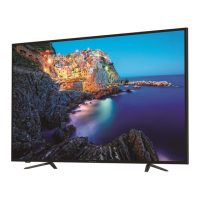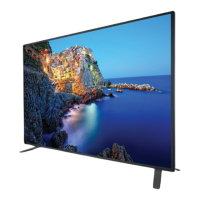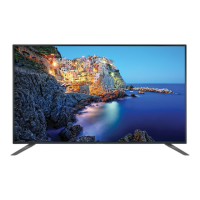
EasyManua.ls Logo

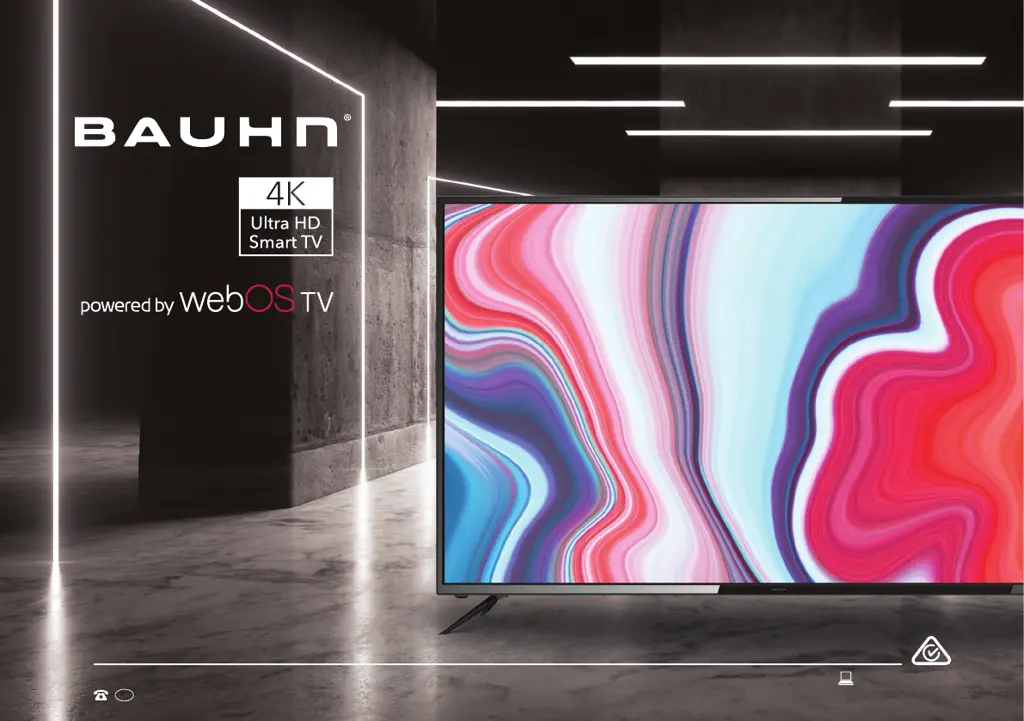
Bauhn ATV60UHDW-1121 - User Manual

Bauhn ATV60UHDW-1121
56 pages
Print Icon
To Next Page IconTo Next Page
Loading...
User Manual
AFTER SALES SUPPORT
1300 002 534
tempo.org/support
MODEL: ATV60UHDW-1121 PRODUCT CODE: 707794 11/2021
AUS
MODEL: ATV60UHDW-1121
60
ā€

Questions and Answers

  • T
    theresa60Aug 4, 2025
    What to do if Bauhn ATV60UHDW-1121 LCD TV won't turn on?
    • L
      Linda JenkinsAug 4, 2025
      To resolve the issue of your Bauhn LCD TV not turning on, ensure the AC power cord is securely plugged into the wall outlet and that the outlet is switched on. Check if the power indicator at the bottom of the TV is lit. If you're using a multi-outlet, verify it's functioning correctly by plugging the TV directly into a wall outlet. You can also try turning on the TV using the power button located on the TV itself.
  • N
    Nichole ColeAug 8, 2025
    How to fix Bauhn ATV60UHDW-1121 remote control not working?
    • A
      Angelica CantrellAug 9, 2025
      If your Bauhn LCD TV remote control isn't working, first ensure the batteries are correctly installed, paying attention to the (+/–) polarity. Remove any obstructions between the remote and the TV's remote control sensor. Check if the power indicator on the TV blinks when you press the remote's power button. If not, replace the remote's batteries. Try pointing the remote directly at the sensor from about 1.5-1.8 meters away.
  • E
    Erika HartmanAug 14, 2025
    What to do if there is no picture or sound from external device on Bauhn ATV60UHDW-1121?
    • E
      Eric HowardAug 14, 2025
      If you're not getting any picture or sound, or if the picture or sound is distorted from an external device connected to your Bauhn LCD TV, make sure the connection to the device is correct and all cables are fully inserted. Disconnect and reconnect all cables connected to the TV and the external devices. If possible, try using new cables. Restart the connected devices by unplugging them and plugging them back in. If "No Signal" is displayed, ensure the correct input source is selected. When using a 4K playback device, use a High-Speed HDMI cable.
  • A
    Alvin DurhamAug 19, 2025
    How to troubleshoot no sound on Bauhn ATV60UHDW-1121 LCD TV?
    • W
      Wyatt BakerSep 12, 2025
      If there is no sound or distorted sound on your Bauhn LCD TV, first check that the volume isn't muted. If it is, press the VOL+ button. If earphones are connected, unplug them. Ensure the connection to any external audio device is correct and all cables are fully inserted. Verify the correct input source and audio settings are selected on the external audio device. Move the TV away from electronic equipment that could cause interference. When using an external audio device via HDMI, ensure the device supports HDMI-ARC and the ARC setting is turned on. When using an optical cable, check that Menu > Sound > Sound Out > Select Optical and then Menu > Sound > Additional Settings > Digital Sound Out is set to PCM.
  • E
    Eddie SkinnerAug 29, 2025
    Why my Bauhn LCD TV doesn't recognise USB device?
    • N
      Nancy RothAug 30, 2025
      If your Bauhn LCD TV isn't recognizing a USB storage device or media files aren't playing correctly, note that while the TV has been tested with many Flash memory-based devices and hard disks, it may not be compatible with all devices. If the external hard drive has its own power adapter, use it. Only use a USB storage device formatted in a FAT32 file system provided with Windows. A device formatted by a different utility program may not be recognized. The TV may not recognize a USB device or read the files if connected with a USB extension cable. Files using an unsupported codec or container will not play, and some files may not play correctly if there's an error in the content or container or depending on how they are encoded.
  • A
    Angel HillNov 22, 2025
    What causes no or intermittent internet on Bauhn ATV60UHDW-1121?
    • J
      James GonzalezNov 23, 2025
      If you're experiencing no or intermittent internet connection on your Bauhn LCD TV, and you're using Wi-Fi, ensure the Wi-Fi password is entered correctly. Turn off the access point, wait two minutes, and then turn it back on. Make sure there are no obstacles between the TV and the access point, as appliances, cordless phones, or stone walls can decrease the Wi-Fi strength. Reduce interference by turning off other wireless devices. If the Wi-Fi connection fails, connect the TV to the access point via a LAN cable. If the TV connects via the wired connection, there might be a problem with the Wi-Fi access point; try using a different one. When using a LAN cable, use one rated CAT 5 or higher and ensure it is plugged in at both ends. When using a static IP, ensure network addresses are entere...

Summary

Welcome

Unpack and Prepare

Whats in the Box

List of items included in the TV package, along with items you will need for setup.

Important Tips

Key advice for safe and proper use and placement of the TV, including cleaning and power.

Attaching the Stand

Step-by-step instructions and safety precautions for attaching the TV stand to the unit.

Wall-Mounting the TV

Information and requirements for mounting the TV on a wall, including VESA bracket details.

Connect to Power

Instructions on how to connect the TV to a power outlet, with a safety reminder.

Connect your Antenna

Guide on connecting an antenna for free-to-air TV and notes on HD broadcast signals.

Controls and Connections

Get to Know Your TV

Overview of the TV's on/standby light and remote sensor location.

Buttons on the TV

Explanation of the physical buttons located on the TV unit for various functions.

Ports on the TV (Front;Side)

Details of the USB, HDMI, and Headphone Jack ports on the TV and their functions.

Ports on the TV (Rear;Back)

Details of LAN, Optical, AV input, and Antenna input ports on the TV and their functions.

Remote Control

Setup

Instructions for inserting batteries into the remote control and precautions for battery usage.

Precautions When Using Batteries

Important safety guidelines and tips for using and handling remote control batteries correctly.

Using the Remote Control

Guidance on how to operate the remote control, its range, and operational tips.

Remote Pairing

Information about pairing the remote control with the TV using Bluetooth and IR technology.

Magic Remote Overview

Detailed explanation of the buttons and functions of the Magic Remote control.

Magic Remote Functions

Explains navigation, quick access, app launching, and playback controls on the Magic Remote.

Pairing the Remote

Step-by-step instructions for pairing the remote control with the TV and unpairing it.

On-Screen Set Up

First Time Setup menu

Guide for the initial TV setup process, including language, internet, and tuning.

Connect to the Internet

Instructions for connecting the TV to a wired or wireless network for internet access.

LG ThinQ App Integration

Guide on using the LG ThinQ app to control TV functions via a smart device.

Advanced Controls (TV Setting Menus)

Menu Navigation and Picture Basics

Explains menu navigation and provides an overview of basic picture settings.

Sound Settings

Details on sound modes, balance, surround, equalizer, and sound output options.

Programmes Settings

Options for programme tuning, management, subtitle and audio language selection.

Connection Settings

Covers TV name, network connection (wired/wireless), and device connection management.

General Settings

Includes AI service, language, location, time, safety, and account management settings.

Accessibility Settings

Features for visually and hearing-impaired users: audio description, high contrast, grayscale, subtitles.

Support Settings

Covers software updates, TV info, notifications, additional settings, and reset options.

High Dynamic Range (HDR)

Explanation of the HDR feature and its benefits for picture quality and supported sources.

Smart TV

Internet Connection for Smart TV

Requirement for internet connection to use apps and its impact on streaming quality.

Netflix App Usage

Information about the Netflix streaming service, subscription, and playback requirements.

Web Browser Functionality

Guide to using the TV's web browser for internet surfing, including navigation and bookmarks.

TV Guide Access

Instructions for accessing and using the TV Guide to view program information and schedule.

Recording and Playback

Important Tips for Recording

Key advice and warnings regarding USB usage, channel changes, and file management during recording.

Using Instant Recording

Steps to record live TV programs using a USB HDD or stick.

TV Scheduler and Manual Recording

Guide to setting up scheduled recordings and reminders using the TV Scheduler.

Programme Scheduling and Live Playback

Instructions for scheduling recordings and using live playback with a USB HDD.

USB Media Playback

Set up USB Mode

Instructions for inserting USB devices and selecting 'USB' mode for media playback.

Viewing Photos and Videos

Steps to select and view photos and videos from a USB device, including control options.

Video and Music Player Functions

Guide to video player controls, music player functions, and media playback options.

Troubleshooting

Remote Control and Power Issues

Solutions for problems where the remote control is not working or the TV will not turn on.

Picture and Sound Problems

Troubleshooting for no picture/sound or distorted picture/sound from DTV or external devices.

Smart Apps and Internet Connectivity

Guidance for smart apps not working and resolving no or intermittent internet connection issues.

USB Device and Media Playback Issues

Troubleshooting for USB storage devices not being recognised or media files not playing correctly.

Specifications

Technical and Support Contact Information

Technical details of the TV and contact info for support, warranty, and service.

Compliance and Responsible Disposal

Packaging and Product Disposal Guidelines

Guidelines for environmentally friendly disposal of packaging and the TV at its end of life.

Recycling Scheme and Compliance Standards

Information on e-waste recycling and compliance with Australian safety standards.

Warranty Information

Repair and Refurbished Goods Notice

Contact Information for Repair Services

Contact details for repair inquiries, potential data loss during repair, and escalation.

Online Support and Warranty Returns

Product Troubleshooting Assistance

Guidance on what to do if the product encounters problems or fails to perform.

Bauhn ATV60UHDW-1121 Specifications

General IconGeneral
Screen Size60 inches
Resolution3840 x 2160 (4K UHD)
Display TypeLCD
Smart TVYes
HDMI Ports3
USB Ports2
Wi-FiYes
Audio Output20W
Refresh Rate60 Hz
Operating SystemAndroid TV
BluetoothYes

Related product manuals