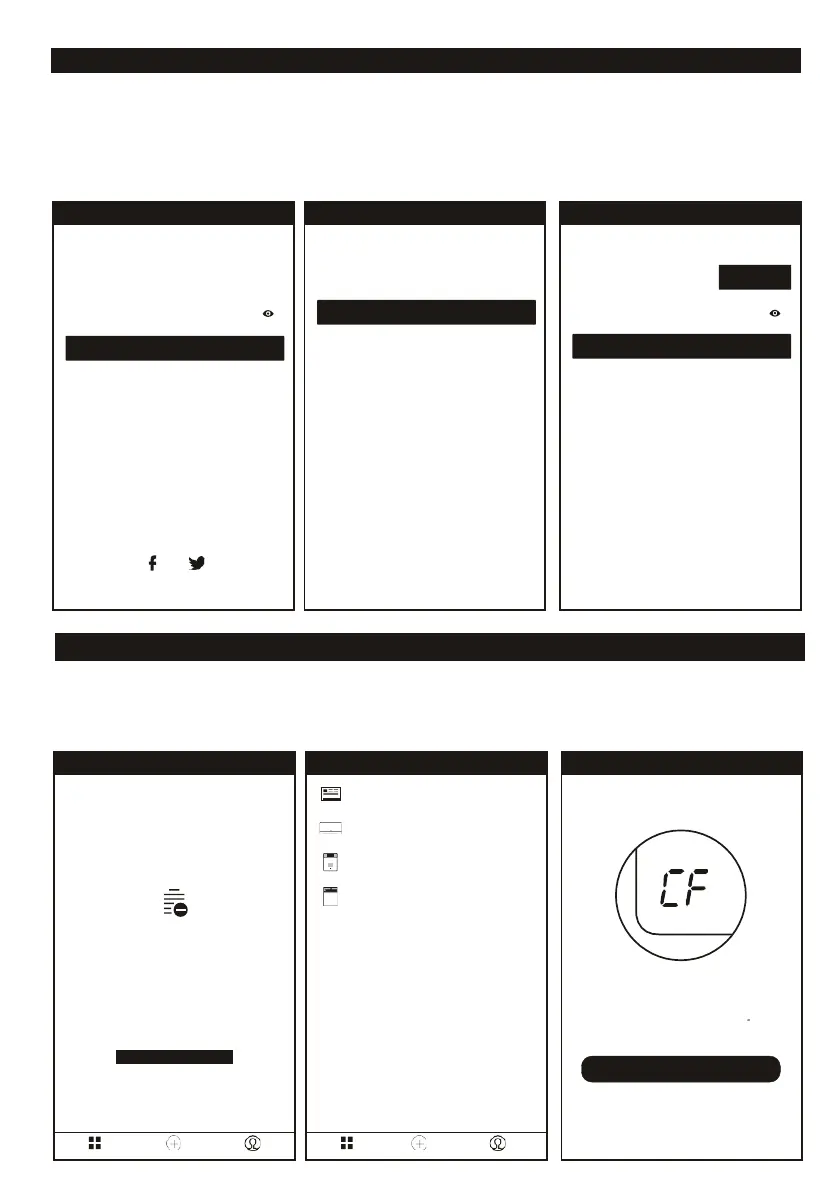
Forget password
If you have forgotten your password, you can change it as follows.
1. Select the "Forgot Password" option to go to the next page.
2. Enter the registered phone number or the e-mail account and select on the next page
"Continue".
3. You will be sent a confirmation code. Enter this and create a new password.
4. Finally, tap on "Done".
1. Press “Add Device” button to get to the next page and select the product type.
2. There are two methods to do the device match, “CF” or “AP mode”.
3. You can select by choosing the different button.
Cancel Add Device AP Mode
Press the "DISPLAY" key on the remoter
6 timers within 6 seconds
until the LCD screen show "CF
Next Step
Instructor light is in other status
Cancel Select Device Type
Window Type Air Conditioner
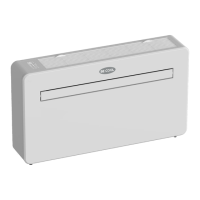
Split Air Conditioner
Dehumifier
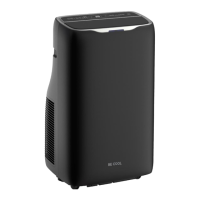
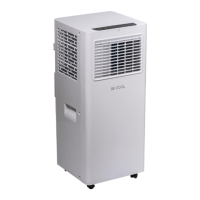
Portable Air Conditioner
Devices
Add Device Profile
Empty device list
Add Device
Device Add Device Profile
Verification code is sent to your phone:
+01 XXXXXXXXXX
Verification Code
Enter new password
USA +01
Mobile number/E-mail
Region United States +1
Mobile number/E-mail
Password
Sign in with SMS Forgot password
Sign in with social media account
Facebook Twitter



 To Next Page