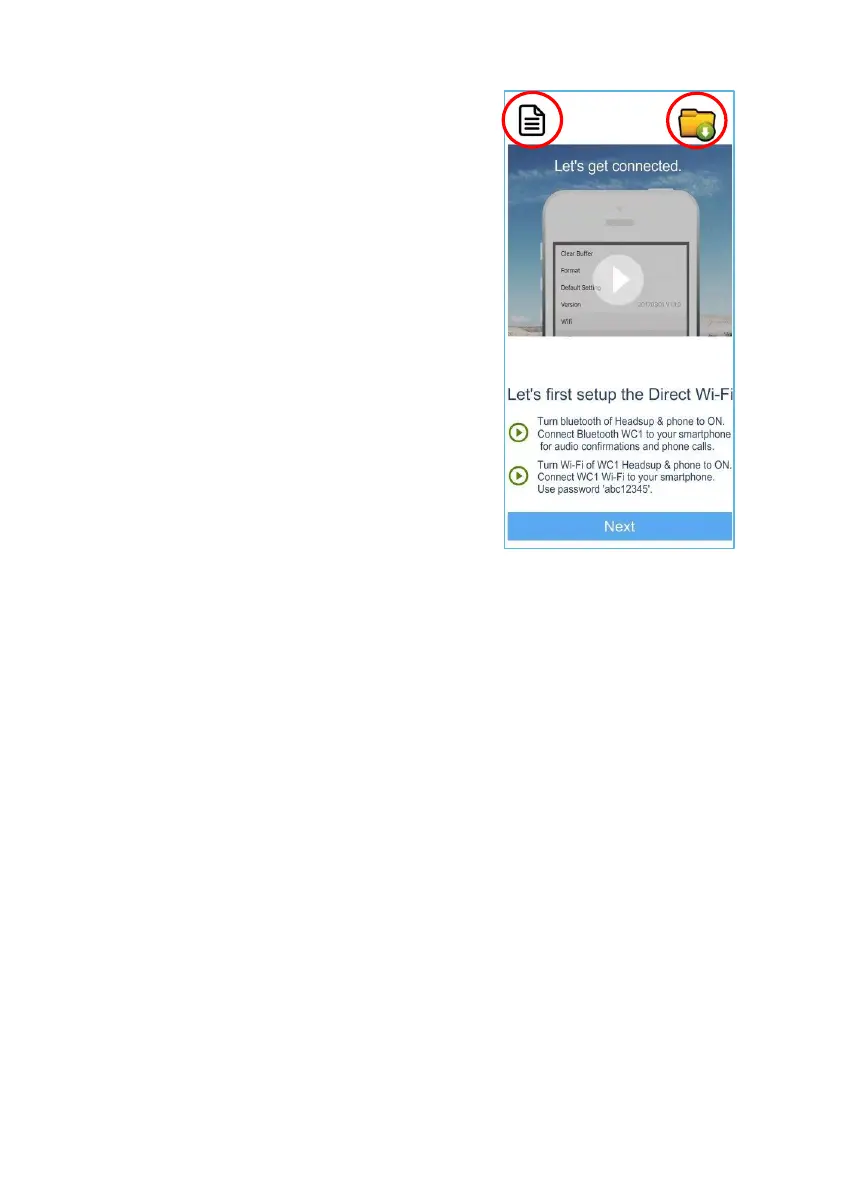
App Home Screen
■ User Manual can be accessed by
clicking the User Manual icon.
■ Media files that you have downloaded
to your phone are referenced in the
Download file here. Click Download
Folder Icon to review. Note: These
files can be shared to social media
only from phone photos app or
Gallery.
■ Connect BluetoothandWi-Fito
phone. See Wi-Fi Connect and
Bluetooth Connect for detailed
instructions.
■ After Wi-Fi connection is made, tap
"Next" onthis screen.Thiswill bring you
to the Control Screen.
Note:
Introduction screens 1 and 2 will not reappear after initial opening of App.
App Home Screen will appear first from this point forward whenever
opening app. .
Let’s get connected
HeadsUp utilizes Wi-Fi Direct® to set up its own private network. There is
no need for Internet or Cellular phone service to record and stream to your
phone.
There are two connections to make with your phone, Wi-Fi & Bluetooth.
Bluetooth connection is not required for recording and streaming but is
required for the convenience of taking calls or listening to music on
HeadsUp.


 To Next Page