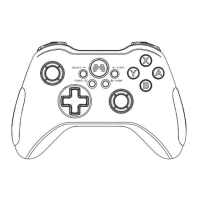
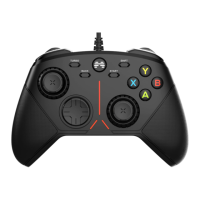
The BEITONG ZEUS ELITE GAME CONTROLLER is a sophisticated gaming peripheral designed for an enhanced gaming experience across multiple platforms, including PC and Nintendo Switch. It boasts a modular design, customizable functions, and advanced motion-sensing capabilities, catering to both casual and professional gamers.
Function Description:
The controller serves as a primary input device for gaming, allowing users to control in-game actions through a variety of buttons, joysticks, and triggers. Its core function is to provide precise and responsive control, translating physical inputs into digital commands.
Usage Features:
Modular Design and Customization:
The ZEUS ELITE controller offers extensive customization options, allowing users to tailor the device to their specific preferences and game requirements.
- Replaceable Thumbstick Modules: The controller comes with three different heights of thumbstick modules (low, medium, high), enabling users to swap them out for varying control experiences. This allows for fine-tuning of sensitivity and comfort based on game type or personal preference.
- Position-changeable Action Button Caps (A/B/X/Y): The ABXY action buttons can be repositioned to match the layout of different platforms (PC or NS), preventing accidental presses due to platform-specific button assignments. This is particularly useful for players who switch between PC and Nintendo Switch frequently.
- Replaceable Theme Face-shell: Users can change the controller's aesthetic by swapping out the theme face-shell, with various designs available periodically. This allows for personalization and keeps the controller looking fresh.
- D-pad Module: The D-pad is also a module, suggesting potential for customization or replacement.
Connectivity:
The controller supports both wireless and wired connections, offering flexibility depending on the gaming setup.
- Wireless Connection (via Wireless Receiver): For PC and Nintendo Switch (Handheld and TV Mode), the controller connects wirelessly using a dedicated USB receiver. The pairing process involves plugging the receiver into the device, pressing a pairing button, and then activating the controller by holding the FN button and switching the power to ON. Indicators on both the receiver and controller confirm successful connection.
- Wired Connection (via USB to Type-C Cable): The controller can also be connected directly to a PC or Nintendo Switch (Handheld and TV Mode) using a USB to Type-C cable. This provides a stable, low-latency connection, ideal for competitive gaming.
Controller Functions:
The ZEUS ELITE is equipped with a range of features to enhance gameplay and user convenience.
- FN+ Multi-function Operations: The FN button, when combined with other keys, enables shortcut controls for various functions.
- PC Specific Functions:
- FN + Up arrow: Increase volume.
- FN + Down arrow: Decrease volume.
- FN + BACK: Back to desktop.
- FN key alone: Turn air mouse mode on/off.
- Button A: Left mouse button.
- Button B: Right mouse button.
- Touch return button: Home.
- Nintendo Switch Specific Functions:
- Touch menu button: + button.
- FN + Touch menu button: Home button.
- Touch return button: - button.
- FN + Touch return button: Capture button (short press for screenshot, long press for screen recording).
- Headphone Audio Output: A 3.5mm headset port at the bottom of the controller allows for audio output and real-time voice communication with teammates, provided a four-segment wired headset is used.
- Built-in Profiles: The controller has 4 built-in profiles that can be customized using the "ZEUS Controller Assistant" software. These profiles can store personalized settings for button remapping, motion-sensing, thumbstick sensitivity, and lighting effects.
- Motion-Sensing Function: Featuring a 6-axis gyroscope and BMC™ motion-sensing mapping technology, the controller allows users to map motion-sensing inputs to thumbstick modules or action buttons. This enables control of character movement, visual direction, or specific actions through physical motion. The motion-sensing function can be toggled on/off via a dedicated switch.
- Mouse Mode (PC Only): When connected to a PC, the FN key can activate mouse mode. In this mode, the left and right joysticks can be configured for mouse movement and scroll wheel functions, respectively. This feature, combined with somatosensory and key mapping, facilitates a "flying mouse" experience.
- Trigger Stroke Adjustment: The linear LT/RT trigger buttons allow for adjustable trigger stroke, enabling players to fine-tune the responsiveness of their triggers.
Software Configuration ("ZEUS Controller Assistant"):
The controller's full potential is unlocked through the "ZEUS Controller Assistant" software, available for PC.
- Installation and Connection: Users download and install the "T6 Assistant" software from the BEITONG official website. The gamepad is connected to the computer via USB cable, and the connection is confirmed by vibration and a flashing breathing light.
- Customization Options within the Software:
- Lighting Adjustment: Users can change the indicator light's flicker mode (normal, breathing), color, and brightness (5 levels). The light can also be set to flash with game vibration.
- Vibration Adjustment: The intensity of the gamepad's vibration feedback can be adjusted, and vibration feedback for the RETURN and MENU buttons can be enabled.
- Key Functions Setting:
- Key Mapping: Buttons can be remapped to trigger other actions. For example, pressing Key A can trigger the action of Key B.
- TURBO Setting: The frequency of key presses can be set up to 18 times per second for rapid input.
- Macro Programming: Up to 30 actions can be programmed into a single button. Users can record actions, durations, and intervals between actions in real-time, with fine-tuning in milliseconds.
- Joystick Mapping Setting: Both the left and right joysticks can be independently mapped to joystick, mouse, or key functions. Sensitivity curves (default, delayed, immediate, performance, smooth, custom) can be applied, and Y-axis reversal and radial calculation can be enabled/disabled.
- Motion Controls Setting: Detailed settings for the 6-axis gyro sensor, including sensitivity and dead zone compensation, can be configured.
- Mouse Setting: In mouse mode, movement speed and rolling speed can be adjusted, and buttons can be redefined for left/right click.
- FN Function Configuration: The FN key's combinations for volume control, back to desktop, and screenshot/screen recording can be customized.
Maintenance Features:
- Joystick Calibration: If joystick issues like drift or unresponsiveness occur, a calibration function is available. This involves turning off the power and motion control buttons, pressing specific D-pad and LB keys while connecting via USB, and then turning the power back on. The calibration process is completed by rotating joysticks and pressing triggers, followed by a long press of the A key to exit.
- Firmware Updates: The "ZEUS Controller Assistant" software will prompt users to update firmware if available. It is crucial to confirm these updates to ensure optimal performance. Instructions are provided for resuming firmware upgrades in case of disconnection.
- Module Replacement: The modular design simplifies maintenance and customization, allowing users to easily replace thumbsticks and face-shells. This extends the life of the controller by enabling replacement of worn or desired components.
- Disassembly Guidance: While the manual advises caution when disassembling the face shell to avoid damage, it suggests finding suitable tools if disassembly is difficult, indicating that component replacement is a designed feature.

 Need help?
 General

 To Next Page