EasyManua.ls Logo

Belkin F5D7000 - User Manual

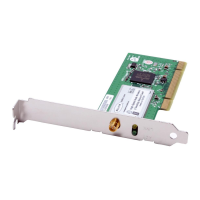
Belkin F5D7000
48 pages
Print Icon
To Next Page IconTo Next Page
Loading...
Belkin Ltd.
4 Pioneer Avenue
Tuggerah Business Park
Tuggerah, NSW 2259, Australia
+61 (0) 2 4350 4600
+61 (0) 2 4350 4700 fax
Belkin B.V.
Boeing Avenue 333
1119 PH Schiphol-Rijk, The Netherlands
+31 (0) 20 654 7300
+31 (0) 20 654 7349 fax
Belkin Tech Support
US: 877-736-5771
800-223-5546 ext. 2263
310-898-1100 ext. 2263
UK: 0845 607 77 87
Australia: 1800 235 546
New Zealand: 0800 235 546
Singapore: 65 64857620
Europe: www.belkin.com/support
Belkin International, Inc.
501 West Walnut Street
Los Angeles, CA 90220-5221, USA
310-898-1100
310-898-1111 fax
Belkin Ltd.
Express Business Park, Shipton Way
Rushden, NN10 6GL, United Kingdom
+44 (0) 1933 35 2000
+44 (0) 1933 31 2000 fax
© 2007 Belkin International, Inc. All rights reserved. All trade names are registered trademarks of
respective manufacturers listed. Windows and Windows Vista are either registered trademarks or
trademarks of Microsoft Corporation in the United States and/or other countries.
P74685-F
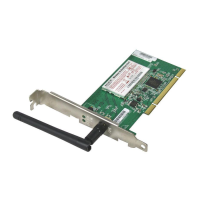
Wireless G
Desktop Card

Other manuals for Belkin F5D7000

Questions and Answers

  • M
    Megan PaulAug 12, 2025
    Why can't I connect to the Internet even though the Link LED is solid on my Belkin F5D7000 Network Card?
    • S
      Stephanie EvansAug 12, 2025
      If the Link LED on your Belkin Network Card is solid but you can't connect to the Internet, it might be due to a mismatch in the encryption key settings between your computer and wireless router (or access point). To resolve this, verify that the WEP key settings match on both devices.
  • G
    Gina ChandlerAug 16, 2025
    What to do if the Power LED is off and my Belkin Network Card isn't working?
    • T
      Theresa SheaAug 16, 2025
      If the Power LED on your Belkin Network Card doesn't turn on and the card isn't working, it could be due to the card not being properly connected or installed. First, ensure the card is firmly plugged into the PCI slot of your computer. Also, check that the drivers for the card have been installed. If an error is still indicated, contact Belkin Technical Support.
  • A
    adambakerAug 19, 2025
    Why is the Link LED blinking slowly on my Belkin Network Card, and I cannot connect to the internet?
    • G
      Grace Townsend DDSAug 19, 2025
      If the Link LED on your Belkin Network Card is blinking slowly and you can't connect to a wireless network or the Internet, there might be a mismatch between the network name (SSID) settings in your wireless network properties. Check the SSID settings to ensure they match. You can also double-click the Signal Indicator icon to bring up the “Wireless Networks” screen.
  • S
    Sara FischerAug 23, 2025
    How to fix a Belkin Network Card that is not detected by the operating system?
    • S
      Sarah LewisAug 23, 2025
      If your Belkin Network Card isn’t detected by the operating system, it might not be recognized by your desktop computer. Remove the screws behind your computer case that secure the computer cover and remove the cover. Then, push the card firmly into the PCI slot that you have chosen.
  • J
    Jason HolmesAug 27, 2025
    What to do if my Belkin F5D7000 shows my network name but won't connect?
    • K
      Karen ScottAug 27, 2025
      If the name of your wireless network appears in the “Available Networks” list, click on the correct network name. If the network has security (encryption) enabled, you will need to enter the network key. Within a few seconds, the tray icon in the lower right-hand corner of your screen should turn green, indicating a successful connection to the network.
  • T
    tperryAug 31, 2025
    Why is data transfer slow on my Belkin Network Card?
    • M
      Mariah StephensonAug 31, 2025
      If data transfer with your Belkin Network Card is sometimes slow, it could be because wireless technology is radio-based. Connectivity and throughput performance decrease as the distance between devices increases. To improve this, temporarily move the computer to five to 10 feet away from the wireless router (or access point).
  • G
    Gabriel PierceSep 3, 2025
    What to do if my Belkin F5D7000 Network Card doesn't show my Wi-Fi network?
    • M
      Maria SchwartzSep 3, 2025
      If the name of your wireless network DOES NOT appear in the list of “Available Networks” for your Belkin Network Card, temporarily move the computer, if possible, to five to 10 feet away from the Wireless Router (or Access Point). Close the Wireless Networking Utility, and reopen it. Using a computer that is connected to the Wireless Router (or Access Point) via a network cable (as opposed to wirelessly), ensure that “Broadcast SSID” is enabled.
  • G
    georgeboydSep 7, 2025
    What to do if the Belkin Network Card installation CD-ROM doesn't start?
    • J
      Jeffery RossSep 7, 2025
      If the Installation CD-ROM does not start the Wireless Networking Utility, and your computer is running other applications, open up your CD-ROM drive by double-clicking on the “My Computer” icon.

Summary

Introduction

Optimizing Wireless Signal Performance

Covers placement of router, avoiding interference, and cordless phone impact for better signal.

Installing and Setting up the Card

Install Software

Guides users through the software installation process for Windows Vista.

Inserting the Card into PCI Slot

Provides step-by-step instructions on physically installing the card into a computer's PCI slot.

Using the Belkin Wireless Networking Utility

Wireless Security Configuration

Details WEP (64/128-bit), WPA, WPA2, and WPS security settings and their setup.

Troubleshooting Wireless Connectivity

Basic Connectivity and Signal Issues

Covers no internet, missing network, and LED status problems for initial troubleshooting.

Performance and Detection Problems

Addresses slow data transfer, poor signal strength, utility conflicts, and device detection issues.

Belkin F5D7000 Specifications

General IconGeneral
CategoryNetwork Card
ModelF5D7000
Form FactorPCI
InterfacePCI
Interface (Bus) TypePCI
Connectivity TechnologyWireless
Data Link ProtocolIEEE 802.11b, IEEE 802.11g
Frequency Band2.4 GHz
Data Transfer Rate54 Mbps
Device TypeWireless Network Adapter
Antenna TypeInternal
SecurityWEP, WPA
Operating System CompatibilityWindows 2000, Windows XP
Wireless Standard802.11b/g

Related product manuals