20
Enhanced Wireless USB Adapter
SECTIONSTable of Contents 1 2 3 5 64
USING THE BELKIN WIRELESS NETWORKING UTILITY
Network Status
This window displays the connectivity status of the current network. It
even displays connectivity between the computer and router, and router
and Internet. In the event of a connectivity problem, this window can
be used to determine the problem’s source (e.g. computer, router, or
Internet/modem).
Available Networks
This window displays the available networks at the current location
as well as their SSID, Signal Strength, Security Type, WPS-enabled
connection, Channel, and Network Type.
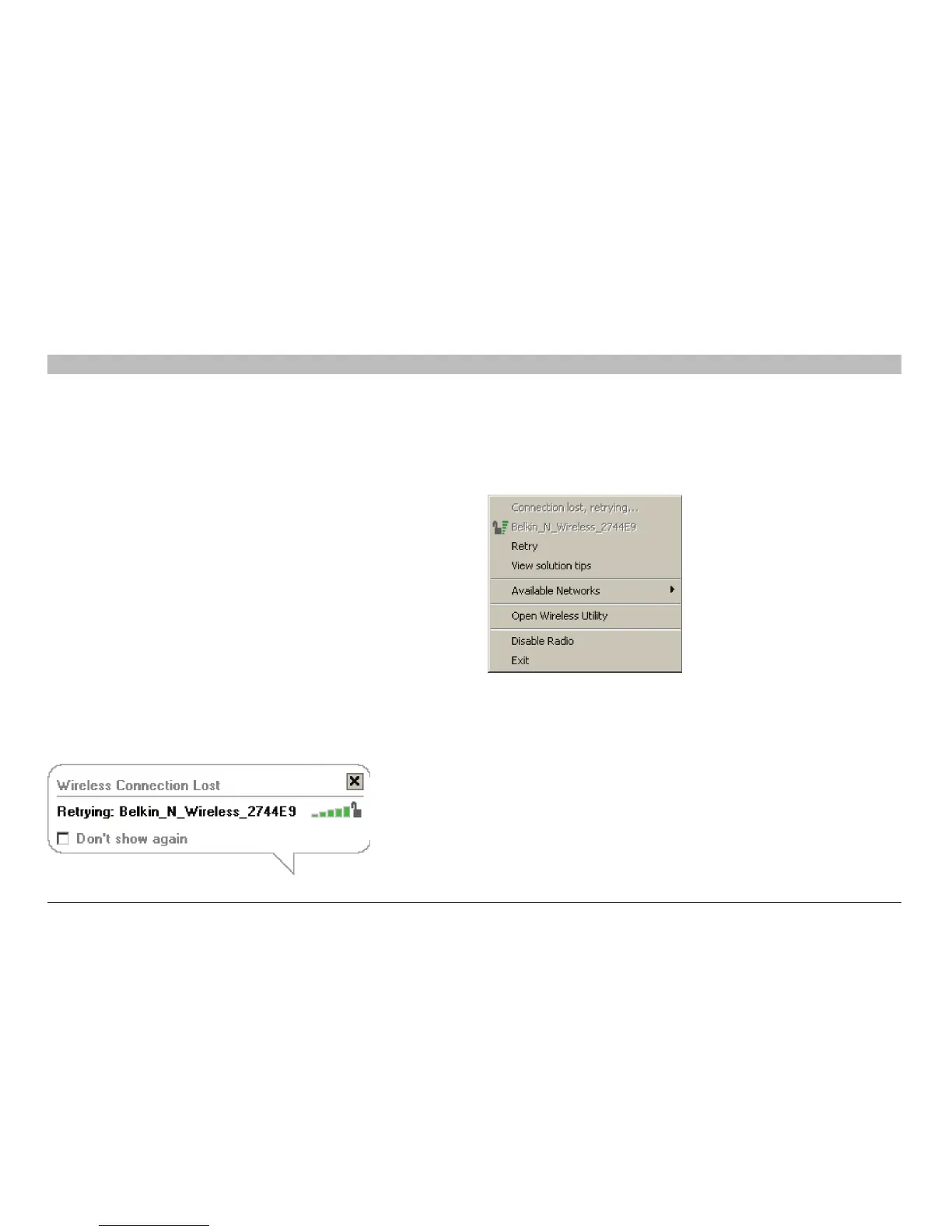
Lost Wireless Connection
If the current wireless connection is lost, a window will pop up and the
WNU will attempt to reconnect.
Connection Failure
Right-click on the WNU icon in the Windows task tray and more options
will appear. You can retry, view solution tips, or choose another network
in the “Available Networks” section.


 To Next Page