• No other DHCP server on your local network assigning IP addresses to
computers and devices
Internet Connection Settings
Please collect the following information from your Internet Service Provider (ISP)
before setting up the ADSL Modem Wireless G Router.
• Internet connection protocol: _________ (PPPoE, PPPoA, Dynamic IP, Static IP)
• Multiplexing method or Encapsulation: __________ (LLC or VC MUX)
• Virtual circuit: VPI (Virtual Path Identifier) __________
(a number between 0 and 255)
• VCI (Virtual Channel Identifier) __________
(a number between 1 and 65535)
• For PPPoE and PPPoA users: ADSL account user name _____________ and
password _______________
• For static IP users: IP Address ___ . ___ . ___ . ___
Subnet Mask ___ . ___ . ___ . ___
Default Gateway Server ___ . ___ . ___ .
• IP address for Domain Name Server ___ . ___ . ___ . ___ (If given by your ISP)
Note: See Appendix C in this User Manual for some common DSL Internet
setting parameters. If you are not sure, please contact your ISP.
Knowing your Router
The Router is designed to be placed on a desktop. All of the cables exit from
the rear of the Router for better organization and utility. The LED indicators
are easily visible on the front of the Router to provide you with information
about network activity and status.
[replace the following section with the same section from F5D7633-4 see P74730uk]
Front Panel
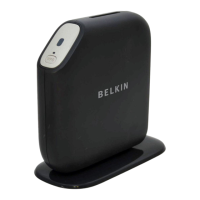
[Insert: 9630-4 front image w/ arrows to LEDs]
1) [Insert: icon] Power LED
2) [Insert: icon] LAN Status LED (1-4)
3) [Insert: icon] Wireless LAN (WLAN) Status LED
4) [Insert: icon] ADSL LED
5) [Insert: icon] Internet
1. Power LED
When you apply power to the Router or restart it, a short period of time elapses
while the Router boots up. When the Router has completely booted up, the
Power LED becomes a GREEN light, indicating the Router is ready for use.
OFF Router is off
Green Router is on
Insert:
Power
Icon
Red Router failed to start
2. LAN Status LEDs
These LAN Status LEDs are labeled 1–4 and correspond to the numbered ports
on the rear of the Router. When a computer is properly connected to one of the
LAN ports on the rear of the Router, the LED will light. Solid GREEN means a
computer or a network-enabled device is connected. When information is being








 To Next Page