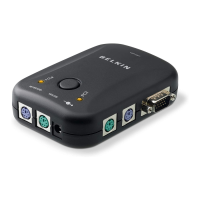
The Belkin OmniView E Series KVM Switch (models F1DB102P and F1DB104P) is a compact and affordable KVM (Keyboard, Video, Mouse) switch designed to provide centralized control over multiple computers from a single console. Depending on the model, it allows users to control either two or four PS/2-based computers using one keyboard, monitor, and mouse. This device is engineered for quality and durability, offering a reliable solution for reducing desktop clutter in various configurations, from small setups to server rooms and test labs.
Function Description:
The primary function of the OmniView E Series KVM Switch is to enable users to manage multiple computers (up to two with F1DB102P, and up to four with F1DB104P) from a single set of PS/2 input devices (keyboard and mouse) and a single VGA, SVGA, XGA, or XGA-II monitor. It supports PS/2 output computers and, with the use of an OmniView PS/2 MAC Adapter or OmniView PS/2 SUN Adapter, can also control Mac and Sun® computers. The switch provides keyboard and PS/2 mouse emulation on each port, allowing computers to boot normally without detecting missing peripherals.
Important Technical Specifications:
- Part Numbers: F1DB102P (2-Port), F1DB104P (4-Port)
- Power: Primarily powered by the PS/2 keyboard port of the connected computer. An optional 9V DC, 600mA AC adapter with center pin positive polarity is available for instances where power cannot be drawn from a PS/2 port.
- PCs Supported: 2 (F1DB102P), 4 (F1DB104P)
- Keyboard Emulation: PS/2
- Mouse Emulation: PS/2
- Monitor Supported: VGA and SVGA MultiSync, LCD (with use of adapter cable)
- Max Resolution: 2048x1536@85Hz. To preserve signal integrity at high resolutions, 75-Ohm coaxial VGA cabling is required.
- Video Bandwidth: 400MHz
- Keyboard Input: 6-pin miniDIN (PS/2)
- Mouse Input: 6-pin miniDIN (PS/2)
- VGA Port: 15-pin HDDB-type
- LED Indicators: 2 (F1DS102P), 4 (F1DS104P) for port status indication.
- Enclosure: Plastic
- Dimensions (F1DS102P): (H)1.125 x (W)7.0 x (D)3.75 inches / (H)2.9 x (W)17.8 x (D)9.6 centimeters
- Dimensions (F1DS104P): (H)2.0 x (W)7.0 x (D)3.75 inches / (H)5.1 x (W)17.8 x (D)9.6 centimeters
- Weight (F1DS102P): 9 oz. (0.26kg.)
- Weight (F1DS104P): 12 oz. (0.34kg.)
- Operating Temperature: 32° to 104° F (0° to 40° C)
- Storage Temperature: -4° to 140° F (-20° to 60° C)
- Humidity: 0-80% RH, non-condensing
- Warranty: 2 years
Equipment Requirements:
- Cables: For each PS/2 computer, one VGA cable, one PS/2 keyboard cable, and one PS/2 mouse cable are necessary. Keyboard and mouse cables must have PS/2 male to PS/2 male connectors. VGA cables must have HDDB15 female to HDDB15 male connectors. Belkin OmniView All-In-One Cable Kits (F3X1105-XX PS/2 Style, F3X1835-XX-GLD PS/2 Style) are recommended for optimal quality and organization.
- Operating Systems: Supports any operating system running on a PS/2 platform, including Windows® 3.x/95/98/2000/Me/NT/XP, DOS, Linux®, and Novell® NetWare® 4.x/5.x. With adapters, it also supports Mac and Sun operating systems.
- Keyboards: Supports 101-102-104-key keyboards.
- Mice: Supports Microsoft® compatible PS/2 mice with 2, 3, 4, or 5 buttons, and Microsoft compatible DB9 serial mice (with adapter).
- Monitor: Supports VGA, SVGA, and MultiSync® monitors.
Usage Features:
- Port Selection:
- Front-Panel Push Buttons: Conveniently located on the front of the switch, these buttons allow for simple, manual port selection. A lit LED next to the corresponding port number indicates the active computer.
- Keyboard Hot Key Commands: Users can switch between ports using a designated hot key sequence. Pressing the [SCROLL LOCK] key twice within two seconds activates the hot key mode (confirmed by a beep). Then, the [UP] or [DOWN] arrow keys can be used to switch to the next or previous active port, respectively. Direct port selection is also possible by entering the desired port number (e.g., [SCROLL LOCK], [SCROLL LOCK], [2] for port 2).
- AutoScan Mode: This feature automatically scans and monitors the activities of all connected computers, switching to each port for 10 seconds before moving to the next. To enable AutoScan, press [SCROLL LOCK], [SCROLL LOCK], [0], [0]. During AutoScan, mouse and keyboard control are disabled to prevent errors. To disable AutoScan, press the space bar.
- Video Resolution: With a 400MHz video bandwidth, the switch supports high video resolutions up to 2048x1536@85Hz, making it suitable for graphic artists and designers.
- LED Display: LEDs on the front panel provide easy status monitoring, indicating which computer currently has console control.
- Cable Distance: For PS/2 computers, VGA signals are best retained within 25 feet (7.5m). Beyond this distance, video degradation may occur. For longer distances (up to 500 feet or 152.4m), the Belkin CAT5 Extender can be used with standard CAT5 UTP cable.
Maintenance Features:
- Installation Guide: A Quick Installation Guide is included for easy setup, complementing the detailed instructions in the user manual.
- Troubleshooting: The manual provides comprehensive troubleshooting steps for common issues related to video (ghosting, fuzzy images, black screen), keyboard (not detected, error at boot up), and mouse (lost, erratic movement, not detected at boot up).
- Power Source Flexibility: The switch can be powered directly from the PS/2 keyboard port of a computer, eliminating the need for an external power supply in many cases. An optional AC adapter is available if needed.
- No Software/Drivers Required: The E Series KVM Switch does not require any drivers or software to be installed on the connected computers, simplifying setup and ensuring broad compatibility.
Accessories and Adapters:
Belkin offers various accessories and adapters to enhance the KVM solution:
- OmniView PS/2 MAC Adapter (F1D080): Converts Mac ADB and DB15 signals to PS/2 keyboard, HDDB15 VGA, and PS/2 mouse.
- OmniView PS/2 SUN Adapter (F1D082): Converts Sun 8-pin keyboard/mouse and 13W3 video to PS/2 keyboard, PS/2 mouse, and VGA monitor.
- OmniView CAT5 Extender (F1D084): Extends control of a PC or KVM switch up to 500 feet (152.4m) using standard UTP CAT5 cabling.
- OmniView Keyboard Extender (F1D087): Extends keyboard up to 250 feet (76.2m).
- OmniView VGA Monitor Extender (F1D088): Extends monitor distance up to 250 feet (76.2m).
- OmniView Keyboard Splitter (F1D089): Allows two PS/2 keyboards and pointing devices without swapping cables or rebooting.
- OmniView Mouse Splitter (F1D090): Allows two PS/2 mice or trackballs without swapping cables or rebooting.
- OmniView 2-Port Reverse KVM Switch (F1D201): Enables two users to control one PC from two sets of keyboards, monitors, and mice.
- Belkin PS/2-to-USB Adapter (F5U119): Converts PS/2 keyboard and mouse signals to USB format.
- PRO Series AT-to-PS/2 Keyboard Adapter (F2N017): Connects an AT-style keyboard to a PS/2-style computer.

 Need help?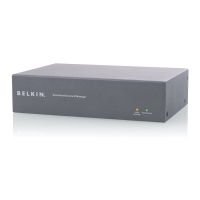


 To Next Page
 General