EasyManua.ls Logo

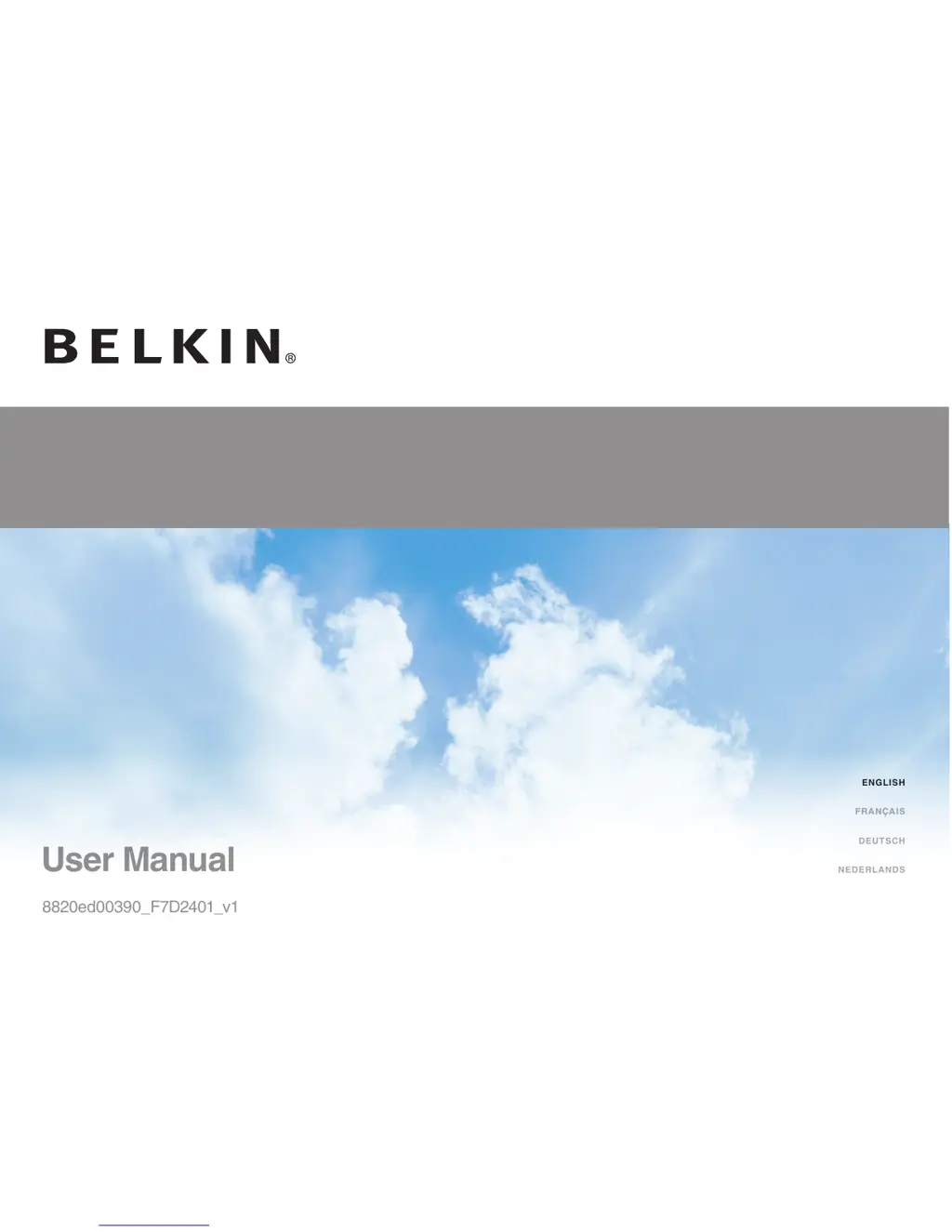
Belkin Surf + - User Manual

Belkin Surf +
31 pages
Print Icon
To Next Page IconTo Next Page
Loading...
S u r f
+
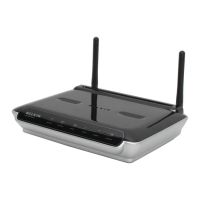
WIRELESS ROUTER WITH BUILT-IN MODEM
User Manual
8820ed00390_F7D2401_v1
English
Fraais
DEutsch
nEDErlanDs

Questions and Answers

  • M
    Mason Mendoza DVMAug 14, 2025
    What to do if Belkin Setup cannot find my Wireless Router?
    • S
      Sara SchaeferAug 14, 2025
      If Belkin Setup can't find your Wireless Router, ensure that the wireless hardware on your computer is turned on. Try connecting your computer to one of the four 'wired' ports on the Router with an Ethernet cable. Make sure the Router is on and that the front-panel light is on. Try unplugging your Router’s power supply, waiting 10 seconds, and plugging it back in. It is also possible that firewall software on your computer is preventing an outgoing connection; temporarily disable this software before attempting setup.
  • K
    kevin75Aug 17, 2025
    What to do if Belkin Setup cannot connect my Wireless Router to the Internet?
    • R
      Robert CarterAug 17, 2025
      If Belkin Setup cannot connect your Router to the Internet, use the troubleshooting suggestions within Belkin Setup and make sure that you have typed in your user name and password correctly.
  • B
    Brittany CantuAug 21, 2025
    How to set up WPA security on my Belkin Surf +?
    • E
      Elizabeth RodriguezAug 21, 2025
      To set up WPA security on your Router, log in to your Router by visiting http://router/ with your web browser. Click “Wireless” in the left-hand menu, then click “Security” just below that. Select the “WPA/WPA2” option and enter a password consisting of 8–63 characters of your choice.
  • B
    Brian MartinezAug 25, 2025
    How to set up Wired Equivalent Privacy (WEP) security on my Belkin Wireless Router?
    • R
      Roger RiveraAug 26, 2025
      To set up WEP security on your Router, log in to your Router by visiting http://router/ with your web browser. Click “Wireless” in the left-hand menu, then click “Security” just below that. Select the “128-bit WEP” option. You may type in a WEP key manually, or generate one from a passphrase.
  • M
    Mr. Michael Clements MDAug 28, 2025
    What to do if Belkin Setup completed installation, but I cannot browse the Web and the light on the front of my Wireless Router is blinking amber?
    • C
      Cynthia PriceAug 28, 2025
      If Belkin Setup completed installation, but you cannot browse the Web and the light on the front of your Router is blinking amber, make sure the Router is connected to your ADSL line with an RJ11 (telephone) cable via the Router’s one gray ADSL port. Check that the modem (ADSL) connection is connected to your broadband (ADSL) socket on the wall (via an ADSL filter if one is required). You can also try unplugging your Router’s power supply, waiting 10 seconds, and plugging it back in.
  • L
    Larry ThompsonAug 31, 2025
    Why is my Belkin Surf + Wireless Router network performance slow or inconsistent?
    • L
      Luis BlackburnAug 31, 2025
      Wireless technology is radio-based, meaning connectivity and throughput decrease as the distance between devices increases. Try temporarily moving the computer within 10 feet of the Router. Also, changing the wireless channel or limiting the wireless transmit rate can help improve range and connection stability.
  • M
    margaret14Sep 3, 2025
    What to do if I can’t connect to the Internet wirelessly and my Belkin Surf + network name is not listed in Available Networks?
    • A
      Angela PierceSep 3, 2025
      If you can’t connect to the Internet wirelessly and your network name is not listed in Available Networks, verify that your Router is on and the front-panel light shows solid green. If you are far from the Router, you might try moving closer to see if you might have been out of range. You can also visit http://router/ and ensure that “Broadcast SSID” is ON.
  • R
    Rhonda CarrollSep 7, 2025
    What to do if I’ve installed a new Belkin Wireless Router and some of my network clients are now unable to connect?
    • J
      James McbrideSep 7, 2025
      Your new Router comes pre-configured with a network name and password. Find the network settings on your client, select the network name printed on the card from the list of available networks, and enter the password when prompted to join the wireless network.
  • T
    Tammy BondSep 10, 2025
    What to do if the Belkin Surf + Setup CD does not automatically start?
    • T
      Tracy JonesSep 12, 2025
      If the Setup CD does not automatically start, browse to your CD-ROM drive and open the “Belkin Setup” icon. Alternatively, visit http://router/ and perform the setup manually.

Summary

Getting Started

Whats in the Box

Lists all components included with the Surf+ Wireless Modem-Router.

Initial Setup

Guides users through the first steps of installing and configuring the router.

Advanced Tools & Settings

Network Name & Security

Explains how to personalize wireless network name (SSID) and security settings.

Internet Service Provider & Login Settings

Details how to update ISP connection details or login credentials.

The Belkin Router Manager

Router Settings

Accesses the router's configuration interface for managing settings.

Manual Setup Using Your Browser

Adding Computers to Your Network

Using the CD

Instructs on using the included CD for network setup.

Manually

Explains how to connect devices without using the setup CD.

Using the WPS Button

Guides on connecting devices using the Wi-Fi Protected Setup button.

Getting to Know Your Router

Front Panel

Describes the status lights and buttons on the front of the router.

Back Panel

Details the various ports and connectors on the rear of the router.

Technical Details

Technical Features

Lists the key specifications and capabilities of the router.

System Requirements

Outlines the necessary hardware and software for setup.

Troubleshooting, Support, and Warranty

Troubleshooting

Provides solutions for common problems encountered during setup and operation.

Technical Support

Offers contact information and resources for assistance.

Belkin International, Inc., Limited 2-Year Product Warranty

Details the terms and conditions of the product warranty.

How to get service.

Explains the procedure for obtaining service or making a warranty claim.

How state law relates to the warranty.

Clarifies how local laws affect the warranty terms.

Regulatory Information

FCC Statement

Declares compliance with FCC rules for electromagnetic compatibility.

Canada-Industry Canada (IC)

Outlines regulatory compliance for Canada.

Europe

Details European Union regulatory compliance and directives.

EU Declaration of Conformity

States that the product meets essential requirements of EU directives.

Belkin Surf + Specifications

General IconGeneral
Frequency Band2.4 GHz
AntennaInternal
LAN Ports4
WAN Port1
SecurityWPA, WPA2

Related product manuals