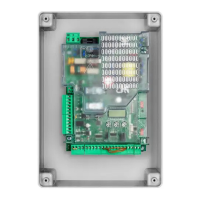
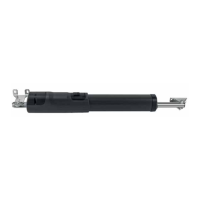
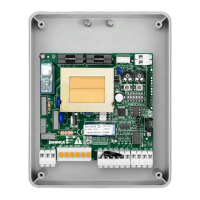
19
CONNECTIONS CHECK
1) Disconnect power supply.
2) Manually release the gates, bring them to approx. half the stroke and lock them again.
3) Restore the power supply.
4) Give a step by step command using the button connected to the input of the PP, remote control or button <->.
5) The gates must move in opening.
If this is not the case, simply invert the motor running wires.
6) Using MINV logic, select the motor which must start to move first in opening, see Fig.3.
7) Execute an autoreset procedure (see AUTOSET menu).
AUTOSET
This function is used to set the optimal automation operating values and, at the end of the procedure, the parameters of DISPLACE-
MENT, WORKING TIME and SLOWDOWN are adjusted.
To autoset, proceed as follows:
1) Ensure that in the manoeuvre area of the gates there are no obstacles of any kind.
If necessary, block off the area to prevent access to people, animals, cars, etc.
During the autoset phase, the anti-crushing function is not active.
2) Press the PG button to access programming, with the button + select the AUTO function and press PG.
3) Select the type of motor used:
ENC Motors with standard encoder
LSU Motors with electromechanical limit switch.
NLSU Motors without limit switch and encoder (timed function automatically calculated between the mechanical stops via ampero-
metric detection)
4) Press OK to start the autoset phase.
5) The central unit performs a sequence of operations: single partial openings, full openings and closings at different speeds, and so on.
During this phase, the display will show some acronyms that indicate the operation that is being performed at that time:
OPM1/2: motor 1 or 2 in opening phase
CLM1/2: motor 1 or 2 in closing phase.
If the motor movement is opposite to what is indicated on the display, stop the autoset by pressing any of the programming buttons,
reverse the +/- wires of the motor and repeat the autoset operation.
6) When the autoset phase has ended, the message OK is displayed.
Note:
If the autoset is not successful, an ERR error message is displayed, refer to the Error Message table and proceed accordingly, and then
repeat the autoset operation.
PROGRAMMING
Programming of the various functionalities of the control panel is carried out using the LCD display on the control panel and setting the
desired values in the programming menu described below.
The parameters menu allows a numerical value to be set to a function, similar to an adjustment trimmer.
The logic menu allows a function to be activated or deactivated, similar to the setting of a dip-switch.
Other special functions follow the parameters and logics menu and can vary according to the software revision.
TO ACCESS PROGRAMMING:
1 - Press the <PG> button to display the first “PAR” parameter menu.
2 - Choose with button <+> or <-> the menu you intend selecting (PAR>LOG>RAD>NMAN>MACI>RES>AUTO>CODE).
3 - Press the <PG> button, the display shows the first function available on the menu.
4 - Use the <+> or <-> button to select the function you wish to change.
5 - Press the <PG> button to display the value currently set for the selected function.
6 - Use the <+> or <-> button to select the value you wish to assign to the function.
7 - Press the <PG> button to display the “PRG” signal indicating successful programming.
NOTES:
Pressing <+> and <-> simultaneously within a function menu allows you to return to the top menu without making any changes.
Hold the <+> or <-> button to accelerate the increase/decrease of values.
After 60s standby, the control panel exits programming mode and the display switches off.
Pressing the button <-> with the display off is the same as a step by step command.
On switching on the board, the software version is displayed for approx. 5s.


 To Next Page
 Loading...