39 Menu operation
Function descriptions
Menu Descriptions
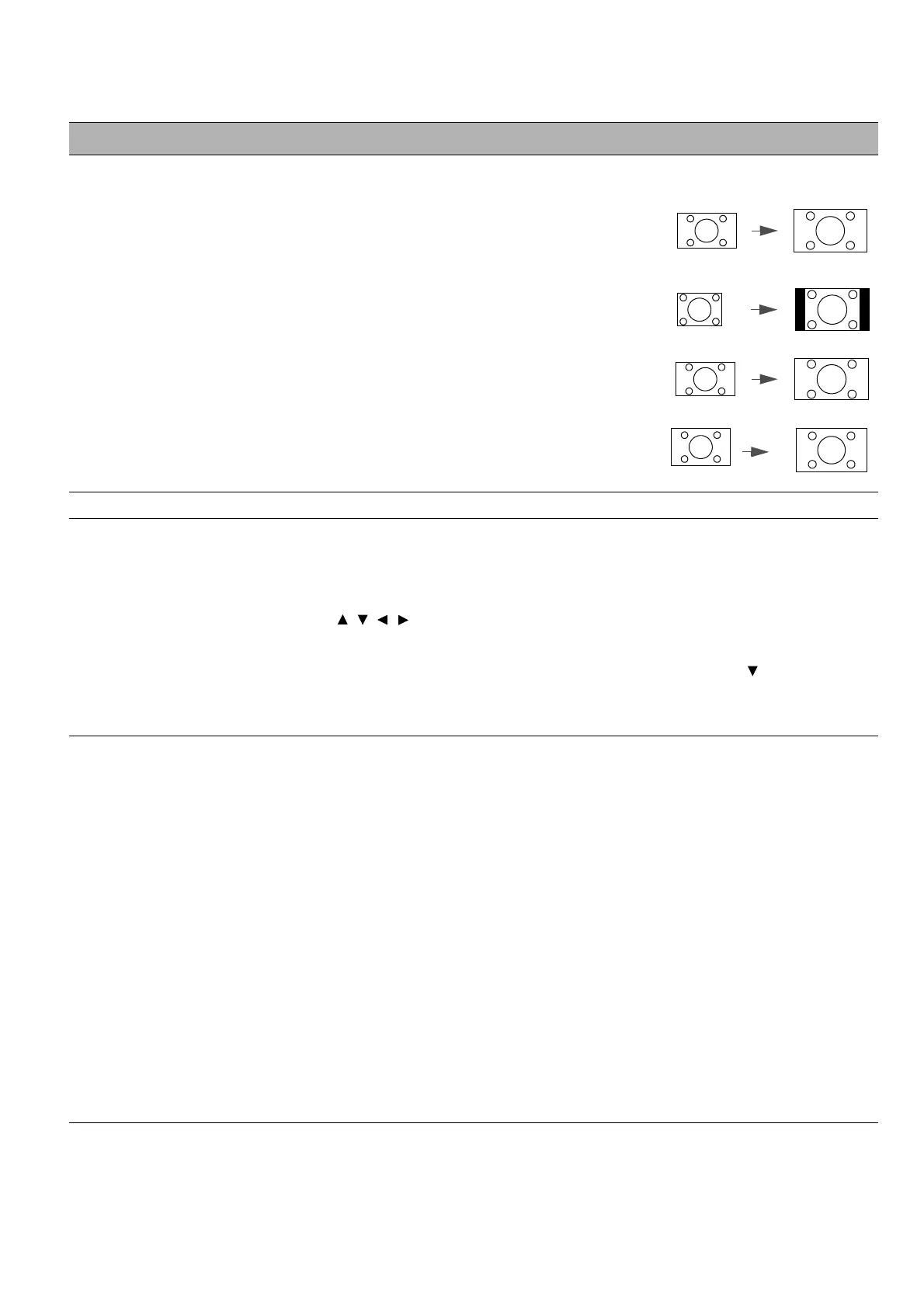
Aspect Ratio
There are several options to set the image's aspect ratio depending on your
input signal source.
• Auto: Scales an image proportionally to
fit the projector's native resolution in its
horizontal or vertical width.
• 4:3: Scales an image so that it is
displayed in the center of the screen with
a 4:3 aspect ratio.
• 16:9: Scales an image so that it is
displayed in the center of the screen with
a 16:9 aspect ratio.
• 16:10: Scales an image so that it is
displayed in the center of the screen with
a 16:10 aspect ratio.
Auto Source Search Allows the projector to automatically search for a signal.
Source Rename
Renames the current input source to your desired name.
On the Source Rename page:
1. Press OK to display the on-screen keyboard.
2. Press / / / to select each desired digit/letter, and press OK to
confirm each input.
3. Repeat the step above and when done, press BACK and to highlight
Commit.
4. Press OK and the source name changes.
3D
This projector supports playing three-dimensional (3D) content transferred
through your 3D-compatible video devices and contents, such as
PlayStation consoles (with 3D game discs), 3D Blu-ray players (with 3D
Blu-ray discs), and so on. After you have connected the 3D video devices to
the projector, wear a pair of 3D glasses and make sure the power is on to
view 3D contents.
When watching 3D contents:
• The image may seem misplaced; however, this is not a product
malfunction.
• Take appropriate breaks when watching 3D contents.
• Stop watching 3D contents if you feel fatigue or discomfort.
• Keep a distance from the screen of about three times the effective
height of the screen.
• Children and people with a history of oversensitivity to light, heart
problems, or any other existing medical conditions should be
refrained from watching 3D contents.


 To Next Page