36
BenQ C260 Mobile Phone
• Advanced: Provides advanced Browser setting options. Please
contact your network service provider for details.
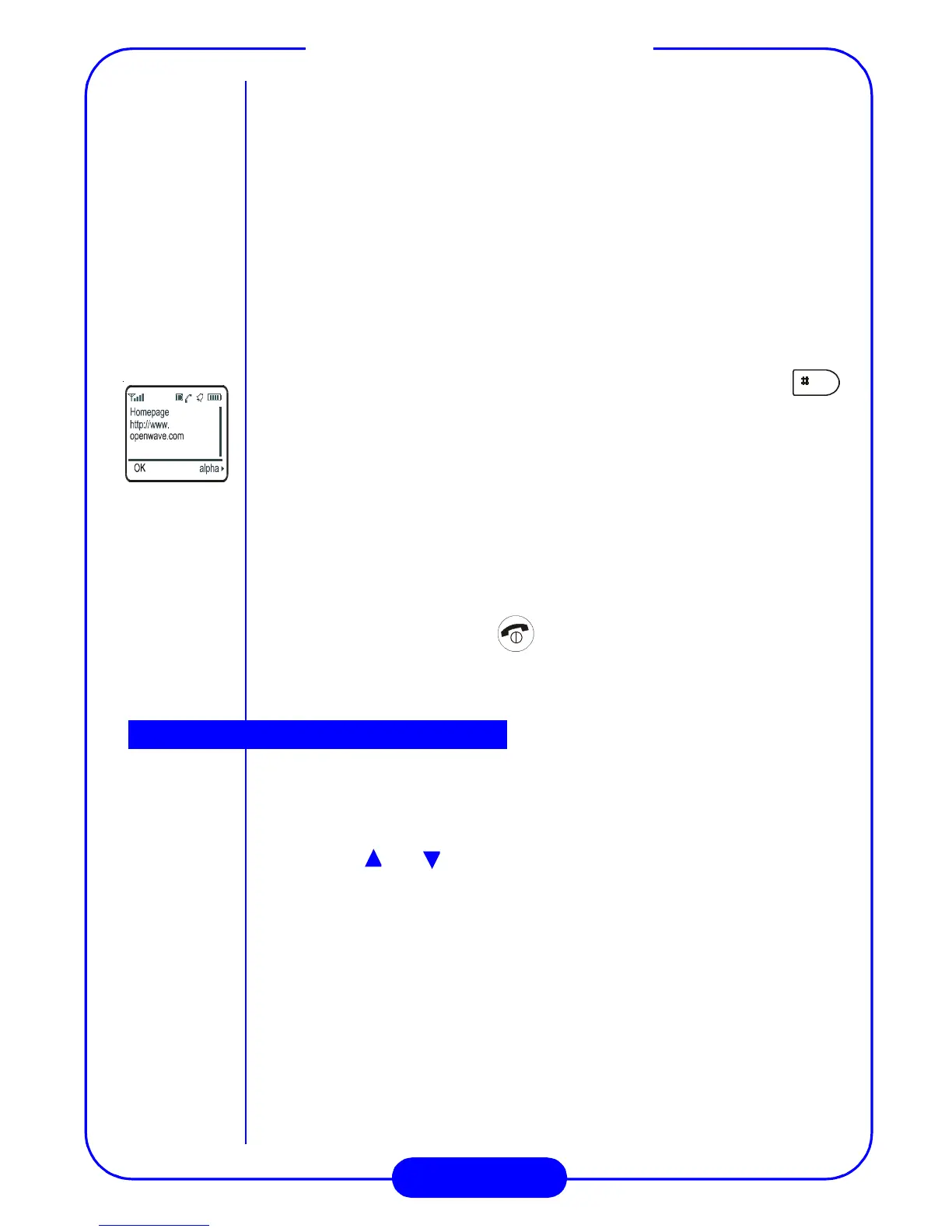
Entering text in Browser
You might be asked to provide text information when accessing on-
line service (e.g, your ID number or sending messages), you can press
alphanumeric keys to enter texts. Your phone provides 3 text entry
modes.
To switch among these modes, press right soft key until you find the
desired one.
alpha: Allows you to enter English characters. You can press
key to change the character case.
SYM: If this mode is selected, a symbol list will appear on the screen.
Press an alphanumeric key that corresponds to the number of
the symbol to enter the one you want.
You can press “More” soft key to get more symbols.
NUM: Allows you to enter numbers.
Exit browser
To exit Browser, long press key.
You can use this function to set up the alarm clock you need and store
the alarm clock setting in the phone memory. There are three settings
for you to choose.
You can use and on the scroll key to choose the item you want
to set. Then press “Select” soft key to enter the submenu. You will be
promped to enter the time of your alarm clock setting.
Once: Press “Select” soft key and you will be prompted to enter the
time of your alarm clock setting. In this mode, the alarm clock
will only activate once.
Daily: Press “Select” soft key and you will be prompted to enter the
time of your alarm clock setting. In this mode, the alarm clock
will activate every day.
Mon-Fri: Press “Select” soft key and you will be prompted to enter
the time of your alarm clock setting. In this mode, the alarm
clock will activate from Monday to Friday.
Alarm clock



 To Next Page