141 Dodatak: Upotreba (Launcher) za verziju softvera stariju od v01.00.19.00
BenQ Smart Control
The settings menu also features a link to install the BenQ Smart Control app, which lets you
transform your smartphone into a remote control to control the projector via buttons and/or
touch gestures.
Installing the BenQ Smart Control app on your smartphone
To install the BenQ Smart Control app on your smartphone:
1. Choose one of the following options:
• Connect your smartphone to the same wireless network as your projector.
• Enable wireless hotspot for your projector and then connect your smartphone to the
projector’s wireless hotspot. For instructions on how to enable wireless hotspot for your
projector see Hotspot on page 131.
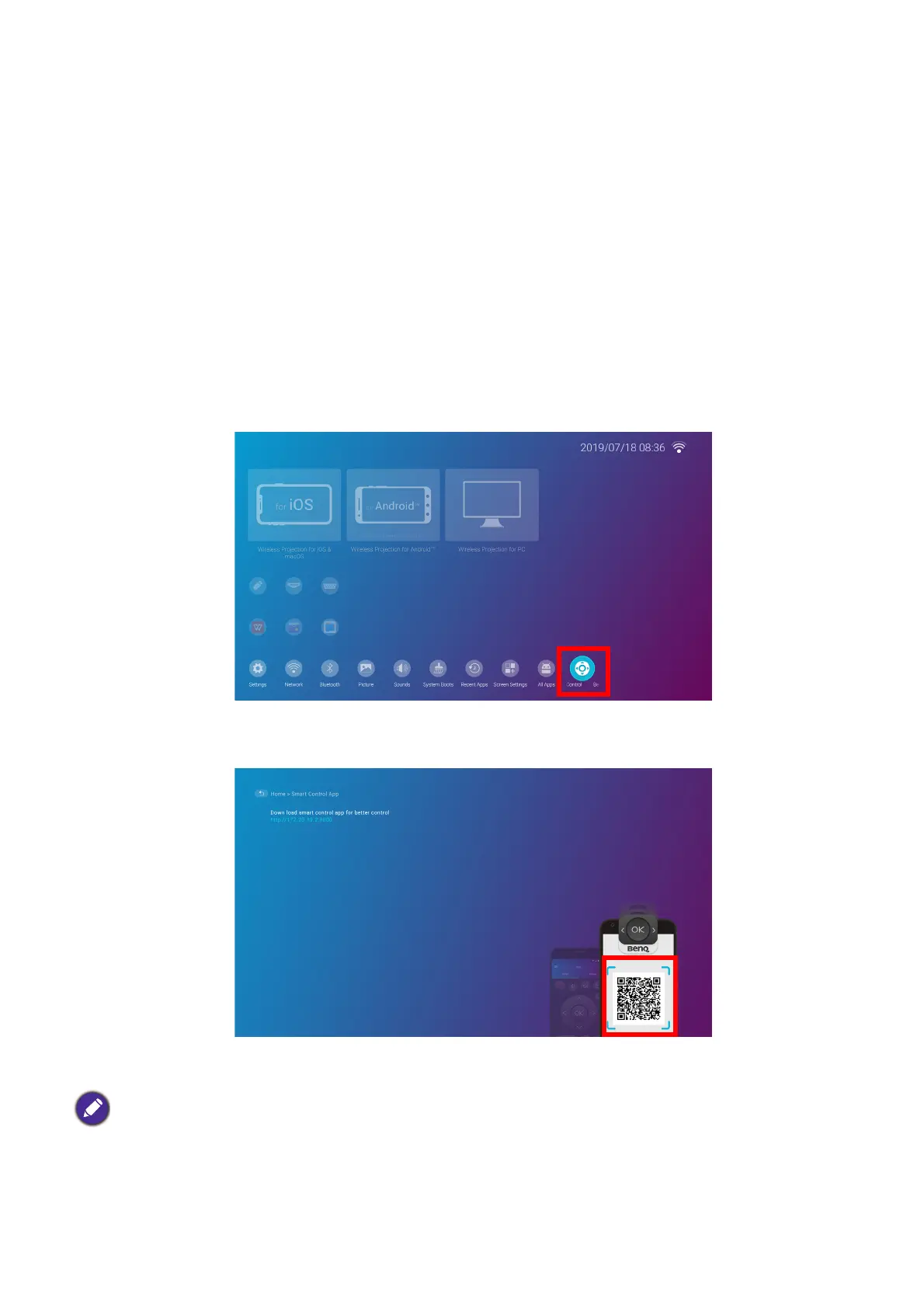
2. Select BenQ Smart Control in the Settings menu of the BenQ Launcher home screen
and then press OK.
3. Scan the QR code shown on the projector with your smartphone, this will open a download
link on your smartphone.
4. Download and install the BenQ Smart Control on to your smartphone.
Using the BenQ Smart Control app
To begin using the BenQ Smart Control app:
For some smartphones you may first need to allow your smartphones to install apps using downloaded
installation files from your smartphones settings menu.







 To Next Page