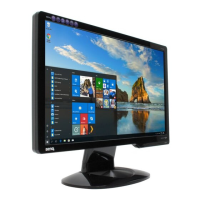
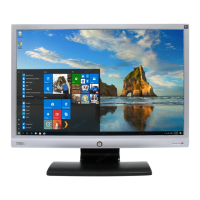
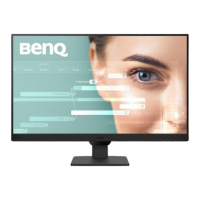
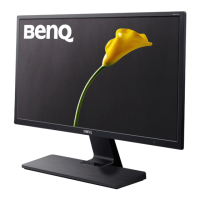
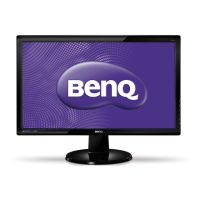
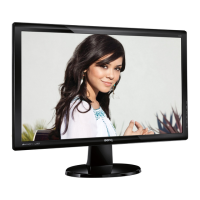
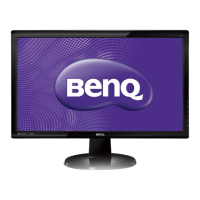
This document is a user manual for a BenQ LCD Monitor, specifically covering models G920HD/G920HDA, G922HD/G922HDA, and G925HD/G925HDA. It provides comprehensive instructions for setting up, optimizing, and troubleshooting the monitor, ensuring users can get the most out of their display.
The BenQ LCD Monitor is designed to provide a high-quality visual experience for various applications, from basic PC use to viewing movies, playing games, and working with still images. It supports both analog (D-Sub) and digital (DVI-D) video inputs, offering flexibility for connection to different computer systems. For models equipped with DVI inputs, a DVI-D cable is available as an optional accessory, sold separately, to facilitate direct digital connections for superior picture quality. The monitor is designed with user convenience in mind, featuring an intuitive On-Screen Display (OSD) menu for adjustments and hot-key functions for quick access to frequently used settings.
Function Description
The BenQ LCD Monitor serves as a visual output device for computers, displaying images and video content. Its primary function is to provide a clear, vibrant, and adjustable display for various computing tasks.
- Display Capabilities: The monitor supports different display modes tailored for specific content types, including:
- Standard: Ideal for general PC applications, offering balanced settings.
- Movie: Optimized for viewing videos, enhancing visual quality for cinematic experiences.
- Dynamics: Designed for landscape-specific videos and gaming, providing dynamic adjustments for immersive visuals.
- Photo: Calibrated for viewing still images, ensuring accurate color representation.
- sRGB: Provides better color matching representation with peripheral devices such as printers and digital cameras, crucial for color-sensitive work.
- Input Flexibility: The monitor offers multiple input options to accommodate different computer setups:
- D-Sub (Analog): A standard analog input for connecting to a wide range of PCs.
- DVI-D (Digital): Available on some models, this input provides a direct digital connection, resulting in superior image quality compared to analog.
- Automatic Optimization: For analog inputs, the monitor features an "AUTO" key function that automatically adjusts vertical position, phase, horizontal position, and pixel clock to optimize the displayed image. This simplifies setup and ensures the best possible picture quality without manual intervention. For digital inputs (DVI), this function is disabled as the monitor automatically displays the best image.
- Picture Adjustment: Users can fine-tune various picture settings through the OSD menu, including Brightness, Contrast, Sharpness, and Color. These adjustments allow for personalized visual preferences and optimization for different viewing environments.
- Dynamic Contrast: This feature, available in Photo, Dynamics, or Movie modes, automatically detects the distribution of an input visual signal and creates optimal contrast. Higher levels of Dynamic Contrast result in more detailed pictures.
- Display Mode (Aspect Ratio): The monitor provides a "Display Mode" feature to handle aspect ratios other than 16:9 without geometric distortion. Users can choose between "Full" to scale the input image to fill the screen (ideal for 16:9 images) or "Aspect" to display the input image without geometric distortion, filling as much of the display as possible.
- OSD Lock: A security feature that prevents accidental changes to monitor settings by disabling OSD controls and hotkey operations. It can be unlocked by holding the "MENU" key for 15 seconds or by selecting "NO" in the "OSD Lock" submenu.
- DDC/CI (Display Data Channel/Command Interface): This capability allows monitor controls to be managed through software on the PC, enabling remote diagnostics and adjustments.
Usage Features
The BenQ LCD Monitor is designed for ease of use, from initial assembly to daily operation and advanced picture adjustments.
- Assembly: The manual provides clear, step-by-step instructions for attaching the monitor base to the stand arm, connecting video cables (D-Sub and DVI-D), and plugging in the power cord. It emphasizes careful handling to prevent damage to the screen.
- Cable Management: A cable clip is integrated into the monitor stand to help route and retain cables neatly, contributing to a tidy workspace.
- Power On/Off: The monitor is turned on or off using a dedicated "Power" key on the control panel.
- Driver Installation: The manual guides users through installing custom BenQ LCD Monitor driver software from the provided CD-ROM. It differentiates between installing on a new computer and upgrading on an existing one, with specific instructions for Windows Vista and Windows XP systems. This ensures the monitor functions optimally with the operating system.
- Control Panel: The monitor features an accessible control panel with clearly labeled keys:
- AUTO: For quick automatic picture optimization (analog input only).
- MENU: To access the main OSD menu and navigate back or exit.
- Left/Decrease (Mode hot key): For left adjustments, decreasing values, and quick access to picture modes (Standard, Movie, Dynamics, Photo, sRGB).
- Right/Increase (Contrast/Brightness hot key): For right adjustments, increasing values, and quick access to Brightness and Contrast settings.
- ENTER (Input hot key): To enter sub-menus, select items, and toggle between video inputs (DVI and D-Sub).
- OSD Navigation: The OSD menu is structured into four main categories: Display, Picture, Picture Advanced, and System. Users navigate these menus using the left/right keys to highlight items and the ENTER key to select.
- Hot Key Mode: Beyond the OSD menu, specific keys function as hotkeys for direct access to common adjustments like Brightness, Contrast, Mode, and Input, allowing for quick changes without delving into the full menu.
- Picture Optimization: For analog inputs, the manual recommends using the "AUTO" key for initial optimization and provides guidance on manually adjusting Pixel Clock and Phase to eliminate vertical or horizontal noise, using a screen test image utility (auto.exe on the CD-ROM) for best results.
- Color Settings: The "Color" menu allows users to select preset color tints (Normal, Bluish, Reddish) or customize the color blend using "User Mode" by adjusting Red, Green, and Blue levels. A "Reset Color" option is available to revert to factory defaults.
- Senseye Demo: This feature, available in certain picture modes, displays a split-screen preview, showing the image in Standard mode on one side and the selected mode on the other, allowing users to compare visual effects.
- Language Selection: The OSD menu supports multiple languages, which can be selected from the "OSD Settings" menu under "System."
- Display Time: Users can adjust how long the OSD menu remains on screen before automatically disappearing.
Maintenance Features
The manual provides essential guidelines for the care and servicing of the BenQ LCD Monitor to ensure its longevity and optimal performance.
- Power Safety:
- The AC plug acts as a power disconnect, and the socket outlet should be easily accessible.
- The monitor should be operated with the specified power type indicated on its label.
- An approved power cord (H03VV-F or H05VV-F, 2G or 3G, 0.75mm2 or greater) must be used.
- Cleaning:
- Always unplug the monitor from the wall outlet before cleaning.
- Clean the LCD monitor surface with a lint-free, non-abrasive cloth.
- Avoid using liquid, aerosol, or glass cleaners, as these can damage the screen.
- Ventilation:
- Slots and openings on the back or top of the cabinet are for ventilation and must not be blocked or covered.
- The monitor should not be placed near radiators, heat sources, or in built-in installations without proper ventilation.
- Liquid and Object Intrusion:
- Never push objects or spill liquid of any kind into the product, as this can cause damage and safety hazards.
- Servicing:
- Users are advised not to attempt to service the product themselves, as opening covers may expose them to dangerous voltages.
- In case of misuse, dropping, mishandling, or any other accident, qualified service personnel should be contacted for servicing.
- Image Retention Prevention:
- To prevent faint shadows from static images (image retention), users are advised to activate the computer's power management function to put the monitor into a low-power "sleep" mode when not in active use.
- Using a screensaver is also recommended to prevent image retention.
- Packaging Retention: Users are encouraged to keep the original box and packaging for future use, especially if the monitor needs to be transported, as the fitted foam packing provides ideal protection.
- Troubleshooting Guide: The manual includes a "Frequently Asked Questions (FAQ)" section to help users diagnose and resolve common issues such as blurred images, pixel errors, faulty coloration, no image display, distorted images, and inaccessible OSD controls. This self-help section empowers users to address minor problems independently.

 Need help?
 General

 To Next Page