EasyManua.ls Logo

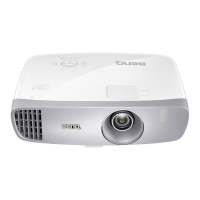
BenQ HT3050 - User Manual

BenQ HT3050
63 pages
Print Icon
To Next Page IconTo Next Page
Loading...
HT3050
Digital Pr
ojector
Home Cinema Series
User Manual

Table of Contents

Questions and Answers

  • D
    David BakerJul 27, 2025
    How to fix BenQ HT3050 Projector when it does not turn on?
    • A
      Ann ReyesJul 27, 2025
      If your BenQ Projector isn't turning on, here are a few things to check: * **Power Cable:** Ensure the power cable is securely plugged into both the AC inlet on the projector's rear and a functioning power outlet. If the outlet has a switch, make sure it's on. * **Cooling Process:** If you've recently turned the projector off, wait for the cooling process to complete before attempting to turn it on again. * **Lamp Cover:** Verify that the lamp cover is correctly and securely attached.
  • M
    mooremichaelJul 31, 2025
    Why is my BenQ HT3050 remote control not working?
    • K
      Kenneth NelsonJul 31, 2025
      If your BenQ Projector's remote control isn't working correctly, here are some things to try: * **Batteries:** Replace both batteries in the remote with new ones. * **Obstacles:** Make sure there are no obstructions between the remote control and the projector. * **Distance:** Ensure you are within 8 meters (26.2 feet) of the projector.
  • M
    Megan GrayAug 5, 2025
    What to do if my BenQ HT3050 Projector has no picture?
    • J
      Jennifer JacksonAug 6, 2025
      If your BenQ Projector is not displaying a picture, consider the following: * **Video Source:** Ensure that the video source is turned on and that the signal cable is correctly connected. * **Connection:** Verify the projector is correctly connected to the input source device. * **Input Source:** Use the SOURCE key on the projector or remote control to select the correct input source.
  • M
    mnelsonAug 10, 2025
    How to fix a blurred picture on my BenQ HT3050 Projector?
    • S
      Sierra LucasAug 10, 2025
      If the picture on your BenQ Projector is blurred, try these solutions: * **Focus:** Adjust the focus of the lens using the focus ring. * **Alignment:** Adjust the projection angle, direction, and height of the projector to properly align it with the screen. * **Lens Cover:** Remove the lens cover.
  • E
    Edward SummersAug 15, 2025
    Why is the image unstable on my BenQ HT3050?
    • M
      Mr. Robert SimmonsAug 15, 2025
      If the image on your BenQ Projector is unstable, it might be due to loose connection cables. Ensure that the cables are correctly connected to the appropriate terminals on both the projector and the signal source.
  • A
    Amy MossAug 20, 2025
    What to do if 3D content doesn't display correctly on BenQ Projector?
    • K
      Kathleen WarrenAug 20, 2025
      If 3D content isn't displaying correctly on your BenQ Projector, check the following: * **3D Glasses:** Recharge the 3D glasses. * **3D Menu Settings:** Ensure the settings in the 3D menu are correctly configured. * **Blu-ray Disc Format:** Use a 3D Blu-ray Disc. * **Input Source:** Select the correct source using the SOURCE key on the projector or remote control.

Summary

Important Safety Instructions

General Safety Precautions

Covers manual reading, proper placement, vertical storage, and environment avoidance for safe operation.

Overview

Projector Features

Lists and describes key features of the projector, such as Full HD compatibility and picture quality.

Projector Exterior View

Component Identification

Identifies and labels the external components on the projector's front, rear, and sides.

Controls and Functions

Control Panel Overview

Details the buttons and indicators located on the projector's control panel.

Remote Control Functions

Remote Control Operation

Explains the functions of each button on the projector's remote control.

Installation

Choosing a Location

Guides on selecting an appropriate location for projector installation, considering screen and environment.

Connection

Connecting Video Equipment

Explains how to connect various video sources like HDMI, Component, and Video.

Operation

Starting Up the Projector

Step-by-step guide for powering on the projector and initial setup wizard.

Menu Functions

Understanding OSD Menus

Introduces the two types of On-Screen Display menus: Basic and Advanced.

Using the Basic OSD Menu

Basic OSD Menu Options (Input Connected)

Explains menu options available when a video signal is connected.

Picture Menu

Basic Picture Adjustments

Covers brightness, contrast, color, tint, sharpness, and color temperature adjustments.

Audio Setup Menu

Sound Mode and Volume Control

Adjusts sound modes, volume, mute, and ring tone settings.

Display Menu

Aspect Ratio and Image Positioning

Adjusts aspect ratio, wall color correction, and image position on the screen.

System Setup: Basic Menu

Basic System Configuration

Covers language, background color, splash screen, auto-off, and menu settings.

System Setup: Advanced Menu

Advanced Setup Options

Details lamp settings, HDMI, baud rate, test pattern, and closed caption configurations.

Maintenance

Projector Care and Cleaning

General maintenance, cleaning the lens and projector case.

Maintenance

Replacing the Projector Lamp

Step-by-step instructions for safely removing and installing a new projector lamp.

Indicators

Status Indicator Lights

Explains indicator light status for power, lamp, and thermal events.

Troubleshooting

Common Problems and Solutions

Addresses issues like no power, no picture, unstable image, remote control, and 3D content display.

Specifications

Projector Technical Specifications

Lists optical, electrical, mechanical, input/output terminals, and environmental requirements.

Timing Chart

Supported PC Input Timings

Table listing supported PC input resolutions, refresh rates, and frequencies.

Warranty and Copyright Information

Warranty Terms

Outlines the terms and conditions of the product warranty.

BenQ HT3050 Specifications

General IconGeneral
TV Tunerno
Noise Level29 decibels
White Brightness2000 lumens
Native Resolution1920 x 1080
Contrast Ratio15, 000:1
Aspect Ratio16:9
Throw Ratio Rangen/a
HDRno
3 Chip Technologyno
Keystone Effectyes
3Dyes
Minimum Screen Size60 inches
Maximum Screen Size180 inches
Minimum Aperture2.59 f/
Maximum Aperture2.87 f/
Optical Zoom1.3x
Digital Zoomno
Minimum Distance5.00 feet
Maximum Distance25.05 feet
HDMI 2.2 Ports0
HDMI ARC Portsno
Wireless HDMIoptional
USB Ports2
RS-232 Port1
Video Inputrca
Inputsrca
Bluetoothno
Speakers Output10 watts
Voice Assistantno
Remote Controlyes
OS Compatibilitywindows
Weight and Dimensions IconWeight and Dimensions
Depth10.9 inches
Height4.8 inches
Width13.8 inches
Net Weight8.1 pounds

Related product manuals