EasyManua.ls Logo

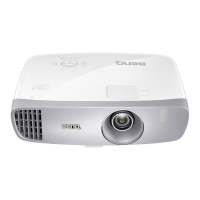
BenQ HT2150ST - User Manual

BenQ HT2150ST
59 pages
Print Icon
To Next Page IconTo Next Page
Loading...
HT2150ST
Digital Pr
ojector
Home Cinema Series
User Manual

Table of Contents

Questions and Answers

  • D
    David CampbellJul 28, 2025
    How to fix BenQ HT2150ST that won't turn on?
    • K
      Kristen SimonJul 28, 2025
      If your BenQ Projector doesn't turn on, make sure the power cable is securely plugged into both the projector's AC inlet and a working power outlet (and that the outlet switch is on, if applicable). Also, wait for the cooling down process to complete before attempting to turn it on again. Finally, check that the lamp cover is correctly attached.
  • B
    Brian MorrisonAug 2, 2025
    What to do if my BenQ HT2150ST has no picture?
    • R
      Ryan ToddAug 2, 2025
      If your BenQ Projector isn't displaying a picture, ensure the video source is on and properly connected. Also, verify that the projector is correctly connected to the input source device. Finally, use the SOURCE key on the projector or remote to select the correct input source.
  • A
    annsantosAug 7, 2025
    How to fix blurred picture on BenQ HT2150ST?
    • R
      Ruth YoungAug 7, 2025
      If the picture from your BenQ Projector is blurred, try adjusting the focus of the lens using the focus ring. Also, ensure the projector and screen are properly aligned by adjusting the projection angle, direction, and height if needed. Finally, make sure the lens cover is removed.
  • J
    Jamie LopezAug 12, 2025
    What to do if my BenQ Projector image is unstable?
    • X
      xjohnsonAug 12, 2025
      If your BenQ Projector displays unstable image, check that the connection cables are securely connected to both the projector and the signal source. Ensure the cables are correctly connected to the appropriate terminals.
  • S
    Stanley HodgesAug 17, 2025
    Why is my BenQ Projector remote not working?
    • L
      Laurie EvansAug 17, 2025
      If your BenQ Projector remote control isn't working, first replace the batteries with new ones. If that doesn't work, make sure there's nothing blocking the path between the remote and the projector. Also, ensure you're within 8 meters (26.2 feet) of the projector.
  • N
    Nathan MezaAug 22, 2025
    Why is 3D not working on my BenQ HT2150ST Projector?
    • M
      Meghan LambertAug 22, 2025
      If 3D content doesn't display correctly on your BenQ Projector, first recharge the 3D glasses. Then, correctly set the settings in the 3D menu. Ensure you are using a 3D Blu-ray Disc. Finally, select the correct source using the SOURCE key on the projector or remote control.

Summary

Important safety instructions

Controls and functions

Control panel

Explains the buttons and indicators on the projector's physical control panel.

Remote control

Details the functions and operation of the projector's remote control.

Installation

Connection

Operation

Starting up the projector

Step-by-step guide on powering on the projector and initial setup wizard.

Shutting down the projector

Explains the correct procedure for powering off the projector and cooling down the lamp.

Selecting an input source

Guides on choosing and switching between connected video sources.

Adjusting the projected image

Covers adjustments for projection angle, image size, clarity, and keystone.

Menu Functions

Advanced OSD Menu

Details the comprehensive functions available in the Advanced OSD menu.

Maintenance

Lamp information

Details lamp usage, extending life, and power settings.

Replacing the lamp

Step-by-step guide for safely replacing the projector lamp.

Troubleshooting

Specifications

Projector specifications

Lists detailed technical specifications of the projector, including optical, electrical, and environmental.

BenQ HT2150ST Specifications

General IconGeneral
Typelamp
Light Source Life3500 hours
Colorwhite/silver, multi
Displaydlp
Throw Typeshort throw
TV Tunerno
Portablefixed
Noise Level29 decibels
Color Brightness2200 lumens
White Brightness2200 lumens
Resolutionfull hd (1080p)
Native Resolution1920 x 1080
Contrast Ratio15000:1
Aspect Ratio16:9
Throw Ratio Range0.69-0.83
HDRno
3 Chip Technologyno
Keystone Effectyes
3Dyes
Minimum Screen Size60 inches
Maximum Screen Size180 inches
Minimum Aperturef/2.6
Maximum Aperturef/2.78
Focus Adjustmentmanual
Optical Zoom1.3x
Digital Zoomno
Minimum Distance3.3 feet
Maximum Distance10 feet
HDMI Ports2
HDMI 2.2 Ports0
HDMI ARC Portsno
Wireless HDMIoptional
USB Ports2
RS-232 Port1
Video Inputhdmi, vga
Inputs3.5mm audio, hdmi, vga
Bluetoothno
Sound Modestereo
Built In Speakersyes
Speakers Output10 watts
Voice Assistantno
Remote Controlyes
OS Compatibilitywindows
Smart Functionsno
Power Sourceac/dc power (plug-in)
Voltage110 volts
Weight and Dimensions IconWeight and Dimensions
Depth10.9 inches
Height4.8 inches
Width14.9 inches
Net Weight7.93 pounds

Related product manuals