36 Menu operation
Display
Advanced
Color Settings
Wall Color
Corrects the projected picture’s color when the projection surface such as a
painted wall which may not be white, the Wall Color feature can help correct the
projected picture’s colors to prevent possible color difference between the source
and projected pictures. There are several precalibrated colors to choose from:
Light Yellow, Pink, Light Green, Blue, and Blackboard.
LumiExpert
To actively detects ambient light conditions in viewing environment and
automatically adjusts balanced visual brightness for maximum comfort. Available
under any picture mode, except for Brightness mode and 3D.
• LumiExpert: Selects to enable or disable the LumiExpert.
• LumiExpert Level: Adjusts the gamma offset in each picture mode but except
for Brightness and 3D mode.
• Manual Calibration: Based on the ambient brightness of the room to do the
calibration manually.
Reset Picture
Returns all of the adjustments you’ve made for the Picture menu to the factory
preset values.
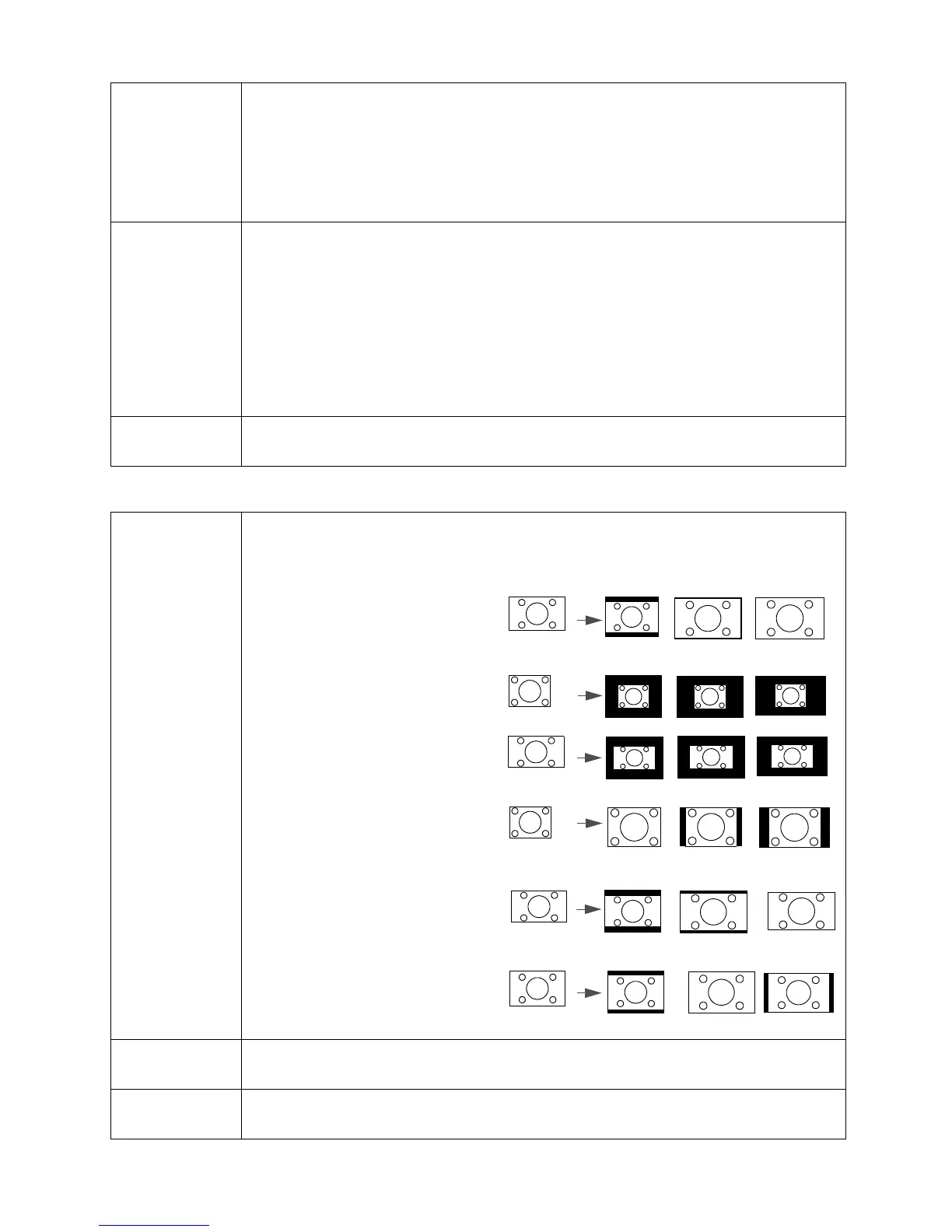
Aspect Ratio
There are several options to set the image's aspect ratio depending on your input
signal source.
• Auto: Scales an image
proportionally to fit the
projector's native resolution in its
horizontal or vertical width.
• Real: Projects an image as its
original resolution and resizes it to
fit within the display area. For
input signals with lower
resolutions, the projected image
will be displayed in its original size.
• 4:3: Scales an image so that it is
displayed in the center of the
screen with a 4:3 aspect ratio.
• 16:9: Scales an image so that it is
displayed in the center of the
screen with a 16:9 aspect ratio.
• 16:10: Scales an image so that it is
displayed in the center of the
screen with a 16:10 aspect ratio.
2D Keystone
Corrects vertical and horizontal keystonings of the image. See Correcting 2D
keystone on page 18.
Corner Fit
Manually adjust four corners of the image by setting the horizontal and vertical
values. See Adjusting Corner Fit on page 18.


 To Next Page