19 Operation
Using the menus
The projector is equipped with 2 types of On-Screen Display (OSD) menus for making various
adjustments and settings. The Basic OSD menu provides primary menu functions while the Advanced
OSD menu provides full menu functions.
To access the OSD menu, press MENU on the projector or remote control.
• Use the arrow keys ( / / / ) on the projector or remote control to move through the menu items.
• Use OK on the projector or remote control to confirm the selected menu item.
The first time you use the projector (after finishing the initial setup), press MENU, and the Basic OSD
menu will be displayed.
If you intend to switch from the Basic OSD menu to the Advanced OSD menu:
1. Go to Menu Type and press OK.
2. Use / to select Advanced and press OK. Your projector will switch to the Advanced OSD
menu.
Likewise, when you wish to switch from the Advanced OSD menu to the Basic OSD menu, follow
the instructions below:
1. Go to System > Menu Settings > Menu Type and press OK.
2. Use / to select Basic and press OK. Your projector will switch to the Basic OSD menu.
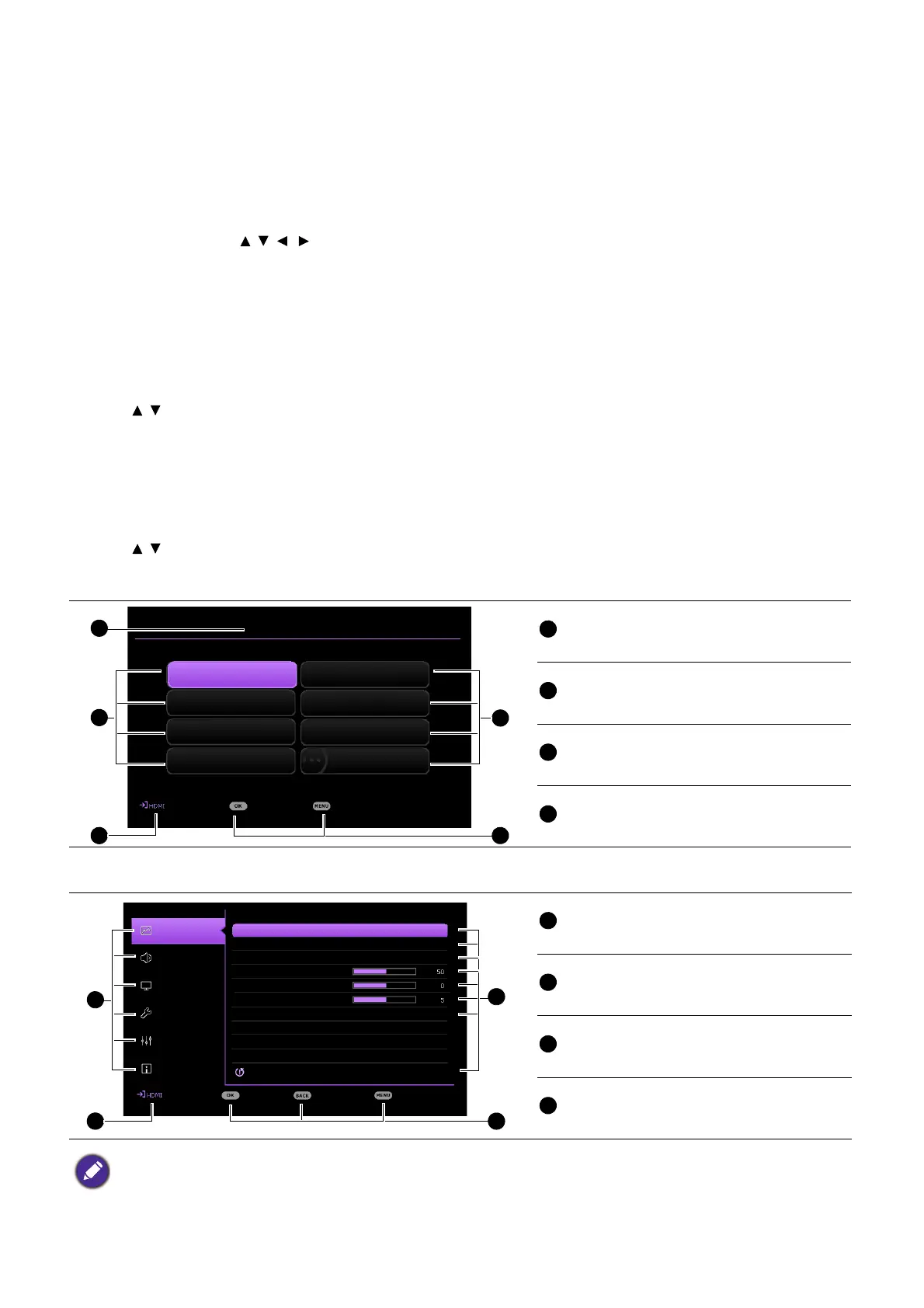
Overview of the Basic OSD menu.
Overview of the Advanced OSD menu.
Menu type
Sub-menu and status
Current input signal
Function keys
Main menu
Current input signal
Sub-menu and status
Function keys
The OSD screenshots are for reference only, and may differ from the actual design.
Picture Mode
2
4
2
Living Room
Enter Exit
3
Cinema
Sound Mode
Light Source Mode
2D Keystone
Game Settings
HDR Brightness
Information
Menu Type
SmartEco
0
Basic menu
1
Picture
Picture Mode
Contrast
Advanced Color Settings
Reset Current Picture Mode
Sharpness
Game Settings
3
4
1
User Management
Brightness
Audio
Display
Installation
System
Information
Living Room
Enter Return Exit
2



 To Next Page