>> How to operate your BeoPlayA8
Connect to your network
You must set up your BeoPlayA8
to be able to join a network and
use AirPlay, see the Quick Start
Guide.
When BeoPlayA8 is set up for use
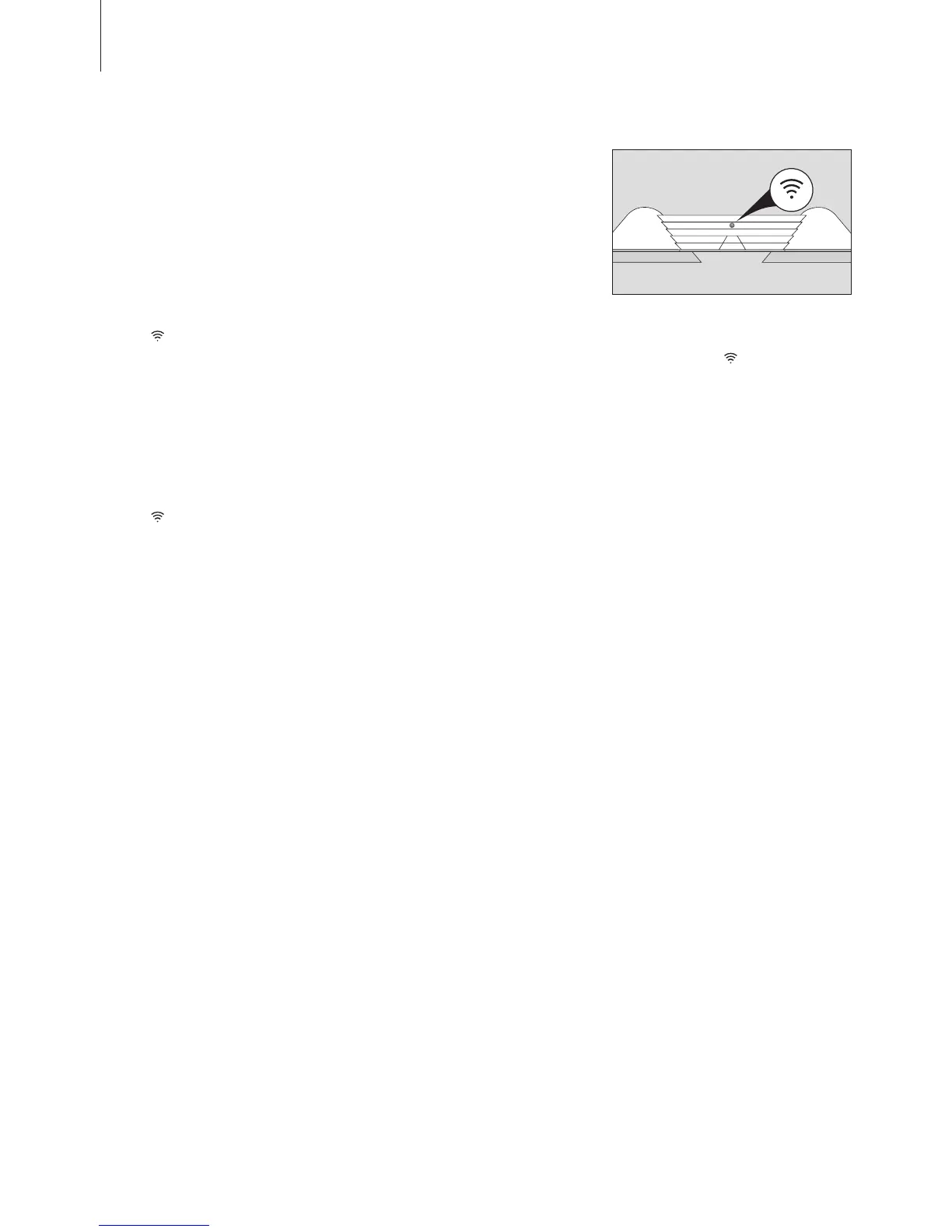
with AirPlay, press the network
button
shortly to connect it to
your network. This takes approx.
90 seconds. A short press switches
the network button off again.
Indicator light - Network
button
When you press the network
button
, the light ashes white
while BeoPlayA8 searches for the
network. A sound indicates that
BeoPlayA8 is connecting to the
network. When connected the
light becomes solid white. Orange
light indicates that BeoPlayA8 is
connected to your network, but
the signal strength is low. If the
light ashes orange continuously,
you are not connected to the
network. Flashing red light
indicates an error. See the FAQ
section on www.beoplay.com/a8/
support for more information.
A previously well-functioning setup
may develop problems over time as
surroundings change. Check your
Ethernet connection or router. If
the problem persists, contact your
retailer.
Speaker settings
To allow BeoPlayA8 to use its own
sound adjustments for optimum
sound experience, remember to
switch the ‘equalizer’ function off
on your iPod/iPhone/iPad.
To suit your preferences, you can
make settings on your iPod/iPhone/
iPad when it is docked in
BeoPlayA8:
> Select ‘Settings’
> Select ‘Speakers’
> Select ‘Tone Control’. Options
are: ‘Flat’, ‘Sound Enhance’ and
‘Bass Tilt’. With ‘Flat’ no additional
ltering is applied to the audio
signal. With ‘Sound Enhance’
ltering is applied to increase both
the low and high frequency
regions. ‘Bass Tilt’ provides a low
frequency boost only. When
undocked the sound adjustment
resets to ‘Flat’.
10
If you have used AirPlay and switch
BeoPlayA8 to standby, the
network button
is still on and
BeoPlayA8 is ready to be used for
AirPlay at any time.
1
*To use AirPlay with BeoPlayA8
an iPod, iPhone or iPad with iOS
4.2 or higher is required or another
AirPlay certied streaming device.



 To Next Page