Connect BeoPlayA8 to your
network and stream audio to
BeoPlayA8 using AirPlay. For
more information, see the
Quick Start Guide.
Browse and select audio from
your digital music collection
directly on the iPod/iPhone/
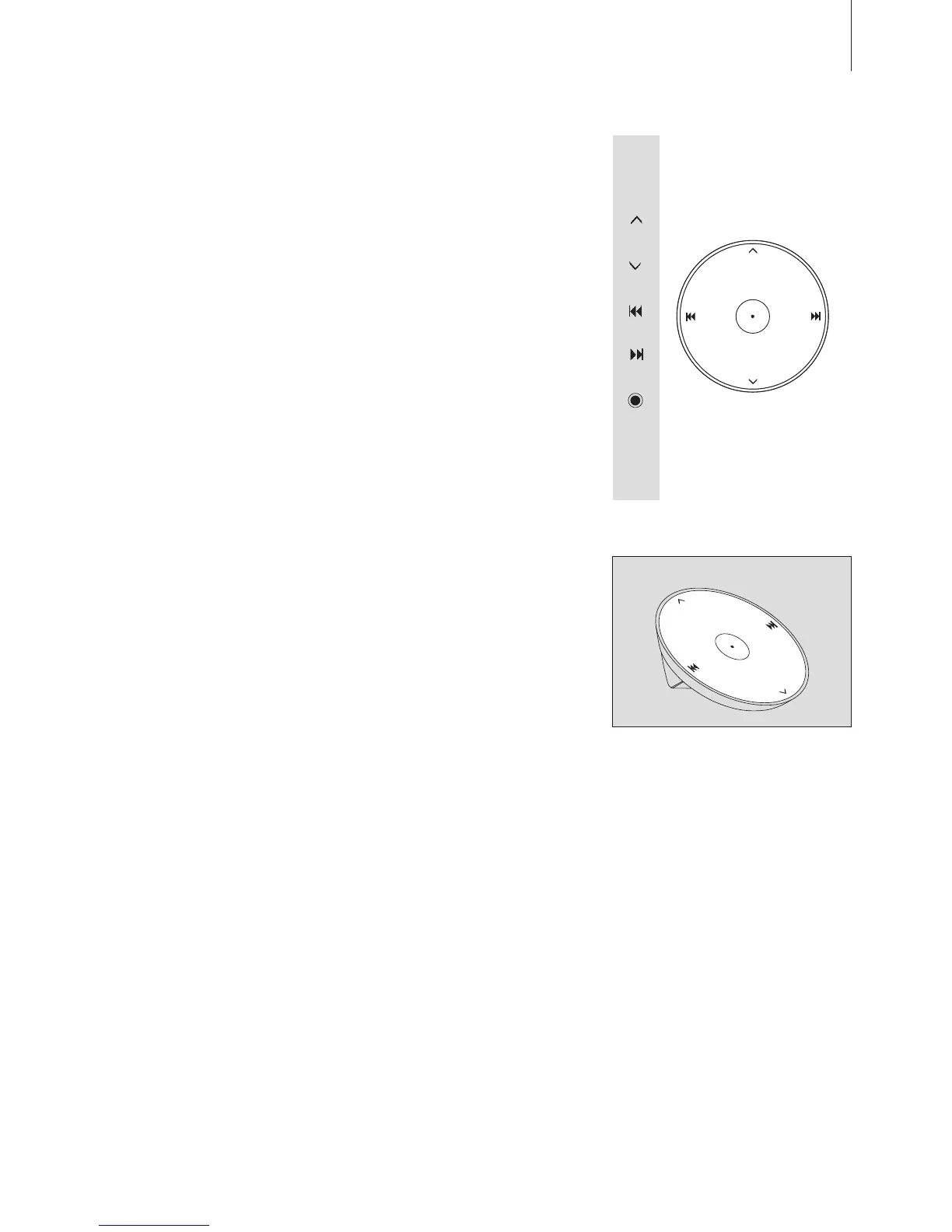
iPad. Use the operation panel
or the dedicated remote to
perform basic operation. A
Beo4 or Beo6 remote control
can also be used. See www.
beoplay.com/a8/learnmore for
more information.
You can nd more information
about your BeoPlayA8 in the
FAQ section (Frequently Asked
Questions) on www.beoplay.com/
a8/support. The FAQs are also
kept up to date if new or
modied features and
functions are introduced
through software updates
(requires Internet connection).
How to operate your BeoPlayA8
Volume up
Volume down
Previous/Rewind*
1
Next/Fast-forward*
1
Play/Pause
Press and hold for standby
Press and hold for more than 5
seconds for ‘deep sleep’*
2
Indicator light – operation
panel
The indicator light is placed in the
centre of the operation panel. The
light is green when BeoPlayA8 is
switched on. In standy mode, there
is no indicator light. Flashing red
light indicates an error. See the
FAQs on www.beoplay.com/a8/
support for more information.
9
The dedicated remote control can
be used in the same way as the
operation panel on BeoPlayA8.
2
*In ‘deep sleep’, the power
consumption is very low, and a
docked iPod/iPhone/iPad is not
charged. This function can only be
obtained by close-up operation.
1
*Fast-forward and rewind can only
be used when your iPod/iPhone/
iPad is docked in BeoPlayA8.



 To Next Page