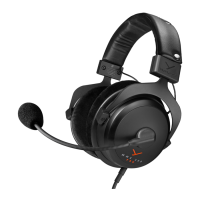
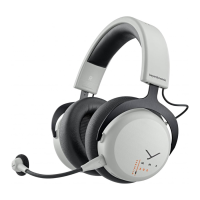
5MMX 150
EN
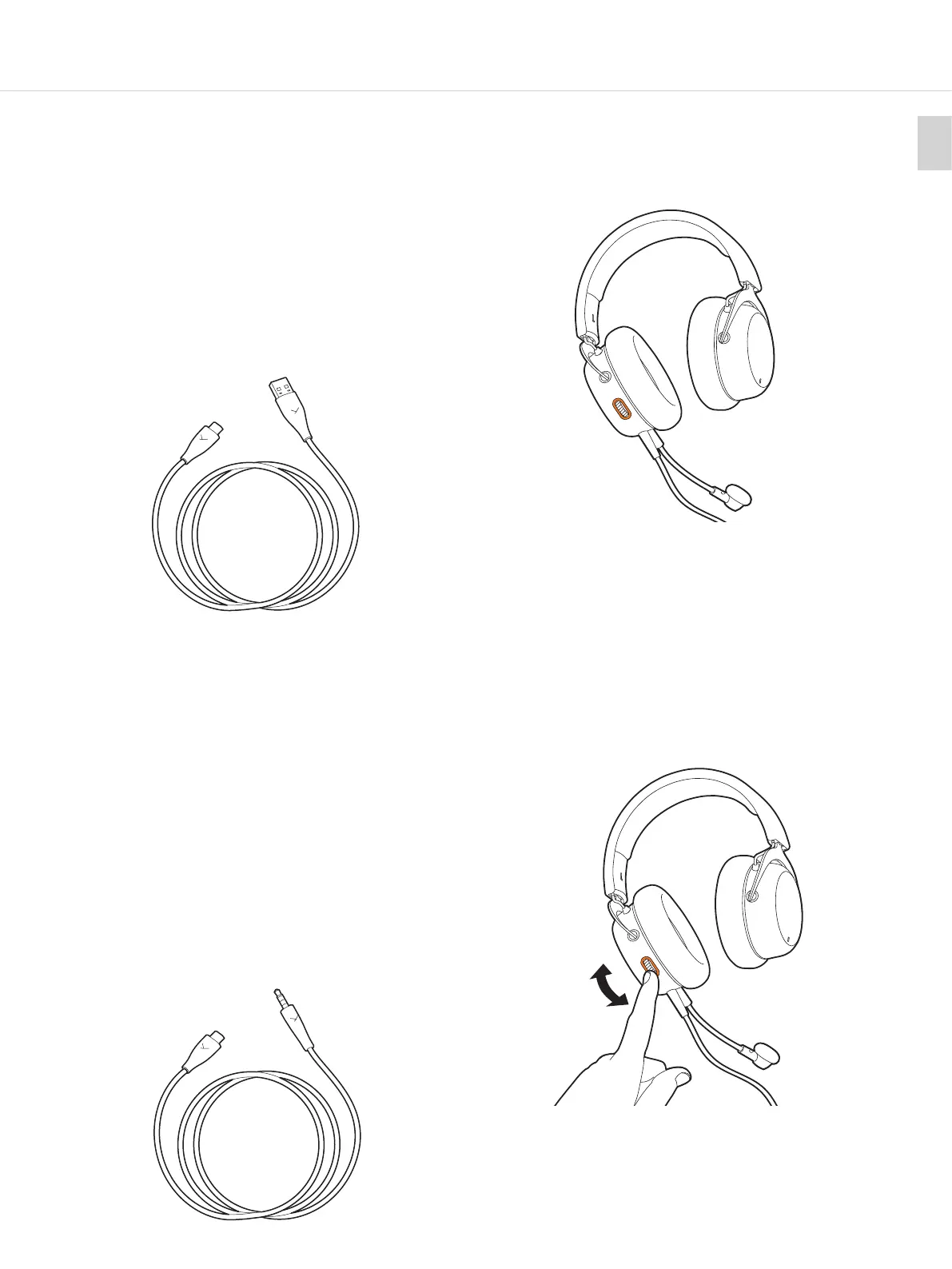
CONNECT THE CABLE TO YOUR DEVICE
u Using the USB-C to USB-A cable, connect the
headset (USB-C) and the other end (USB-A) to
your device (e.g. computer / console).
u
For devices with USB-C pos, please use a third-
pay USB-A to USB-C adapter or cable.
u
Once the headset is connected, it will automatically
inall the drivers. This may take a few seconds.
It should now be ready and selected as the main
device. The lightguide around the control wheel
will illuminate orange.
u Please also check your syems audio settings
and select the MMX 150 as input and output device,
if it’s not already selected.
Connect
to headset
Connect
to headset
Connect
to device
CONNECT THE HEADSET TO AN ANALOGUE
JACK SOCKET GAME CONTROLLER,
SOUNDCARD, MOBILE ETC.
u
Connect the USB cable as previously described and
connect it to your device’s jack socket. The output
signal should now be played back by the MMX 150,
as well as input signals that will be picked up by
the microphone. When on a computer please also
check your syems audio setting and select your
computers sound card as input and output device.
u Please note: The control elements and Augmented
Mode are not available when using this cable,
since there is no power supply.
u Caution: Connect the jack connector of the cable to
a headphone socket only! If you connect the head-
set to any other jack socket, the headset could be
damaged.
Connect 4-pole
jack to your device
HEADSET CONNECTED TO A DEVICE
u The lightguide will illuminate orange, when the
headset is connected to a device (e.g. computer /
console) and nothing else has been activated.
CHANGING THE VOLUME
u The headphone volume can easily be increased
by turning the control wheel up.
u To decrease the volume, turn the control wheel
down.
Increase
volume
Decrease
volume


 To Next Page