Quinta Update Instructions 07/2018 14
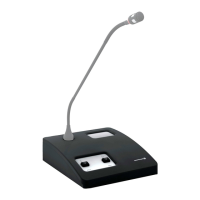
10 Microphone Units 2x Update (Gooseneck type)
Prerequisite: MU 2x firmware version: 1.1.00 or higher
If your MU 2x firmware is 1.0.00 or 1.0.03 please proceed with chapter 11: Microphone Units 2x Update
LEGACY (Gooseneck type).
Turn on all Quinta microphone units MU 21/21v/22/23/23v which should partici-
pate in the update by pressing the microphone button. All microphone units (MUs)
will be updated simultaneously by wireless connection. Ensure that no other MUs
are located within the RF range of the Quinta CU antennas (for example next
door), otherwise those MUs will also participate in the update and/or may contrib-
ute to unwanted interruptions during the update process.
All participating MUs have to have a stable radio connection to the Quinta CU.
Please see the appendix for more information about the MU signalling code.
At the beginning of the update all MUs automatically switch to boot loader mode.
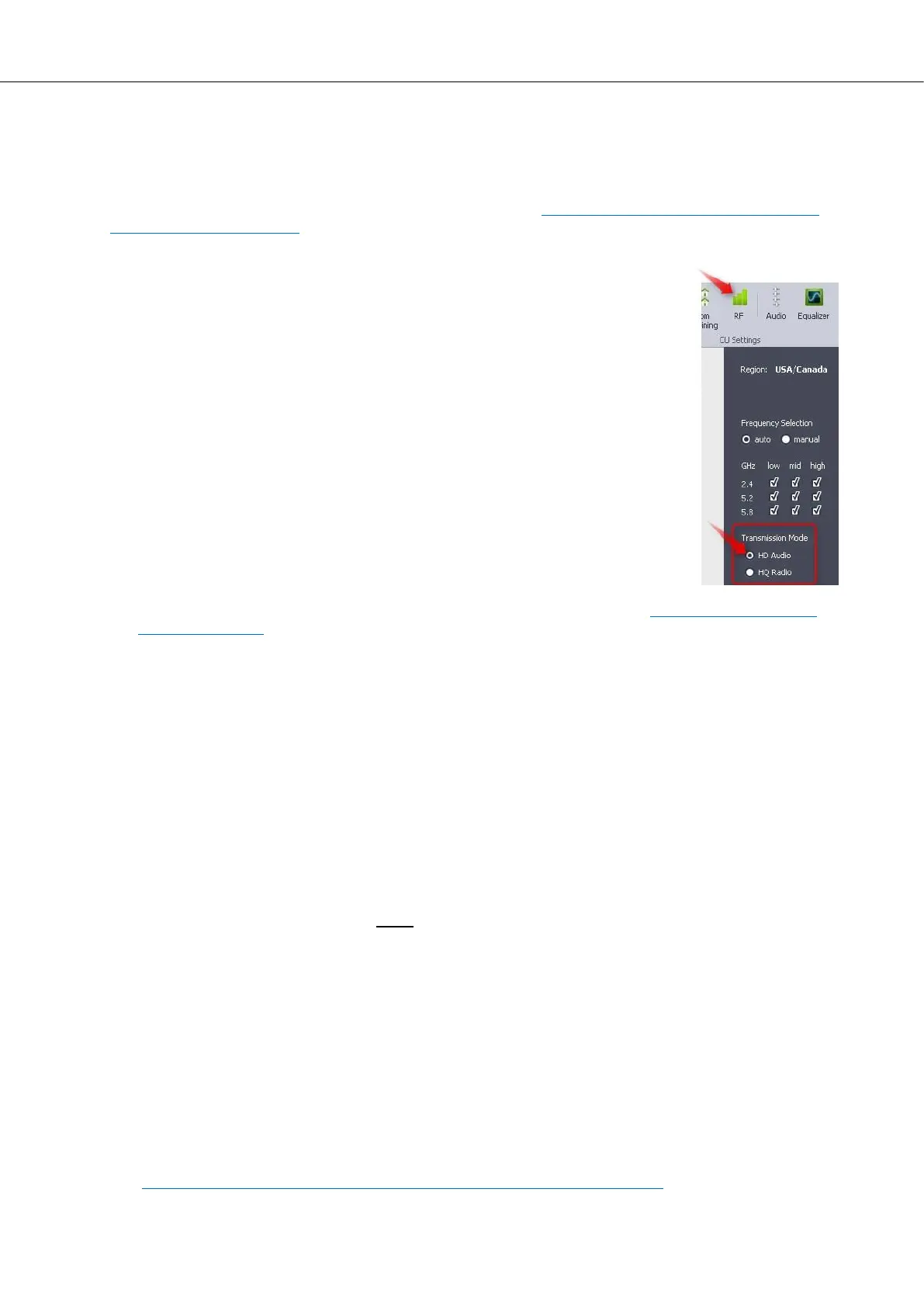
For the duration of the MU update process, please set the RF transmission mode
to HD Audio! Restore your original configuration (HD/HQ) after the update.
Load New Microphone Unit Firmware
a) Open the field programmer window in the Quinta Software as described in chapter 4: General Field
Update Procedure.
b) Browse to the folder:
\Quinta_System_Update_07-2018\3_Microphone-Unit\MU_2x_Gooseneck_firmware\
and select the file: FieldUpdate_GMUFWV30_01.hex.
c) Click on „Start Update“ and wait until the process is finished (about 3 minutes).
Please observe the MU status during the update:
The microphone button flashes green periodically and thereby signals boot loader mode.
The rear side power LED flashes green in order to signal incoming radio data.
The gooseneck microphone flashes red and thereby signals incoming radio data.
At the end of a successful update the MUs power off on their own. Please refer to the troubleshooting
section on the next page in case the update was not successful.
If the former MU firmware version was lower than 3.0.00, please proceed with the following steps:
d) Power up all MUs again and make sure the connection to the CU is established (solid white lit mic
button).
e) Browse to the folder:
\Quinta_System_Update_07-2018\3_Microphone-Unit\MU_2x_Gooseneck_firmware\
and select the file: MU_config_MicMode.hex. It is not necessary to click on “Start update”, since this
update will be executed immediately.
f) The Quinta MU will power off after a few seconds which indicates a successful file transmission.
Please proceed with the Quinta system update by checking the version number of your next component.
See chapter 2: Determine Your Update Procedure, section Microphone Unit PnP.




 To Next Page