Quinta Update Instructions 07/2018 7
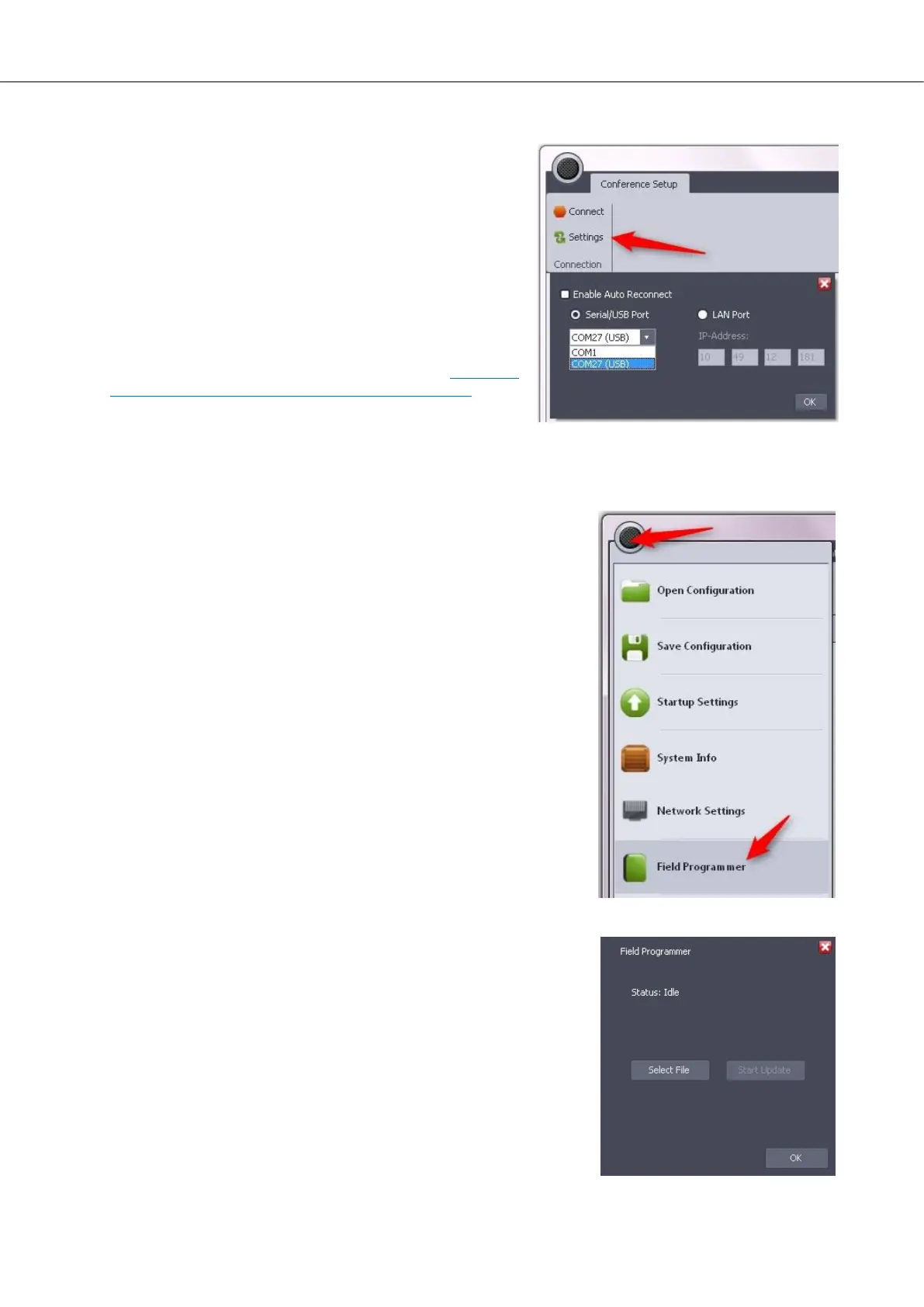
k) Click on „Settings“ and select your connection type between your computer and the Quinta CU.
l) Click on „Connect“.
m) The ribbon bar will now show the complete set of
buttons.
Note: If your previous Quinta PC-Software version was
1.1.0 or 1.1.2, the new PC-Software will show the correct
ribbon bar buttons from the second software start on. If your
previous Quinta PC-Software version was 1.2.0 or lower,
please check your EQ and Room Combining settings. If
they are incorrect, please load the configuration twice which
you previously saved.
Please proceed with the Quinta system update by checking
the version number of your next component. See chapter 2:
Determine Your Update Procedure, section CU Core.
4 General Field Update Procedure
In the following chapters you will be asked to use the field program-
mer function several times.
The instructions are based on the assumption that the Quinta CU is
turned on and connected to your PC and the Quinta software by
USB, RS232 or Ethernet.
a) Click on the black menu button (top left) in the Quinta software
and select “Field Programmer” from the menu.
b) The field programmer window will appear. Click on „Select File“.
c) Browse to the folder \Quinta_System_Update_07-2018\...\
(within the unzipped update files). Select the respective file ac-
cording to the description in the following chapters.
d) Click on „Start Update“. Please wait until the process is fin-
ished.
Note: some update files do not require to click on “Start Update”.
If this is the case the instructions will indicate this special case.




 To Next Page