Quinta Update Instructions 07/2018 6
3 Update PC Software
Install New Quinta PC Software
Note: Please keep in mind to save your Quinta configuration and your Quinta voting reports before updat-
ing the PC-software. Refer to chapter 1 (section: “Saving Your Quinta User Settings” and “Saving Your
Quinta Voting Reports”.
a) Open the Windows File Explorer (e.g. + ).
b) Browse to the folder \Quinta_System_Update_07-2018\1_PC-Software\ (unzipped update
files).
c) Double click on the file: Install.exe and confirm the Windows message.
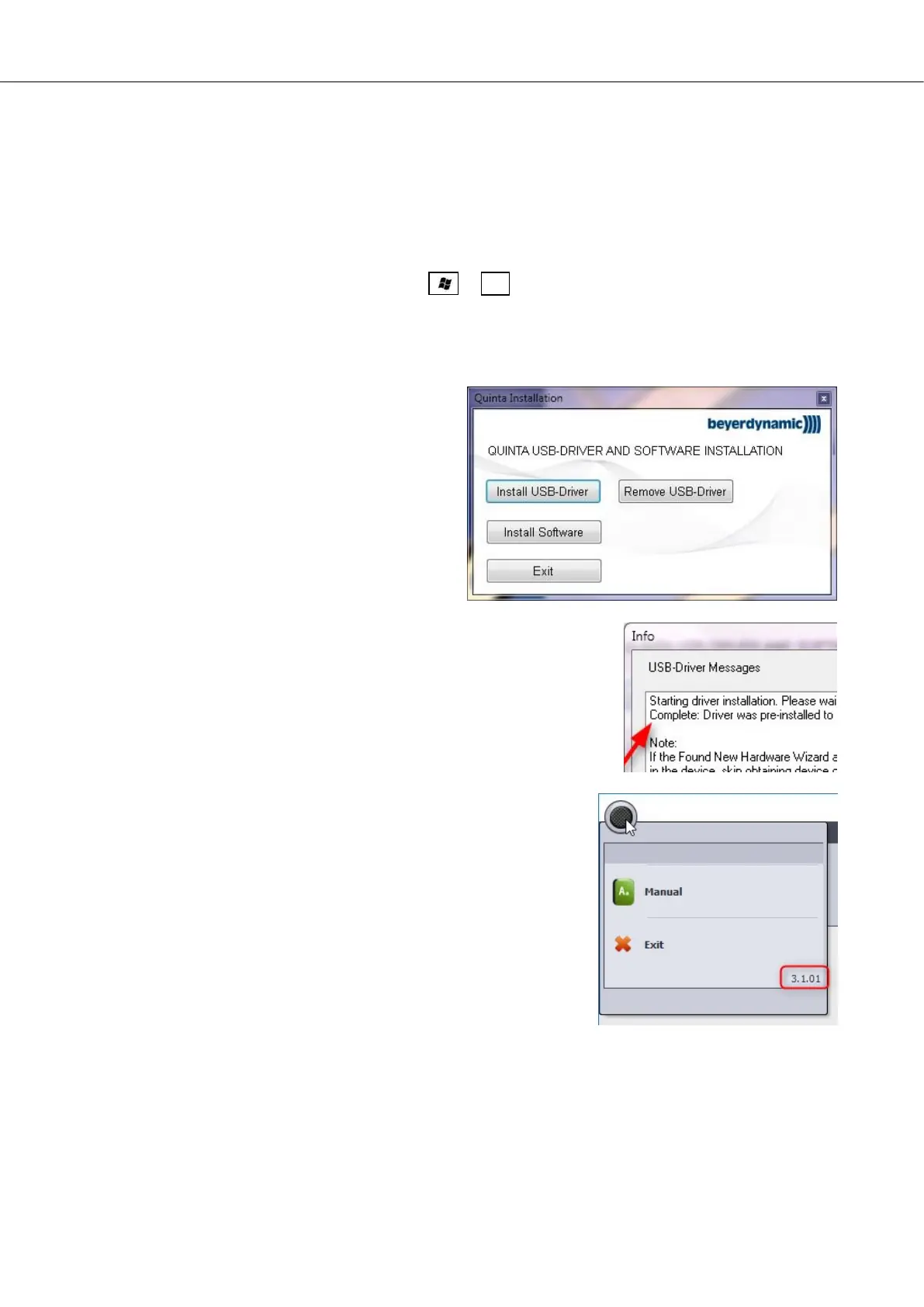
d) If you intend to use the USB connection
for your Quinta CU, click on „Install
USB-Driver“.
e) Confirm the Windows message and wait (less than a few
minutes) until „Complete“ appears in the status window.
f) Connect the Quinta CU using the USB cable and switch it on.
g) Windows will recognize the new device and will register the new
USB driver (this may take several minutes). You can accel-
erate this procedure by clicking on “Skip searching on Win-
dows Update Server”.
h) Click on „Install Software“ and follow the instructions in or-
der to install the Quinta PC software. If your installation
folder already contains an older version of the Quinta soft-
ware, it will be updated automatically. User settings and data
will not be changed.
i) Start the Quinta software.
j) The new software version is indicated in the Quinta menu
within the “Exit”-field:




 To Next Page