page 7 Installation and Operation Guide TesiraFORTÉ
Connecting to the TesiraFORTÉ system
1. Connect the PC and TesiraFORTÉ to the network.
• Connect a Cat 5e cable between your PC and the TesiraFORTÉ
device.
• Direct connection: Attach an Ethernet cable from the PC’s network card
to the TesiraFORTÉ Ethernet port. The TesiraFORTÉ Ethernet port is
autosensing so a straight or crossover cable can be used.
• Connecting via Ethernet switch: Attach an Ethernet cable from the
network card to a 100/1000 Base-T Ethernet switch. The TesiraFORTÉ
Ethernet port is autosensing so a straight or crossover cable can be
used.
2. Power up TesiraFORTÉ devices.
• Connect the supplied power cord to a grounded AC mains voltage
of 100-240VAC @50/60Hz. Connect the other end of the power cord
to the power entrance located on the rear of the TesiraFORTÉ unit.
Power, Activity, and Status LEDs on the front panel should illuminate.
3. Assign an IP address to the PC.
• The PC must have a unique IP address in the same subnet as the
TesiraFORTÉ device. A TesiraFORTÉ device is configured from the
factory with DHCP or Zero Conf (Link Local) address. Review the
"Assigning your computer's IP address" section to verify that the PC
network interface is set correctly.
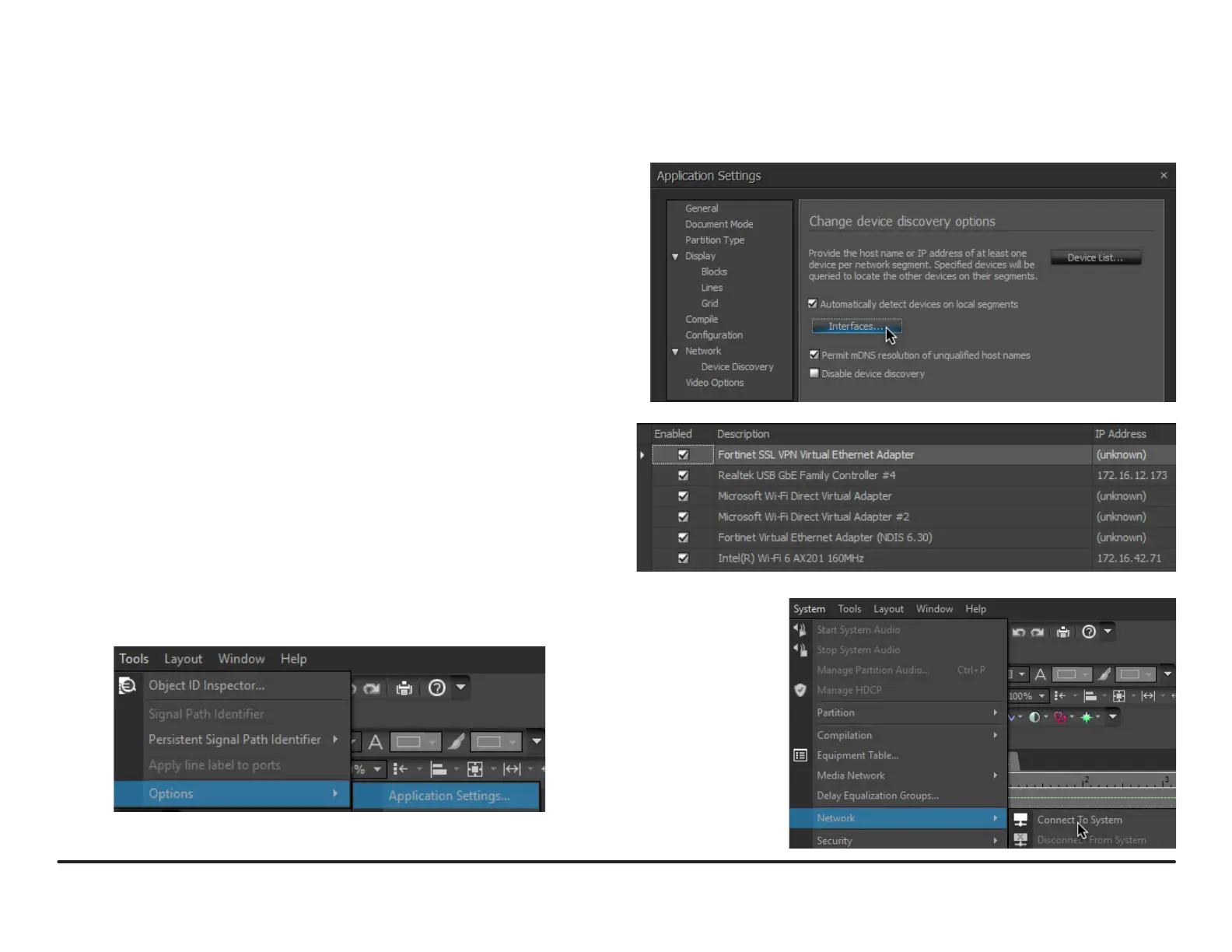
4. Congure the software to use the correct Network Interface.
• Tesira software should automatically discover the available network
interfaces and enable them. To verify the network interfaces used,
open the Tesira software and select Tools > Options > Application
Settings.
5. In Application Settings, select Network > Device Discovery >
Interfaces to list the available connections.
These can be enabled or disabled individually.
6. Conrm the expected Network interface is selected and IP addressing is
in the correct range.
7. Connect to
the network
by going to
System >
Network >
Connect to
System.



 To Next Page