EasyManua.ls Logo

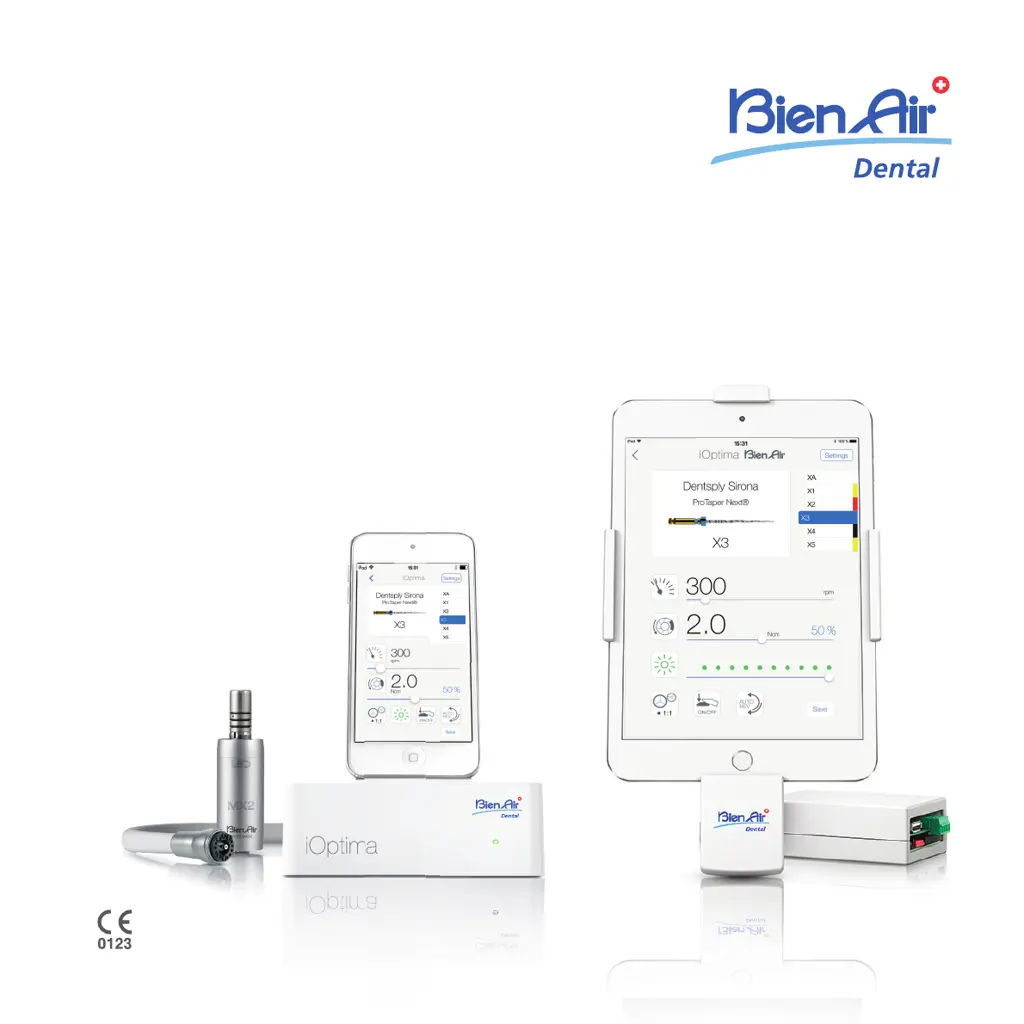
Bien Air iOptima - User Manual

Bien Air iOptima
84 pages
Print Icon
To Next Page IconTo Next Page
Loading...
Rx Only
R
EF 2100279-0012/2022.03
iOptima
iOptima
INT
ENG INSTRUCTIONS FOR USE.
Other languages available on www.bienair.com/ifu

Table of Contents

Other manuals for Bien Air iOptima

Questions and Answers

  • K
    Kelly MullinsSep 8, 2025
    What does it mean if the Bien Air iOptima Dental equipment says 'Motor cable failure'?
    • L
      Luke HillSep 8, 2025
      If the Bien Air Dental equipment indicates 'Motor cable failure', this suggests a motor drive power protection failure, possibly due to a defective motor cable. Replace the motor cable.
  • J
    justin13Sep 10, 2025
    What to do if Bien Air iOptima shows 'Motor drive over temperature'?
    • J
      John CollinsSep 10, 2025
      If the Bien Air Dental equipment displays 'Motor drive over temperature', it means the motor drive has overheated. Wait for the system to cool down.
  • P
    Patricia MarquezSep 12, 2025
    What to do if my Bien Air iOptima says 'Motor torque threshold limit reached'?
    • S
      Sylvia JenkinsSep 12, 2025
      If the Bien Air Dental equipment displays 'Motor torque threshold limit reached, file stress condition encountered', release file pressure and slow down the treatment.
  • S
    Sara LeeSep 14, 2025
    Why is there no sound from my Bien Air iOptima's iPod/iPad speaker?
    • A
      Ashley HooperSep 14, 2025
      If there's no sound from the iPod/iPad speaker on your Bien Air Dental equipment, the speaker may be switched OFF, or the sound volume may be disabled. It is necessary to have iPod/iPad speaker turned ON so that system sound notifications and alarms may be heard distinctly. Turn the iPod/iPad speaker ON and set the sound volume to an appropriate level.
  • J
    Jeremy AllenSep 15, 2025
    What happens if I use a non-verified iOS version on my Bien Air iOptima Dental equipment?
    • P
      Peter CampbellSep 15, 2025
      If you are using a non-verified iOS version with your Bien Air Dental equipment, it means the installed iOS version on the iPod/iPad has not been verified according to Bien-Air validation protocols. It is NOT recommended to use the system with this configuration. Do NOT update the iPod/iPad with new iOS versions unless Bien-Air recommends doing so. If the iPod/iPad has been updated, do not use the system until Bien-Air has verified and approved the new iOS version.
  • W
    William SmithSep 18, 2025
    What to do if the Bien Air Dental equipment User Manual has been updated?
    • C
      Caleb GutierrezSep 18, 2025
      If the User Manual for your Bien Air Dental equipment has been updated, it means an update was available on the Bien-Air website and has been automatically downloaded and updated on the iPod/iPad. It is highly recommended to consult the updated User Manual before using the system.

Summary

Identification, Intended use and Notation

2.1 Identification

Identifies the iOptima unit and its electronic control features.

2.2 Intended use

Specifies the professional dental applications for the iOptima system.

User and Patient safety: Warnings & Precautions for Use

Installation

5.1 Install the iOptima app

Guides on downloading and installing the iOptima application on a mobile device.

11.1 Install the iOptima app

Guides on downloading and installing the iOptima application for iOptimaINT.

5.2 Install the iOptima system

Details the physical installation of the iOptima system hardware.

11.2 Install the iOptimaINT system

Refers to the manual for installing the iOptimaINT system hardware.

Interface overview

6.3 iPod touch and iOptima connection; disconnection conditions

Covers proper connection and disconnection procedures for the mobile device.

12.3 iPod touch;iPad mini and iOptimaINT connection; disconnection conditions

Covers connection and disconnection procedures for mobile devices with iOptimaINT.

Identification, Intended use and Notation

8.1 Identification

Identifies the iOptimaINT unit and its integrated functions.

8.2 Intended use

Specifies the professional dental applications for the iOptimaINT system.

Getting started

13.3 Launch iOptima app

Guides users on how to launch the iOptima application.

Operation - Restorative mode

14.1 Enter Restorative mode

Guides users to enter and select restorative operations.

14.2 Operative screen description

Describes the operative screen elements and settings for restorative mode.

14.4 Customize default operations

Details how to customize and save operation settings for restorative mode.

14.5 Create new operations (user-defined)

Guides on creating and saving custom operations for restorative mode.

Operation - Endodontics mode

15.1 Enter Endodontics mode

Guides users to enter and select endodontics operations.

15.2 Operative screen description

Describes the operative screen elements and settings for endodontics.

15.4 Customize settings

Details how to customize default and system settings for endodontics.

15.8 CA ENDO; Reciproc option

Explains the CA ENDO mode, activation, and operative screen.

Operation - Surgery mode

16.1 Enter Surgery mode

Guides users to enter and select surgery operations.

16.2 Operative screen description

Describes the operative screen elements and settings for surgery mode.

Operation - Piezo scaling mode

17.1 Enter Piezo scaling mode

Guides users to enter and select piezo scaling operations.

List of errors & Troubleshooting

18.1 Alert messages (operating)

Lists operating alert messages, their causes, and required actions.

18.2 Device operating error

Details device operating errors, their causes, and troubleshooting steps.

Bien Air iOptima Specifications

General IconGeneral
BrandBien Air
ModeliOptima
CategoryDental equipment
LanguageEnglish

Related product manuals