EasyManua.ls Logo

Billion BiPAC 7800(N)X(L) - User Manual

Billion BiPAC 7800(N)X(L)
281 pages
Print Icon
To Next Page IconTo Next Page
Loading...
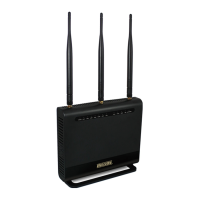
BiPAC 7800(N)X(L)
3G/4G LTE (Wireless-N) (VPN)
ADSL2+/Fibre Broadband Router
User Manual
Version Released: 2.32d
Last revised date: February 21, 2014

Table of Contents

Questions and Answers

  • K
    kendra27Aug 12, 2025
    What to do if I forgot my Billion Wireless Router password?
    • C
      Christopher DavilaAug 12, 2025
      If you've forgotten your Billion Wireless Router login, try the default username "admin" and password "admin". If that doesn't work, restore the router to its factory settings by pressing the reset button on the rear side of the device.
  • R
    rbrownAug 16, 2025
    How to reset Billion Network Router password?
    • S
      Sheila TurnerAug 16, 2025
      If you've forgotten your login details for the Billion Network Router, try using the default username "admin" and password "admin". If that doesn't work, you can restore the router to its factory settings by pressing the reset button on the back of the device.
  • B
    Bryce GarciaAug 20, 2025
    Why does my Billion Wireless Router frequently disconnect from the ADSL line?
    • J
      Janice McfarlandAug 20, 2025
      Frequent disconnections of your Billion Wireless Router may be due to missing or incorrectly installed line filters. Ensure all devices connected to the same phone line (telephones, fax machines, etc.) have a line filter between them and the wall socket, unless you're using a Central Splitter or Central Filter installed by an electrician. Make sure all line filters are installed correctly. If you have a back-to-base alarm system, contact your security provider for assistance.
  • A
    Andrea GuzmanAug 25, 2025
    What to do if I cannot PING any PC on LAN using Billion Wireless Router?
    • A
      Andrea BlackAug 25, 2025
      If you cannot PING any PC on your LAN, first check the Ethernet LEDs on the front panel of your Billion Wireless Router. The LED should be lit for the port with a PC connected. If it's not lit, ensure the cable between your router and the PC is properly connected. Also, verify that the IP address and subnet mask are consistent for both the router and the workstations. Make sure you have uninstalled your firewall program before troubleshooting.
  • M
    Madison Arnold DVMAug 27, 2025
    How to fix Billion Wireless Router when none of the LEDs light up?
    • D
      Deborah PorterAug 27, 2025
      Check the connection between the router and the adapter. If the problem persists, it is most likely due to a hardware malfunction.
  • F
    fishermichaelAug 31, 2025
    Why does my Billion Network Router keep disconnecting?
    • L
      Lisa StewartAug 31, 2025
      To troubleshoot frequent disconnections of your Billion Network Router, ensure that all devices connected to the same telephone line (telephones, fax machines, etc.) have line filters installed between them and the wall socket, unless you're using a Central Splitter or Filter installed by a qualified electrician. Make sure the filters are correctly installed. If you have a back-to-base alarm system, contact your security provider for assistance.
  • W
    Wendy LyonsSep 4, 2025
    What to do if I cannot PING any PC on LAN using Billion Network Router?
    • N
      Nicholas LewisSep 4, 2025
      If you cannot PING any PC on your LAN using the Billion Network Router, first check the Ethernet LEDs on the front panel. The LED should be lit for the port that has a PC connected. If the LED is off, check the cable connection between the router and the PC. Also, make sure you have uninstalled your firewall program before troubleshooting. Finally, verify that the IP address and subnet mask are consistent for both the router and the workstations.
  • B
    Brian StokesSep 7, 2025
    Why are no LEDs on when I turn on my Billion Network Router?
    • G
      gibsontaraSep 8, 2025
      If none of the LEDs are on when you turn on your Billion Network Router, check the connection between the router and the adapter. If the problem continues, it is likely a hardware malfunction. Please contact your service provider or Billion for technical support.

Summary

Chapter 1: Introduction to Your Router

Introduction to Your Router

Overview of the BiPAC 7800(N)X(L) as an all-in-one advanced router.

Maximum Wireless Performance

Details on the 802.11n Wireless Access Point capabilities and features.

3 G;4 G LTE Mobility and Connectivity

Explanation of 3G/4G LTE WAN connectivity and auto fail-over functionality.

IPv6 Support

Information on the router's IPv6 capabilities and dual-stack support.

Jumbo Frames and Gigabit Ethernet

Details on supported Jumbo frames and Gigabit Ethernet ports.

Virtual AP and Web GUI

Explanation of Virtual AP functionality and Web-based GUI.

Firmware Upgradeability

Information on the router's ability to be upgraded with the latest firmware.

Features of the BiPAC 7800 Series Routers

Broadband Connectivity Options

Overview of supported broadband types: 3G/4G LTE, ADSL2+, Gigabit Ethernet.

ADSL Compliance Standards

Details on ADSL standards compatibility including ANSI T1.413 and ITU G.992.

Network Protocols and Features

Supported network protocols like IPv4/IPv6, NAT, DDNS, and UPnP.

Firewall and Security

Information on built-in NAT Firewall, SPI, and packet filtering capabilities.

Quality of Service Control

Features for traffic prioritization and bandwidth management.

ATM, PTM, and PPP Protocols

Details on underlying transmission protocols like ATM and PPP.

IPTV Applications and Wireless LAN

Support for IPTV and detailed features of the Wireless LAN.

USB Application Server and VPN

Functionality of the USB port and Virtual Private Network capabilities.

Management Features

Overview of router management functions like EZSO and Syslog.

Hardware Specifications

Physical Interface Overview

Description of the router's physical ports and connectors.

Chapter 2: Installing the Router

Package Contents

List of items included in the router package.

Important Usage Notes and Warnings

Safety and handling precautions for using the router.

Device Description: Front LEDs

Explanation of the status indicators on the router's front panel.

Device Description: Rear Ports

Description of the router's rear panel ports and their functions.

Cabling Guide

Instructions and tips for proper router cabling and connection.

Chapter 3: Basic Installation and Setup

Connecting Your Router

Step-by-step guide on how to connect the router to your network.

Network Configuration Guide

Instructions for configuring PC network settings for different operating systems.

Factory Default Settings

Default IP addresses, subnet masks, and login credentials for the router.

Information from Your ISP

Required information from your Internet Service Provider for setup.

Easy Sign On (EZSO) Configuration

Guided setup process for quick internet connection configuration.

Chapter 4: Router Configuration

Accessing the Web Interface

Steps to access the router's web-based configuration interface.

Status and Monitoring Overview

Sections for viewing router status, summary, WAN, and system information.

Quick Start Configuration Guide

A simplified process for quickly configuring the router's internet connection.

Core Configuration Settings

Detailed configuration options for LAN, WAN, Wireless, System, and Security.

LAN Configuration Options

Settings for Local Area Network, including IP addressing and DHCP server.

WAN Configuration Options

Setup for Wide Area Network connections like DSL, PPPoE, PPPoA, and 3G/LTE.

Wireless Configuration Settings

Options for configuring wireless network: basic, security, MAC filtering, advanced.

Security Configuration Settings

Settings for IP filtering, MAC filtering, URL filtering, and firewall rules.

VPN Configuration Options

Setup for IPSec, PPTP, L2TP, and GRE VPN tunnels.

Advanced Setup Options

Advanced settings for Routing, DNS, Static ARP, UPnP, Multicast, Management, Diagnostics.

Chapter 5: Troubleshooting

Problems with the Router

Solutions for common router issues like power and login problems.

Problems with WAN Interface

Troubleshooting for frequent ADSL line sync loss and disconnections.

Problems with LAN Interface

Solutions for issues like not being able to PING PCs on the LAN.

Appendix: Product Support and Contact Information

Contact Billion Worldwide

Information on how to contact Billion for product support and inquiries.

Billion BiPAC 7800(N)X(L) Specifications

General IconGeneral
Device TypeADSL2+ Router
WirelessYes
Wireless SpeedUp to 300 Mbps
USB Ports1 x USB 2.0
LAN Ports4
Wireless Standards802.11b/g/n
Antenna Type2 x External
VPN SupportPPTP, L2TP
SecurityWPA, WPA2, WEP
FeaturesQuality of Service (QoS)
FirewallSPI Firewall

Related product manuals