EasyManua.ls Logo

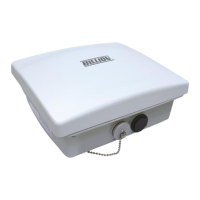
Billion BiPAC 4700ZU - User Manual

Billion BiPAC 4700ZU
138 pages
Print Icon
To Next Page IconTo Next Page
Loading...
Last revised date: November 22, 2017
BiPAC 4700ZU
4G/LTE VPN Outdoor Router
BiPAC 4700ZUL
4G/LTE Outdoor Router
User Manual
Version release: 1.04.1.x

Other manuals for Billion BiPAC 4700ZU

Questions and Answers

  • C
    ctaylorAug 11, 2025
    How to reset Billion BiPAC 4700ZU password?
    • K
      kimberly32Aug 11, 2025
      If you have forgotten your login username or password for your Billion Network Router, try using the default username 'admin' and password 'admin'. If this doesn't work, restore your router to its factory settings by pressing the reset button on the rear side of the device.
  • G
    gordonsarahAug 26, 2025
    What to do if I cannot PING any PC on Billion BiPAC 4700ZU LAN?
    • J
      Jessica MillsAug 27, 2025
      If you cannot PING any PC on your Billion Network Router LAN, here are a few things you can check: * First, check the Ethernet LEDs on the front panel. The LED should be on for the port that has a PC connected. If it is not lit, ensure the cable between your router and the PC is properly connected. * Second, make sure you have uninstalled your firewall program before troubleshooting. * Third, verify that the IP address and the subnet mask are consistent for both the router and the workstations.
  • M
    Mark CrossSep 2, 2025
    What to do if no LEDs are on on my Billion BiPAC 4700ZU?
    • S
      Sherri ZhangSep 2, 2025
      If none of the LEDs are on when you turn on your Billion Network Router, check the connection between the router and the adapter. If the problem persists, it is most likely due to a hardware malfunction. Please contact your service provider for technical support.
  • B
    Brittany CarterNov 17, 2025
    What to do if Billion Network Router LEDs display incorrectly?
    • M
      Michael ArcherNov 17, 2025
      If the front LEDs on your Billion Network Router are displaying incorrectly, and you cannot access the router management interface after pressing the RESET button, or if the software/firmware upgrade failed, follow these steps: 1. Configure your PC's IP address to 192.168.1.100. 2. Power off the router. 3. Press and hold the reset button while powering on the router. Once the Power LED flashes Red and Green, keep pressing the reset button for over 6 seconds. 4. When the Internet LED flashes Green and Red, the router has entered the recovery procedure, and its IP will reset to the Emergency IP address (192.168.1.1). 5. Open a browser and go to http://192.168.1.1 to upload the firmware. 6. The Internet LED will light Red, and the router will start writing the firmware into flash. Do n...

Summary

Chapter 1: Introduction

Chapter 3: Basic Installation

Chapter 4: Device Configuration

Interface Configuration

Setting up Internet (4G/LTE), LAN, and Loopback.

Advanced Configuration Options

Firewall, Routing, NAT, and Dynamic DNS settings.

VPN Tunnel Setup

Configuring IPSec, PPTP, L2TP, GRE, and OpenVPN.

Access Management Configuration

Device, SNMP, and Syslog settings.

Maintenance and Diagnostics

User management, time zone, firmware, and testing.

Chapter 5: Troubleshooting

Router Operational Issues

Common problems with the router and their solutions.

Device Recovery Procedures

Steps to restore the router's functionality.

Billion BiPAC 4700ZU Specifications

General IconGeneral
BrandBillion
ModelBiPAC 4700ZU
CategoryNetwork Router
LanguageEnglish

Related product manuals