EasyManua.ls Logo

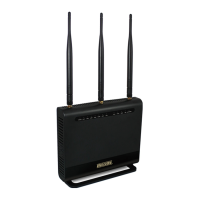
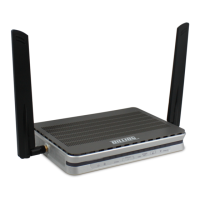
Billion BiPAC 4500NZ(L) - User Manual

Billion BiPAC 4500NZ(L)
146 pages
Print Icon
To Next Page IconTo Next Page
Loading...
Last revised date: January 6, 2015
BiPAC 4500NZ(L)
4G/LTE Wireless-N (VPN) Broadband
Router
User Manual
Version release: v1.02b.rc8.dt6

Table of Contents

Questions and Answers

  • B
    Brenda CarsonAug 2, 2025
    What to do if I forgot my Billion Network Router login username or password?
    • J
      John AlexanderAug 2, 2025
      Try the default username "admin" and password "admin". If this doesn't work, restore your Billion Network Router to its factory settings by pressing the reset button on the rear side of the device.
  • J
    Jeff NicholsAug 10, 2025
    Why can't I PING any PC on my Billion BiPAC 4500NZ(L) Network Router LAN?
    • J
      Jennifer FloresAug 11, 2025
      First, check the Ethernet LEDs on the front panel. The LED should be lit for the port with a PC connected. If not, ensure the cable between your Billion Network Router and the PC is properly connected. Also, make sure you have uninstalled your firewall program before troubleshooting. Finally, verify that the IP address and subnet mask are consistent for both the router and the workstations.
  • J
    Jeff SimpsonAug 17, 2025
    How to fix Billion BiPAC 4500NZ(L) Network Router if the front LEDs display incorrectly, I still cannot access the router management interface after pressing the RESET button, or the software/firmware upgrade failed?
    • F
      Frances PenaAug 17, 2025
      Power on the Billion Network Router. Once the Power LED lights red, immediately press the reset button using a paper clip or other small pointed object. The router’s emergency-reflash web interface will then be accessible via http://192.168.1.1, where you can upload a firmware image to restore the router to a functional state. Note that the router will only respond with its web interface at this address (192.168.1.1) and will not respond to ping requests from your PC or other telnet operations.
  • K
    Keith ZunigaAug 26, 2025
    What to do if none of the LEDs are on when I turn on my Billion Network Router?
    • D
      David ShafferAug 26, 2025
      Check the connection between the router and the adapter. If the problem continues, it is most likely a hardware malfunction. Please contact your service provider for technical support.

Summary

Chapter 1: Introduction to BiPAC 4500 NZ(L) Router

Router Overview and Features

General introduction to the BiPAC 4500NZ(L) router, its capabilities, and benefits.

Features and Specifications

Detailed list of the router's technical features and hardware specifications.

Product Diagrams and Notes

Application diagram, important notes, and warnings for using the router.

Mobility and Connectivity Features

Details on 4G/LTE mobility, wireless capabilities, and VPN connections.

IPv6 Support and Setup

Information on IPv6 support and the quick start wizard for setup.

Chapter 2: Product Overview

Important Usage Guidelines

Crucial warnings and attention points for safe and correct router operation.

Device Components and Indicators

Description of the router's physical layout, front panel LEDs, and rear connectors.

Physical Ports and Connections

Detailed identification and meaning of each port on the router's rear panel.

Cabling Best Practices

Guidance on proper cable connections to ensure optimal router performance.

Chapter 3: Basic Installation

IPv4 Network Configuration Steps

Steps to configure IPv4 network settings on various Windows OS.

Configuring PC in Windows 7;8 (IPv4)

Step-by-step guide to set IPv4 configuration on Windows 7/8.

IPv6 Network Configuration Steps

Steps to configure IPv6 network settings on various Windows OS.

Configuring PC in Windows 7;8 (IPv6)

Step-by-step guide to set IPv6 configuration on Windows 7/8.

Default Router Settings

Default login credentials, IP, and DHCP server settings for the router.

ISP Connection Information

Details on required ISP information for connection setup (PPPoE, Dynamic, Static IP).

Chapter 4: Device Configuration

Logging into the Router

Steps to access the router's web interface and log in with credentials.

Status and Monitoring

Overview of router status, including device info, logs, and connection states.

Device Information Details

Display of basic router information like model, firmware, and MAC address.

System Logs

Checking router operation status and any recorded glitches.

Connection Status Monitoring

Details on 3G/4G-LTE status, VPN status, and traffic statistics.

Traffic Statistics

Network traffic statistics for Ethernet, Wireless, EWAN, and 3G/4G-LTE interfaces.

DHCP Client Table

Displays connected devices with their IP/MAC information.

VPN Status Overview

Status of GRE, IPSec, PPTP, and L2TP VPN connections.

Disk Status

Information on USB storage partition status.

Quick Start Setup Wizard

Guide to the wizard for quick initial setup and internet connection.

Main Configuration Areas

Access to primary configuration menus like Interface Setup and Advanced Setup.

Interface Setup

Configuration for Internet, LAN, and Wireless interfaces.

Internet Connection Configuration

Settings for WAN connection types (EWAN, 3G/4G-LTE, PPPoE, Static IP).

LAN Configuration Settings

Local Area Network settings including IPv4 and IPv6 parameters.

Wireless Network Configuration

Setup for wireless network mode, channel, security, and SSID.

Wireless MAC Filter Setup

Filtering wireless devices by MAC address for access control.

Dual WAN Configuration

Configuration for failover/fallback and load balancing between WAN connections.

Advanced Setup Options

Access to advanced features like Firewall, VPN, QoS, and more.

Firewall and Security Settings

Configuring the built-in firewall, SPI, and DoS prevention.

Routing and NAT Configuration

Setting up static routes and Network Address Translation.

DNS and QoS Settings

Configuring Static DNS and Quality of Service rules.

VPN Protocol Configuration

Setup for IPSec, PPTP, L2TP, and GRE VPN tunnels.

Access Management and Security

Managing device access, SNMP, UPnP, DDNS, and Access Control.

Network Services Configuration

Settings for SNMP, UPnP, and Dynamic DNS services.

Access Control and Packet Filtering

Configuring access rules and packet filters.

Specialized Features Configuration

Setup for CWMP, Parental Control, and SAMBA/FTP servers.

Maintenance Tasks

Routine maintenance including user management and firmware updates.

User Management Setup

Managing user accounts and permissions for router access.

Time Zone and Firmware Management

Setting time zone and performing firmware upgrades.

System Restart and Diagnostics

Rebooting the router and running diagnostic tests.

Chapter 5: Troubleshooting

Common Router Problems

Solutions for common issues like LED status and login failures.

LAN Interface Connectivity Issues

Troubleshooting steps for problems with LAN interface connectivity.

Router Recovery Procedures

Procedures for recovering the router from firmware or access failures.

Appendix: Product Support & Contact

Contacting Billion Support

Information on how to contact Billion support worldwide.

FCC Compliance Information

FCC Regulatory Statements

FCC compliance statements, cautions, and radiation exposure information.

Billion BiPAC 4500NZ(L) Specifications

General IconGeneral
BrandBillion
ModelBiPAC 4500NZ(L)
CategoryNetwork Router
LanguageEnglish

Related product manuals