EasyManua.ls Logo

Binatone Readme Colour - User Manual

Binatone Readme Colour
36 pages
Print Icon
To Next Page IconTo Next Page
Loading...
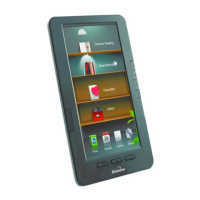
Readme Colour
U
SER
G
UIDE
Important: Please charge the Reader for at least 10 hours before using it for the first
time.
Question and Answer IconNeed help?

Do you have a question about the Binatone Readme Colour and is the answer not in the manual?

Summary

WHAT IS DIGITAL EDITIONS?

Installing Digital Editions on your computer

Step-by-step guide for installing Adobe Digital Editions software on a computer.

Authorising Your Computer

How do I authorise my computer?

Step-by-step guide to authorise the computer using an Adobe ID for DRM content.

Authorize Computer (Recommended)

Enabling the option to read protected items on multiple devices and restore from backup.

OVERVIEW OF THE PRODUCT

Front Panel Overview

Details the front view, including Quick Menu, Zoom, Back, and Scroll keys.

Bottom Panel Overview

Details the bottom view, identifying Micro SD slot and USB port.

Right Side Panel Overview

Details the right side view, identifying the Power key.

Back Panel Overview

Details the back view, identifying the Reset button.

GETTING STARTED

Charging the Battery

Instructions on how to charge the e-reader's rechargeable battery.

Resetting the eBook Reader

Procedure to reset the e-reader using the reset button for malfunctions.

USING README COLOUR FOR THE FIRST TIME

Transferring files from your computer to the eBook Reader

Instructions for transferring eBooks and photos to the reader via USB or SD card.

Transfer files using the USB connection

Detailed steps for connecting the reader to a computer via USB to transfer files.

Converting eBooks

USING THE EBOOK READER

Reading an eBook

Detailed instructions on how to select and start reading an eBook.

Key Operations in Reading mode

Common operations performed while reading an eBook, like page turning.

LIBRARY FEATURES

FILE EXPLORER

SETTINGS

HELP;TROUBLESHOOTING

Device Unresponsiveness

Troubleshooting steps for when the reader is unresponsive or frozen.

Content Reading Issues

Diagnosing problems with reading eBooks or viewing photos.

Computer Connectivity Problems

Resolving issues with the computer detecting or transferring files to the reader.

File Transfer Problems

Troubleshooting file transfer issues, checking connections and storage space.

Charging Problems

Steps to diagnose charging issues, checking power connections.

Memory Card Recognition

Resolving issues with the reader not recognizing the inserted memory card.

PRODUCT SUPPORT AND SAFETY

Essential Safety Precautions

Key safety guidelines for device usage, handling, and environmental considerations.

PRODUCT CARE AND SUPPORT

TECHNICAL SPECIFICATIONS

Summary

WHAT IS DIGITAL EDITIONS?

Installing Digital Editions on your computer

Step-by-step guide for installing Adobe Digital Editions software on a computer.

Authorising Your Computer

How do I authorise my computer?

Step-by-step guide to authorise the computer using an Adobe ID for DRM content.

Authorize Computer (Recommended)

Enabling the option to read protected items on multiple devices and restore from backup.

OVERVIEW OF THE PRODUCT

Front Panel Overview

Details the front view, including Quick Menu, Zoom, Back, and Scroll keys.

Bottom Panel Overview

Details the bottom view, identifying Micro SD slot and USB port.

Right Side Panel Overview

Details the right side view, identifying the Power key.

Back Panel Overview

Details the back view, identifying the Reset button.

GETTING STARTED

Charging the Battery

Instructions on how to charge the e-reader's rechargeable battery.

Resetting the eBook Reader

Procedure to reset the e-reader using the reset button for malfunctions.

USING README COLOUR FOR THE FIRST TIME

Transferring files from your computer to the eBook Reader

Instructions for transferring eBooks and photos to the reader via USB or SD card.

Transfer files using the USB connection

Detailed steps for connecting the reader to a computer via USB to transfer files.

Converting eBooks

USING THE EBOOK READER

Reading an eBook

Detailed instructions on how to select and start reading an eBook.

Key Operations in Reading mode

Common operations performed while reading an eBook, like page turning.

LIBRARY FEATURES

FILE EXPLORER

SETTINGS

HELP;TROUBLESHOOTING

Device Unresponsiveness

Troubleshooting steps for when the reader is unresponsive or frozen.

Content Reading Issues

Diagnosing problems with reading eBooks or viewing photos.

Computer Connectivity Problems

Resolving issues with the computer detecting or transferring files to the reader.

File Transfer Problems

Troubleshooting file transfer issues, checking connections and storage space.

Charging Problems

Steps to diagnose charging issues, checking power connections.

Memory Card Recognition

Resolving issues with the reader not recognizing the inserted memory card.

PRODUCT SUPPORT AND SAFETY

Essential Safety Precautions

Key safety guidelines for device usage, handling, and environmental considerations.

PRODUCT CARE AND SUPPORT

TECHNICAL SPECIFICATIONS

Binatone Readme Colour Specifications

General IconGeneral
ColorYes
TechnologyTFT
Display diagonal7 \
Display resolution800 x 480 pixels
Image formats supportedBMP, GIF, JPG, PNG
Video formats supported-
Document formats supportedePub, FB2, HTML, PDF, TXT
Compatible memory cardsMicroSD (TransFlash)
Maximum memory card size16 GB
Internal storage capacity0.128 GB
BluetoothNo
Battery voltage5 V
Battery life (max)4 h
Product colorBlack
Storage temperature (T-T)-20 - 60 °C
Operating temperature (T-T)0 - 45 °C
Weight and Dimensions IconWeight and Dimensions
Depth12.8 mm
Width194.5 mm
Height123.6 mm

Related product manuals