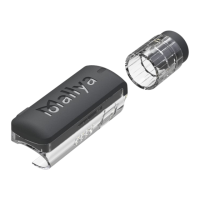
How do I check the status of my smartdot™ transmitter?
Once smartdot™ has been connected to the growlink™ app, you
can press the injection button at any time. This will wake up the
transmitter and a light will switch on for few seconds. This light
can be white, orange or red. See ‘Part 9: Troubleshooting guide’
if you see a red or orange light, or no light at all.
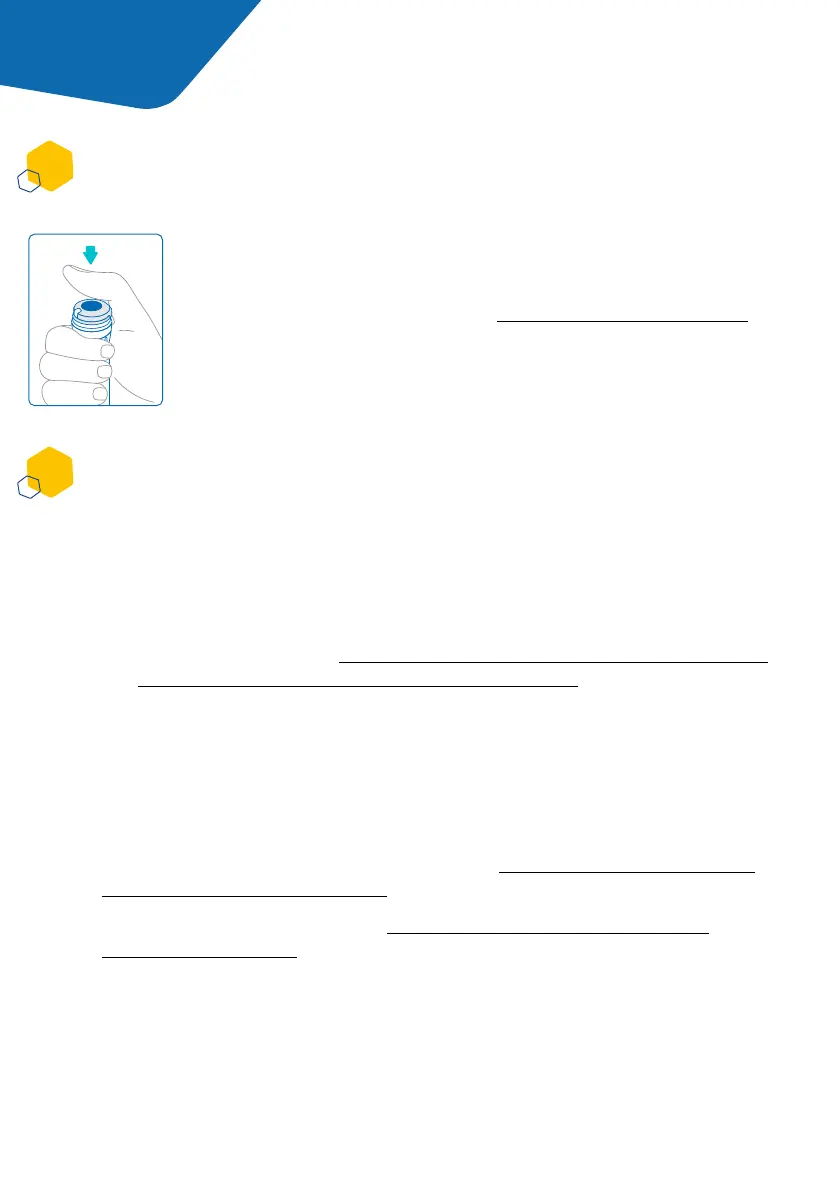
Do not play with your pen or smartdot™. Only dial the pen when
you are about to perform an injection.
How do I clean my smartdot™ transmitter?
• Attached to the aluetta™ pen – to clean the external surfaces
• Removed from the aluetta™ pen – to clean internal and external surfaces.
In this case, you need to deactivate smartdot™ before removing it from
the aluetta™ pen. See ‘Part 8: Frequently Asked Questions <C. How do I
deactivate and remove the smartdot™ transmitter?’.
Do not clean smartdot™ while it’s connected to external power source. Unplug
the transmitterbefore cleaning it.
Do not immerse smartdot™ in water. It is not waterproof, and you may
damage the transmitter.
Do not leave your smartdot™ or its accessories in a dusty location.
You can clean your transmitter when it is:
Wipe the surfaces with a slightly damp, soft lint-free cloth, with a small amount
of neutral detergent if needed.
Dry the surfaces with a soft cloth.
If you removed smartdot™ from the aluetta™ pen:
1. Place your transmitter back on your pen. See ‘Part 5: Preparing <D. Placing
smartdot™ on your aluetta™ pen’.
2. Reactivate your transmitter. See ‘Part 5: Preparing <E. Activating your
smartdot™ transmitter’.
Part 8 Frequently asked questions
A
B
15



 To Next Page
 Loading...