2.6 Set-up
Customizing the Defender to your needs
You can customize your Defender in the Setup menu. Highlight
SETUPintheintroductionscreentoentertheSetupMenu.Or,
highlight SETUP after resetting and then exiting a measurement
mode screen. The Setup menu has eight submenus.
To select a submenu, use the directional arrow buttons to high-
light the submenu and press the Enter button.
In submenus, brackets (i.e., <...>) indicate different selection
options. You can switch back and forth by pressing the forward or
backward (or ) arrow.
Highlight CONFIRM after making changes and press the Enter
button to save the changes made.
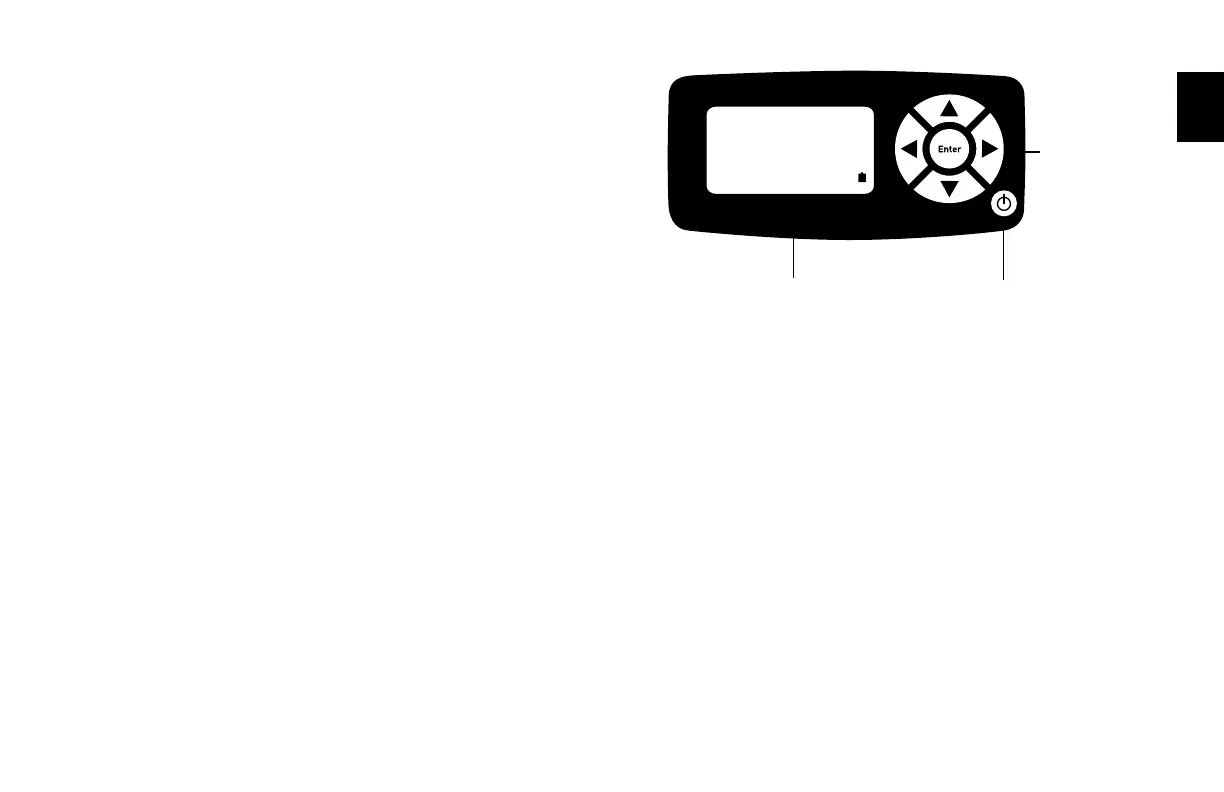
2.4 Display Screen
Understanding the screen components
The Defender provides a menu of operational settings and com-
mands. The four directional arrow buttons on the control panel
allow you to navigate through the menu and select the desired
settings for your Defender. Your location within the menu is
highlightedforeasyidentication.
2.5 Menu Navigation
Moving through operational menus
• Usethedirectionalarrows, , and on the control
paneltondyourwaythroughthemenu.
• Whenyourdesiredcommandishighlighted,simplypressthe
ENTER button on the control panel.
If you see a menu selection within angle brackets (<….>), that
meansyouhavemultipleoptionsforanitem.Presstheleftor
right (or ) arrow button to see the options.
If you wish to use the factory settings proceed to
section 2.7 Measurements.
Defender 520 M
Range:50–5,000mL/min
with DryCal Technology®
MEASURE|SETUP
LCDScreen
ControlPanel
On/Off Button
2.0



 To Next Page