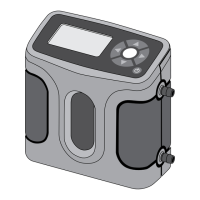
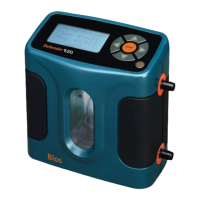
The Defender™ 500 Series is a user-friendly device designed for measuring gas flow, with specific models offering additional temperature and pressure measurement capabilities. It utilizes proven DryCal® technology to ensure accurate volumetric gas flow measurements.
Function Description
The Defender 500 Series measures volumetric gas flow. The Defender 510 measures volumetric gas flow with an accuracy of +/- 1% of reading. The Defender 520 model extends this functionality by also measuring gas flow temperature and pressure, with the same +/- 1% accuracy for volumetric gas flow. These instruments are produced in an accredited laboratory in Butler, N.J.
Important Technical Specifications
Models
- 510L/520L: 5-500 mL/min
- 510M/520M: 50-5,000 mL/min
- 510H/520H: 300-30,000 mL/min
Measurements
- Volumetric Accuracy: ±1% of reading
- Time per Measurement: 1-15 seconds (approximate)
- Type: Single, Continuous, or Burst
- Volumetric Flow Units: cc/min, mL/min, L/min, cf/min
- Pressure Units (Defender 520): mmHg, PSI, kPa
- Temperature Units (Defender 520): °C, °F
Basics
- Dimensions (H x W x D): 5.5 x 6 x 3 in / 140 x 150 x 75 mm
- Weight: 29 oz / 820 g
- Configuration: Integrated flow measuring cell, valve, and timing mechanism
- Temperature & Pressure Sensors (Defender 520 model only): In the flow stream
- Press Accuracy: 3.5 mmHg (typical), 7.0 mm (max)
- Temp Accuracy: 0.8° C (typical), 1.3° C (max)
- AC Power Adapter/Charger: 12VDC, 250ma, 2.5 mm, center positive
- Port Tube Diameter: 1/4 in / 6.35 mm
Battery
- Type: 6V rechargeable, sealed lead-acid
- Typical Operation: 6-8 hours
- Operational Time (5 cycles/min): 3 hrs (backlight on), 8 hrs (backlight off)
Usage
- Flow Modes: Suction or Pressure
- Operating Pressure (Absolute): 15 PSI
- Operating Temperature: 0-50° C
- Ambient Humidity: 0–70%, non-condensing
- Storage Temperature: 0–70 °C
Bios Optimizer Software
- Requirements: Windows Vista, Windows XP-SP2 or Windows 2000-SP3 compatible PC and RS-232 (serial) connection
- Included: Bios Optimizer installation CD, RS-232 cable for Defender 500 Series data port to PC RS-232 (serial) port connection
- Optional: PC Card to create an RS-232 port on your PC
- Upgrade: Licensed upgrade to Bios Optimizer Collect is available
Usage Features
Activation and Operation
- Turning On: Press the On/Off button for 1 second. An opening screen displays product name, model number, and flow range.
- Turning Off: Press the On/Off button for 3 seconds.
- Connections: Use 1/4 inch diameter tubing. Connect to the top outlet (suction fitting) for devices that draw air (e.g., samplers). Connect to the bottom inlet (pressure fitting) for devices that push air in (pressure devices). Do not cap the unused port.
Display Screen and Menu Navigation
The device features a backlit graphical LCD display. Four directional arrow buttons and an ENTER button on the control panel allow navigation through operational menus. Highlighted selections indicate the current menu location. Angle brackets (<...>) denote multiple options, which can be cycled using left/right arrow buttons. Changes are saved by highlighting CONFIRM and pressing ENTER.
The Setup menu allows customization of the Defender. It includes eight submenus:
- Readings: Choose the number of measurements in an average (1-100) and set a time delay between consecutive measurements (1-60 minutes).
- Units: Set gas flow in cubic centimeters, milliliters, liters, or cubic feet (all per minute). For Defender 520, set pressure in mmHg, kPa, or PSI, and temperature in Celsius or Fahrenheit.
- Time: Set current time and format (PM, AM, or 24H).
- Date: Set current date and format (DD-MM-YYYY or MM-DD-YYYY).
- Preferences: Select a preferred measurement mode (Read Default) when the Defender is turned on.
- Default Settings: Reset the Defender to factory default settings.
- Data Port: Set the data port interface to for Bios Optimizer software or for SKC CalCheck® Interface.
- Magnification (Defender 520 only): Select for larger font flow measurements only, or for simultaneous flow, temperature, and pressure in a smaller font.
Measurement Modes
- Single Measurement: Each press of the ENTER button takes one measurement. The current flow and average of prior readings are displayed.
- Burst Measurement: Measurements continue automatically for a preset number of sequences, then cease. The last reading and average are displayed. Press ENTER to begin another sequence.
- Continuous Measurement: New sequences automatically repeat until stopped by the user.
- Pause/Reset: In Continuous or Burst mode, PAUSE terminates the current flow measurement but retains the average and previous flow measurements. RESET terminates the flow measurement and clears the screen.
Data Port Interface
The Defender includes a data port for digital interface with Bios Optimizer Software or the SKC CalCheck® Interface. Bios Optimizer Collect light captures flow data to a Microsoft Excel® spreadsheet. Upgraded versions offer more features like hot key commands and instrument libraries. Firmware upgrades are available online via the Data Port.
Leak Test
The Defender Leak Test verifies internal integrity and alerts to internal leaks. It's recommended as an intermediate quality control check.
- Procedure: Invert the unit, cap the port under test (leaving the other port uncapped), press ENTER, then return the unit upright.
- Troubleshooting: If the leak test fails, check the cap, perform the test on both pressure and suction sides, and contact Bios Technical Support if issues persist.
Out of Range Warning
If the measured flow is outside the Defender's specified range, an "Out of Range!" warning appears. Reduce or disconnect the flow. Select RESET to clear the last measurement once the flow is within range.
Maintenance Features
Battery Charging and Monitoring
- The battery is factory-charged, but a full charge (approx. 8 hours) is recommended before initial use.
- The Defender can remain connected to the AC power adapter indefinitely.
- Charge the battery every three months to maintain life.
- The LCD display shows battery charge condition; a shaded icon indicates a full charge, emptying in 20% increments as voltage drops.
Annual Maintenance and Calibration
Bios recommends annual verification by an ISO 17025-accredited laboratory to ensure measurement accuracy due to environmental factors, product wear, sensor drift, or damage.
- Recertification Program: An annual, non-mandatory service package offered by Bios. It includes product refurbishment, testing, available upgrades, calibration, and NIST-traceable calibration certificates.
- Warranty: Recertification includes a 90-day service warranty for related labor or parts replacements.
- Turnaround Time: Generally two weeks from receipt, with expedited 48-hour turnaround available.
Storage
- Store in a clean, dry place.
- If possible, keep connected to the AC power adapter/charger.
- If storing disconnected, fully charge the battery beforehand to prevent permanent damage.
- Fully charge at least once every three months.
- Recharge for at least 8 hours before reusing after storage.
Troubleshooting
- Device won't turn on: Verify battery charge. A small green indicator light should be visible when connected to the AC power adapter/charger if power is present.
- Device unresponsive to commands: Perform a hard reset by inserting a paper clip into the reset opening at the back of the unit.
- Improper connection: Ensure the flow source is connected to the pressure port for pressure sources or the suction port for suction pumps. The unused port should be at atmospheric pressure. If an exhaust line is needed, ensure tubing diameter prevents pressure drop greater than 5 inches of water.
- Protecting against leaks: Ensure hose and tube fittings are tight. Keep tubing connecting the flow source to the meter as short as possible (no more than 0.5 meters/20 inches).
- Temperature increase (Defender 520): Normal during initial or full battery charging. For best accuracy, fully charge before measurements or disconnect from AC adapter and run gas through for 10 minutes before measuring.
- Piston not returning to bottom of cell: Could be due to a discharged battery (try charging), bright light overloading internal optical sensors (operate in a shaded location), or moisture/dirt in the cell (return to Bios for service).
Warranty
The Bios Defender 500 Series is warranted to the original end user for one year from the purchase date against defects in materials and workmanship under normal use. The battery is warranted for six months. Bios International Corporation's obligation is limited to repair or replacement (at their option) of defective parts, provided the product is returned prepaid.
The warranty does not cover damage from improper electrical voltages/currents, defacement, misuse, abuse, neglect, accident, fire, flood, terrorism, acts of God, use in violation of instructions, altered/removed serial numbers, or repairs by unauthorized personnel. This warranty is in lieu of all other warranties, expressed or implied, including merchantability and fitness for a particular purpose. Bios is not liable for special, incidental, or consequential damages.

 Need help?
 General

 To Next Page