STEP 5 Connecting SKYVIEW to Your Local Network
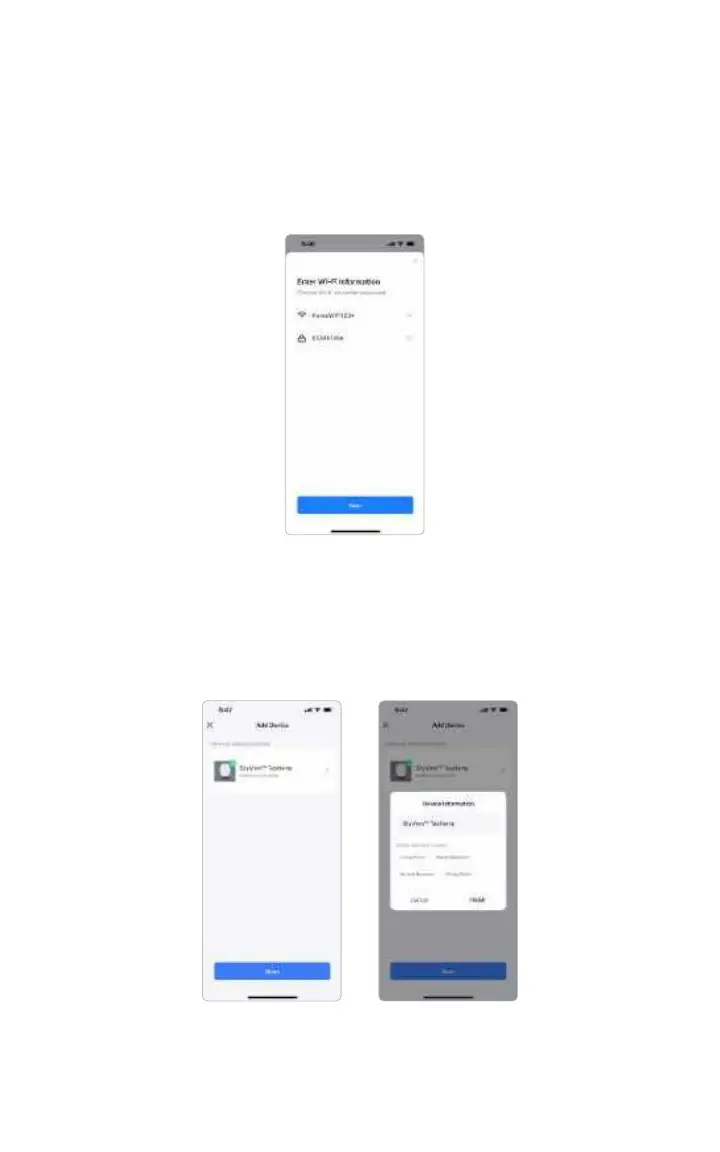
Once you add the SKYVIEW app, it will ask you to connect SKYVIEW to your
local network. If your smartphone device is connected to a Wi-Fi network, it will
automatically select that network to use.
IMPORTANT: You must be connected to a 2.4GHz network otherwise, it will not connect.
DO NOT USE 5GHz or “5G” NETWORK.
a.Select SSID and enter Password and push Next
b.When SKYVIEW has been added you can edit the name of the SKYVIEW by
selecting the edit icon.
c. From the edit screen, you can modify Name and assign to a room within your
home. When you’re done select Finish and Done to complete the app set-up.
Now your SKYVIEW is connected to the Wi-Fi and will continue to operate on
schedule independent of your phone!
06



 To Next Page