A740G M2+
23
5.2 SOFTWARE
Installing Software
1. Insert the Setup CD to the optical drive. The drivers installation program
would appear if the Autorun function has been enabled.
2. Select Software Installation, and then click on the respective software
title.
3. Follow the on-screen instructions to complete the installation.
Launching Software
After the installation process, you will see the software icon “eHOT Line” /
“BIOS Update” appears on the desktop. Double-click the icon to launch the
utility.
eHot-Line (Optional)
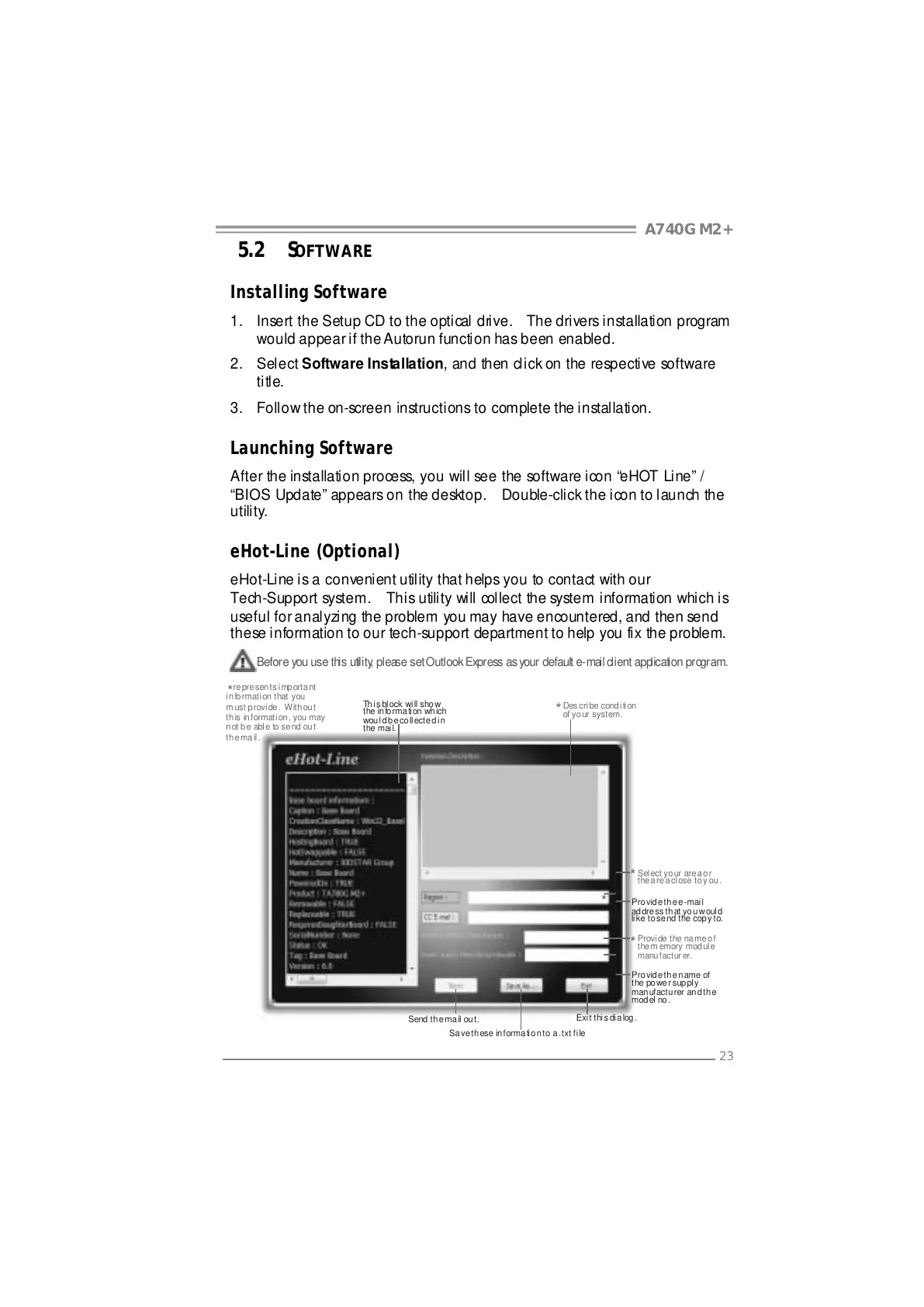
eHot-Line is a convenient utility that helps you to contact with our
Tech-Support system. This utility will collect the system information which is
useful for analyzing the problem you may have encountered, and then send
these information to our tech-support department to help you fix the problem.
Before you use this utility, please set Outlook Express as your default e-mail client application program.
This block will show
the in formation wh ich
wou l d b e co ll ect e d i n
the mail.
Pro vid e th e e -mai l
ad dre ss th at yo u w oul d
like to send the cop y to.
Pro vid e th e n ame of
the po we r sup ply
manufactu rer and th e
model no.
Send th e ma il ou t.
Save these information to a .txt file
Exit this dialog.
Select yo ur area or
the area close to you.
*
Provi de the na me o f
the m emory module
manufactur er.
*
Des cribe condi tion
of your system.
*
*
represents important
in formati on that you
must provide. Without
this information, you may
not be abl e to send ou t
the mail.



 To Next Page