EasyManua.ls Logo

Biostar G31-M7 TE - User Manual

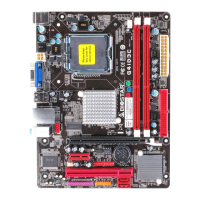
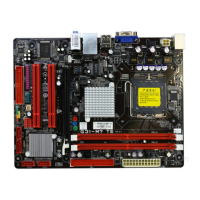
Biostar G31-M7 TE
47 pages
Print Icon
To Next Page IconTo Next Page
Loading...
G31-M7 TE Setup Manual
FCC Information and Copyright
This equipment has been tested and found to comply with the limits of a Class
B digital device, pursuant to Part 15 of the FCC Rules. These limits are designed
to provide reasonable protection against harmful interference in a residential
installation. This equipment generates, uses, and can radiate radio frequency
energy and, if not installed and used in accordance with the instructions, may
cause harmful interference to radio communications. There is no guarantee
that interference will not occur in a particular installation.
The vendor makes no representations or warranties with respect to the
contents here and specially disclaims any implied warranties of merchantability
or fitness for any purpose. Further the vendor reserves the right to revise this
publication and to make changes to the contents here without obligation to
notify any party beforehand.
Duplication of this publication, in part or in whole, is not allowed without first
obtaining the vendor’s approval in writing.
The content of this user’s manual is subject to be changed without notice and
we will not be responsible for any mistakes found in this user’s manual. All the
brand and product names are trademarks of their respective companies.

Questions and Answers

  • J
    Julian SantiagoJul 30, 2025
    How to troubleshoot no power issue on Biostar G31-M7 TE?
    • V
      vaguilarJul 30, 2025
      If your Biostar Motherboard system shows no signs of power, such as the power light not illuminating or the fan inside the power supply not turning on, first ensure the power cable is securely plugged in. If the issue persists, try replacing the power cable. If neither of these steps resolves the problem, it is recommended to contact technical support.
  • A
    Anthony BeanAug 9, 2025
    What to do if Biostar Motherboard system is inoperative but has lights and spinning hard drive?
    • U
      ugainesAug 9, 2025
      If your Biostar Motherboard system is inoperative but the keyboard lights are on, the power indicator lights are lit, and the hard drive is spinning, apply even pressure on both ends of the DIMM until the module snaps into place.
  • S
    Sarah McleanSep 10, 2025
    What to do if Biostar G31-M7 TE shows “Invalid Configuration” or “CMOS Failure”?
    • D
      David HamiltonSep 12, 2025
      If you see an “Invalid Configuration” or “CMOS Failure” message on your Biostar Motherboard system, review the system’s equipment and ensure that the correct information is in the setup.

Summary

Chapter 2: Hardware Installation

2.1 Installing Central Processing Unit (CPU)

Step-by-step guide for installing the CPU onto the motherboard socket.

2.2 FAN HEADERS

Explains the CPU and System fan headers for connecting cooling fans.

2.3 Installing System Memory

Instructions for installing DDR2 memory modules into the motherboard slots.

2.4 Connectors and Slots

Details on various motherboard connectors and expansion slots.

Chapter 3: Headers & Jumpers Setup

Chapter 4: Useful Help

4.1 Driver Installation Note

Guide for installing drivers from the provided CD for optimal system performance.

4.4 AMI BIOS Beep Code

Lists and explains AMI BIOS beep codes for diagnosing boot-time issues.

4.5 Troubleshooting

Common probable issues and their corresponding solutions for system operation.

BIOS Update

Biostar G31-M7 TE Specifications

General IconGeneral
Number of memory slots2
Maximum internal memory4 GB
Processor socketLGA 775 (Socket T)
Processor manufacturerIntel
Compatible processor seriesIntel Celeron D, Intel Pentium 4, Intel Pentium D, Intel Pentium Dual-Core
S/PDIF out connectorYes
Number of SATA connectors4
Number of Parallel ATA connectors1
Headphone outputs3
USB 2.0 ports quantityUSB 2.0 ports have a data transmission speed of 480 Mbps, and are backwards compatible with USB 1.1 ports. You can connect all kinds of peripheral devices to them.
Parallel ports quantity-
Firewire (IEEE 1394) ports0
Audio chipRealtek ALC662
Power source typeATX
Audio output channels5.1 channels
Motherboard form factormicro ATX
Compatible operating systemsWindows 2000/XP/Vista
Graphics cardGMA 3100
Maximum graphics card memory256 MB
LAN controllerRealtek RTL8102E(L)
Networking featuresFast Ethernet
Weight and Dimensions IconWeight and Dimensions
Depth179 mm
Width235 mm

Related product manuals